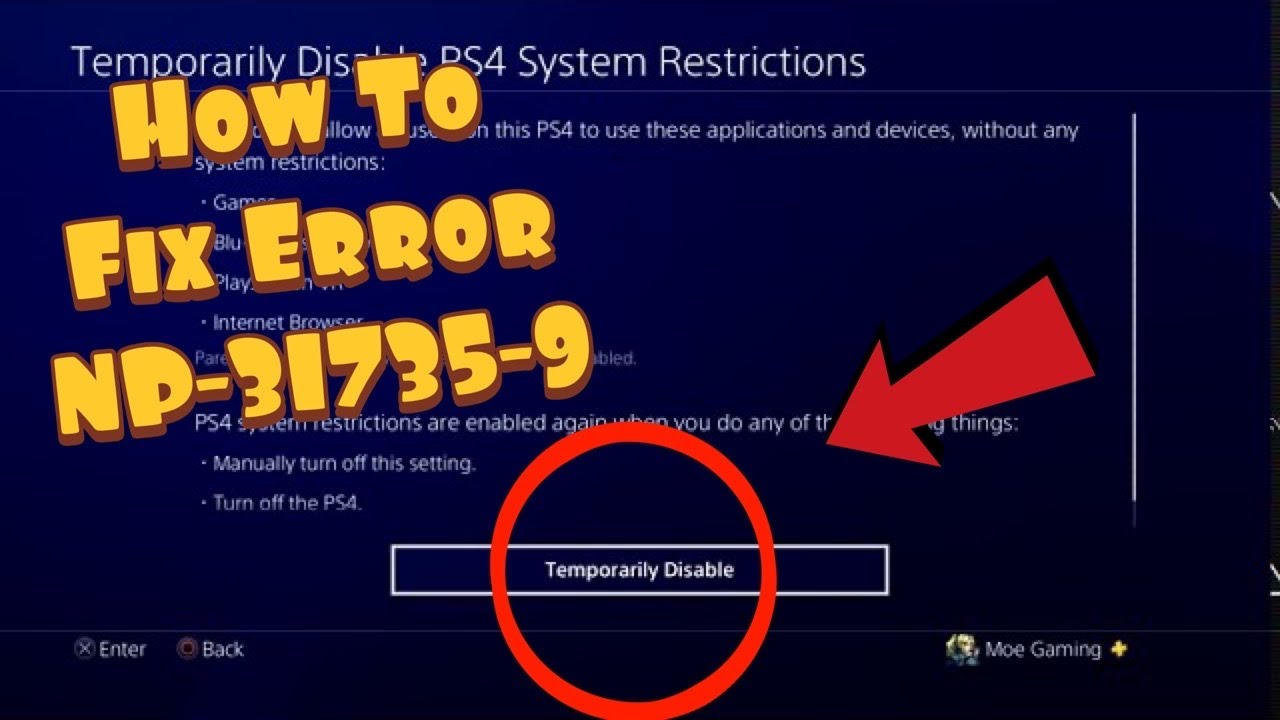
Quick answer: NP-31735-9 is presented in the source video as an age-restriction error. The safe fix is for the family manager, parent or guardian to review the child account’s allowed games and age level. Do not use the PS4’s default system-restriction passcode to bypass a guardian’s settings.
Before you start
- The family manager must sign in.
- Check the game’s ESRB or regional age rating.
- Decide whether to approve only this game or change the broader age level.
How a family manager can resolve NP-31735-9
- Confirm which account shows the error. Child-account restrictions follow that account and may apply on more than one PlayStation console.
- Sign in as the family manager. On PS4, open Settings > Parental Controls/Family Management > Family Management.
- Select the child account. Review the parental-control settings for games, communication and user-generated content.
- Review Age Level for Games. Choose a level appropriate for the child and the household. Use the game’s published age rating rather than simply selecting “Allow.”
- Review an access request. Where PlayStation offers a request for a specific restricted game, approve that title without weakening unrelated protections.
- Restart the game. Close it completely, sign the child account out and back in, then launch it again.
- Secure the controls. Change the PS4 system-restriction passcode from the default if it has never been changed, and keep it with the parent or guardian.
Why this works
PlayStation applies age ratings and family settings before starting restricted content. Changing the authorized child-account rule or approving a specific title updates the permission being checked; network and DNS changes do not.
What not to do
The source video demonstrates entering the default 0000 passcode and setting games to “Allow.” That can be appropriate only when the authorized console owner or guardian is making the change. It should not be used as a parental-control bypass, and disabling every restriction is broader than necessary.
Alternatives
- Use the PlayStation Family app or Family Management website to review the request.
- Leave the age level unchanged and use a title-specific exception where available.
- If an adult account is incorrectly treated as a child account, contact PlayStation Support; do not create false identity details.
Warnings
- Changing the console-wide restriction can affect every local user.
- Communication and spending controls are separate; do not loosen them unless intended.
- A game’s online features may have additional publisher age requirements.
FAQ
Can the child user fix this alone?
No. A family manager, parent or guardian should make the decision.
Does reinstalling the game help?
Not when the launch is blocked by an active age rule.
Should I choose Allow for all games?
Usually no. Set the appropriate age level or approve only the specific game.
Official references
- PlayStation parental controls and spending limits
- Set up and manage PlayStation family accounts
- PlayStation Family app
Source video
As an Amazon Associate I earn from qualifying purchases.