Category: Game Fixes

Troubleshooting guides and fixes for gaming errors, crashes, installation problems, and connectivity issues.

  • Fix The Last of Us Part II Remastered Crashing on Steam

    Fix The Last of Us Part II Remastered Crashing on Steam

    Quick answer: Restart the PC, verify The Last of Us Part II Remastered in Steam, let shader compilation finish, and install the latest stable graphics driver from your GPU manufacturer. Confirm the PC meets the current requirements before changing advanced settings or reinstalling.

    Before you start

    • Record whether the crash occurs at launch, during shader compilation, or after loading gameplay.
    • Check Steam for a game update and Naughty Dog for current patch notes.
    • Return overclocks and undervolts to tested defaults.

    Fix The Last of Us Part II Remastered crashes

    1. Restart Windows: Fully exit Steam, restart the PC, and reopen Steam.
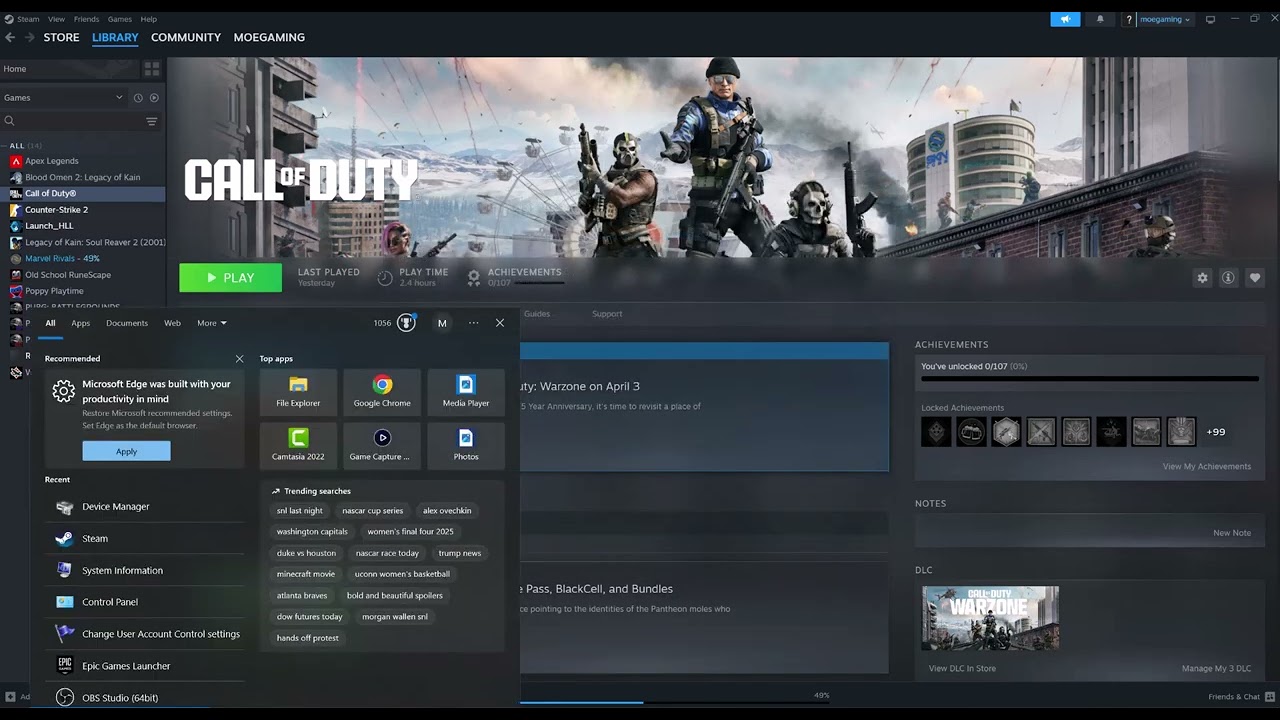
    2. Verify files: Right-click the game, select Properties > Installed Files > Verify integrity of game files, and wait for repairs to finish.
    3. Finish shader compilation: At the main menu, let the shader process reach completion before starting or loading a game. Avoid running heavy background tasks during the build.
    4. Update the GPU driver: Download the current stable driver directly from NVIDIA, AMD, or Intel. Restart after installation.
    5. Update Windows: Install pending system and runtime updates, then restart again.
    6. Close overlays: Exit non-essential recording, monitoring, RGB, and third-party overlay tools for one test.
    7. Check requirements and storage: Compare CPU, GPU, RAM, operating system, and SSD space with the current official PC specification.

    Why this works

    Verification replaces corrupt or incomplete game packages. Shader compilation creates GPU-specific data the game needs; interrupting it can cause stutter or instability. Current graphics drivers contain game-specific fixes, while a clean overlay test isolates software that hooks the renderer.

    Alternatives

    • Lower texture quality and VRAM-heavy settings if the crash happens only after entering gameplay.
    • Clear the graphics shader cache through Windows or the GPU vendor, then allow the game to rebuild it once.
    • Move the installation to a healthy SSD if verification repeatedly finds errors.
    • Submit a Naughty Dog or PlayStation PC support ticket with the crash time, hardware, driver version, and steps already tried.

    Warnings and reversal

    Do not download DLLs, unofficial executables, or driver bundles. Do not delete saved-game folders while troubleshooting. Re-enable overlays one at a time after testing. If a new driver made the crash worse, use the GPU vendor’s supported rollback process rather than a third-party uninstaller.

    FAQ

    Is this the same as The Last of Us Part I?

    No. Part II Remastered is a separate PC release with its own patches, requirements, and files.

    Will Steam verification delete saves?

    No. It checks installed game content rather than the separate save-data location.

    Why does the first launch take a long time?

    Shader compilation can be CPU-intensive. Let it finish and keep the PC awake.

    Official references

    Source video

    The video demonstrates Steam verification and graphics-driver updating. This guide adds shader, system-requirement, overlay, and reversal checks using first-party resources.

    As an Amazon Associate I earn from qualifying purchases.
  • Fix Rainbow Six Siege Not Launching After an Update

    Fix Rainbow Six Siege Not Launching After an Update

    Quick answer: Restart Steam and Ubisoft Connect, verify Rainbow Six Siege, then rename—not delete—GameSettings.ini so the game can build a clean copy. This video-derived workaround may help when an update leaves an incompatible local setting. It resets local display and control settings but not online progression.

    Before you start

    • Close Rainbow Six Siege, Steam, and Ubisoft Connect completely.
    • Take a screenshot of important display, sensitivity, and keybind settings.
    • Confirm the update has fully installed in both launchers.

    Fix Siege after an update

    1. Restart the launchers: Exit Steam and Ubisoft Connect from the notification area, reopen them, and sign in again.
    2. Verify files in Steam: Right-click Rainbow Six Siege, choose Properties > Installed Files > Verify integrity of game files.
    3. Verify in Ubisoft Connect if offered: Open the game’s Properties or Manage menu and run Verify files.
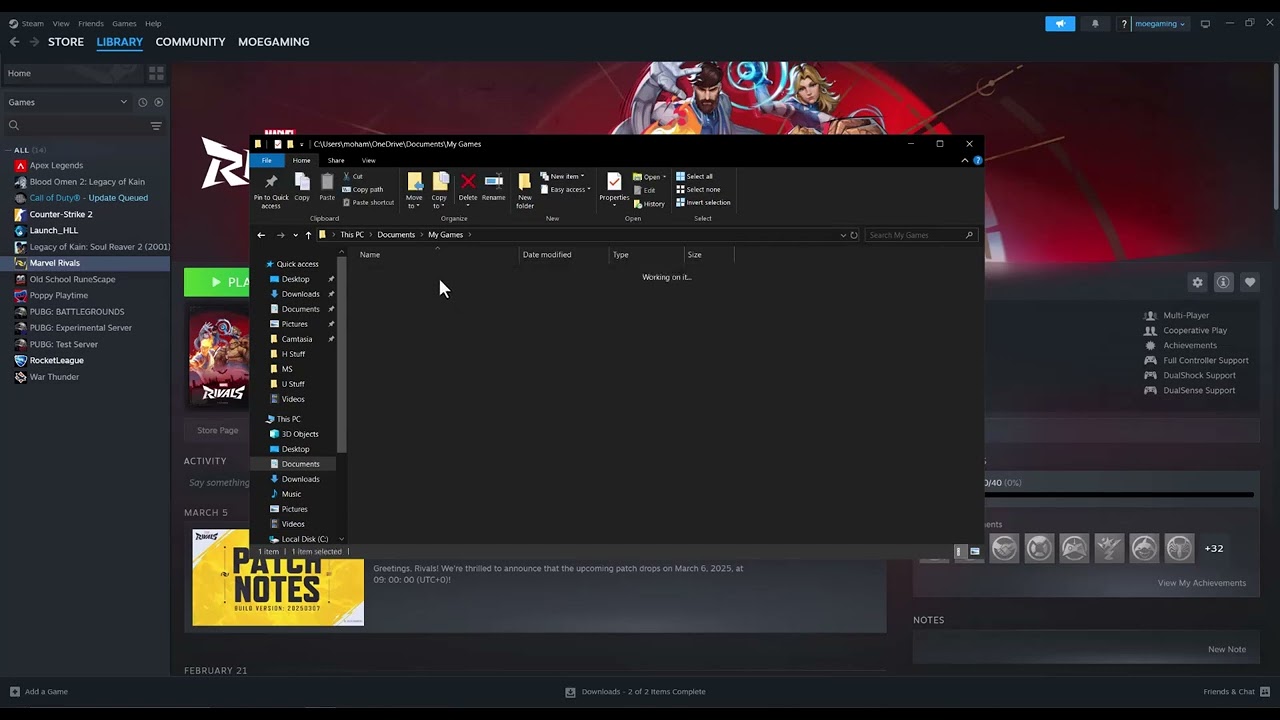
    4. Back up the settings file: Open Documents/My Games/Rainbow Six - Siege. Inside the profile folder, rename GameSettings.ini to GameSettings.ini.bak.
    5. Launch the game: Siege should create a fresh settings file. Reapply settings manually and test before copying anything from the backup.
    6. Update drivers and Windows: If the game still does not open, install current official GPU and Windows updates, restart, and retest without overlays.

    Why this may work

    The GameSettings.ini file stores local rendering and control choices. A game update can make an older value incompatible with the current build. Renaming the file preserves a backup while forcing Siege to generate supported defaults.

    Alternatives

    • Temporarily disable Steam, Ubisoft, Discord, or GPU overlays and test again.
    • Remove unsupported launch options added before the update.
    • If Ubisoft reports an outage, wait and retest before reinstalling.
    • Use Ubisoft Support with launcher logs if a clean file and verified installation still fail.

    Warnings and reversal

    The source video deletes the file; renaming is safer and reversible. The workaround resets local graphics, audio, sensitivity, and keybind settings. To undo it, close the game, remove the newly generated file, and rename GameSettings.ini.bak back to GameSettings.ini. Do not replace the file while the game is running.

    FAQ

    Will this erase operators or rank?

    No. Those are tied to the Ubisoft account. The local file stores settings.

    What if the file is not there?

    Launch once, check the correct Windows Documents folder, and ensure OneDrive has not redirected Documents.

    Should I reinstall first?

    No. Verification and a reversible settings rebuild are faster and preserve more local setup.

    Official references

    Source video

    The video demonstrates removing GameSettings.ini after an update. This guide changes the method to a backup-and-rename workflow, labels it unofficial, and explains the settings tradeoff and full reversal.

    As an Amazon Associate I earn from qualifying purchases.
  • Fix Black Ops 6 Crashing on PS4

    Fix Black Ops 6 Crashing on PS4

    Quick answer: Fully restart the PS4, check for a Black Ops 6 update, update PS4 system software, and restore licenses. If crashes continue, rebuild the database in Safe Mode. Reinstall the game application only after backing up local saves and checking Activision’s service status.

    Before you start

    • Check Activision Online Services and PlayStation Network status.
    • Sync trophies and back up local saved data to cloud or USB.
    • Do not initialize the PS4 or delete saved data.

    Fix Black Ops 6 crashes on PS4

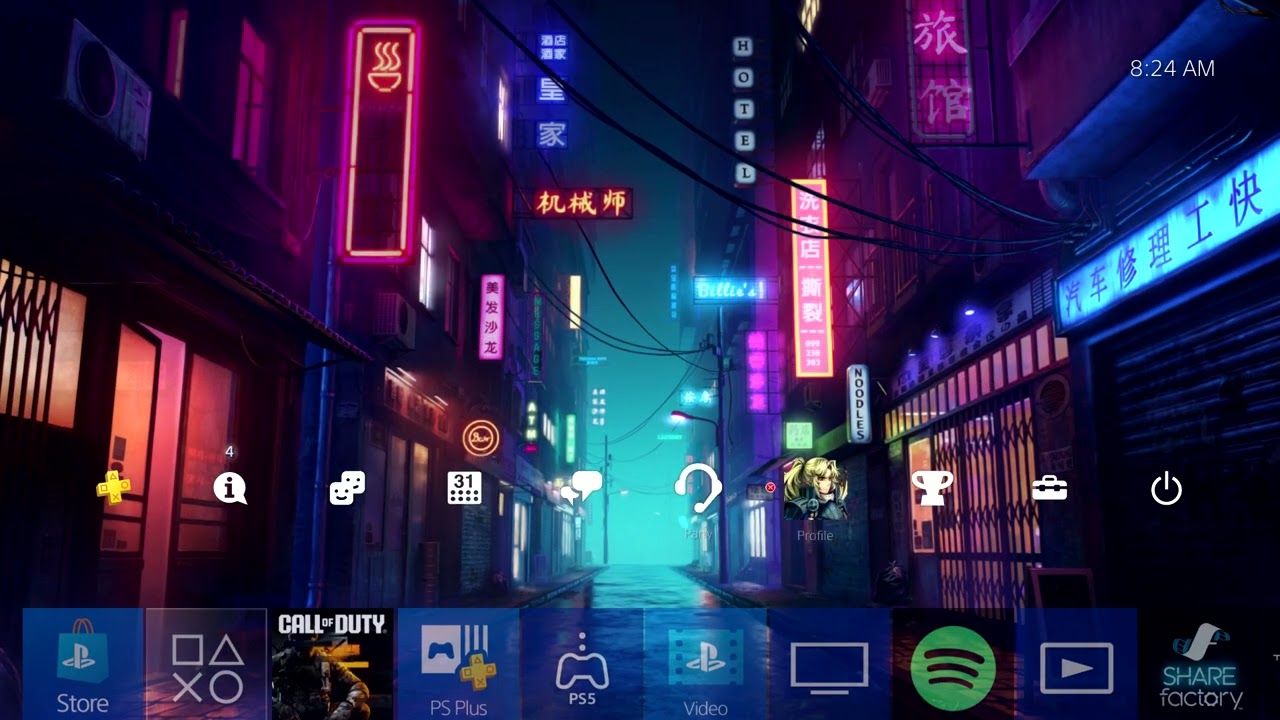
    1. Close and restart: Press the PS button, highlight Call of Duty, press Options > Close Application, then restart the PS4 rather than using Rest Mode.
    2. Update the game: Highlight Call of Duty, press Options, and choose Check for Update. Let every content pack finish downloading.
    3. Update system software: Open Settings > System Software Update, install the update, and restart.
    4. Restore licenses: Go to Settings > Account Management > Restore Licenses. This can repair entitlement checks without deleting data.
    5. Check storage: Keep enough free space for the game to unpack patches. Remove unused applications—not saved data—if space is critically low.
    6. Rebuild the database: Turn off the PS4. Hold the power button until the second beep, connect the controller by USB, and select Rebuild Database. Do not choose Initialize.
    7. Reinstall last: Delete only the Call of Duty game application, restart, and reinstall it plus required BO6 content packs. Restore local saves only if needed.

    Why this works

    Game and system updates resolve known compatibility problems. Restoring licenses rebuilds entitlement records. Rebuilding the database reindexes storage without the destructive console initialization step. A final reinstall replaces files that ordinary patching could not repair.

    Alternatives

    • Test another mode to see whether the crash follows one playlist or map.
    • Disconnect optional USB storage for one test if the game is installed internally.
    • If the error begins during a confirmed outage, wait before reinstalling.
    • Contact Activision with the error text, crash time, mode, and PS4 model.

    Warnings and reversal

    Do not select Initialize PS4 in Safe Mode; it deletes user data. Restoring licenses and rebuilding the database do not need to be undone. Reinstallation removes the game application, so confirm local save backups first and avoid deleting the Saved Data entry.

    FAQ

    Will Restore Licenses delete saves?

    No. It refreshes PlayStation Store entitlements.

    Is Rebuild Database a factory reset?

    No, but it can take time and reorganize the content list. Do not choose Initialize.

    Should the PS4 be the primary console?

    That matters mainly for license sharing and offline access. Do not change primary activation unless the problem is clearly an ownership or lock-icon issue.

    Official references

    Source video

    The video demonstrates restart, update, license, system-software, and reinstall steps. The guide excludes destructive initialization and distinguishes application removal from saved data.

    As an Amazon Associate I earn from qualifying purchases.
  • Fix Battle.net Installation Errors on Windows

    Fix Battle.net Installation Errors on Windows

    Quick answer: Close Battle.net and Blizzard Update Agent in Task Manager, uninstall the Battle.net desktop app, remove only Blizzard’s documented app/cache folders, restart Windows, and download a fresh installer from Blizzard. Uninstalling the desktop app does not remove installed games.

    Before you start

    • Keep the folders containing your installed games.
    • Close every Blizzard game and launcher window.
    • Make sure Windows has free space and pending updates are installed.

    Cleanly reinstall Battle.net

    1. End Blizzard processes: Open Task Manager and end Battle.net, Agent.exe, or Blizzard Update Agent if they remain after closing the launcher.
    2. Uninstall the desktop app: Open Settings > Apps > Installed apps, select Battle.net, and choose Uninstall. Do not uninstall the games.
    3. Clear the documented cache: Press Win+R, open %ProgramData%, and remove the Blizzard Entertainment cache folder after confirming Blizzard processes are closed.
    4. Remove a leftover app folder only: If Battle.net remains under %LocalAppData% after uninstalling, rename it to Battle.net.old. Do not delete game-installation folders.
    5. Restart Windows: This releases installer files and restarts Windows Installer services.
    6. Download from Blizzard: Use Blizzard’s official Battle.net desktop-app download, right-click the installer, choose Run as administrator for this installation, and let it finish.
    7. Locate existing games: If the launcher does not detect them, use Locate the game instead of downloading the game again.

    Why this works

    An incomplete installer can leave a locked Agent process, stale cache, or damaged launcher configuration. A clean app uninstall plus cache reset forces Battle.net to rebuild those files while leaving large game folders intact.

    Alternatives

    • Try a different Windows administrator account if the installer cannot write to the profile.
    • Temporarily disable a VPN or proxy, then re-enable it after installation.
    • If the message includes a BLZBNT code, use Blizzard’s code-specific support article.
    • Run Microsoft’s Windows Installer troubleshooter if other applications also fail to install.

    Warnings and reversal

    Do not delete every folder named Blizzard or Battle.net across the drive. The source video shows removal from Program Files; this guide limits cleanup to the desktop app and documented cache so game data is preserved. To undo the LocalAppData test, close Battle.net, delete the newly created folder, and rename Battle.net.old back.

    FAQ

    Will uninstalling Battle.net delete my games?

    No. Blizzard states that uninstalling the desktop app does not uninstall game clients.

    Can I download the installer from another site?

    No. Use Blizzard’s official download to avoid modified installers.

    Why does the installer stop at the same percentage?

    A stuck Agent process, stale cache, security block, proxy, or Windows account permission can cause repeat failures.

    Official references

    Source video

    The video demonstrates a fresh launcher reinstall. This guide narrows deletion to Blizzard’s documented app and cache locations and keeps installed games intact.

    As an Amazon Associate I earn from qualifying purchases.
  • Fix Elden Ring Nightreign Matchmaking Not Working

    Fix Elden Ring Nightreign Matchmaking Not Working

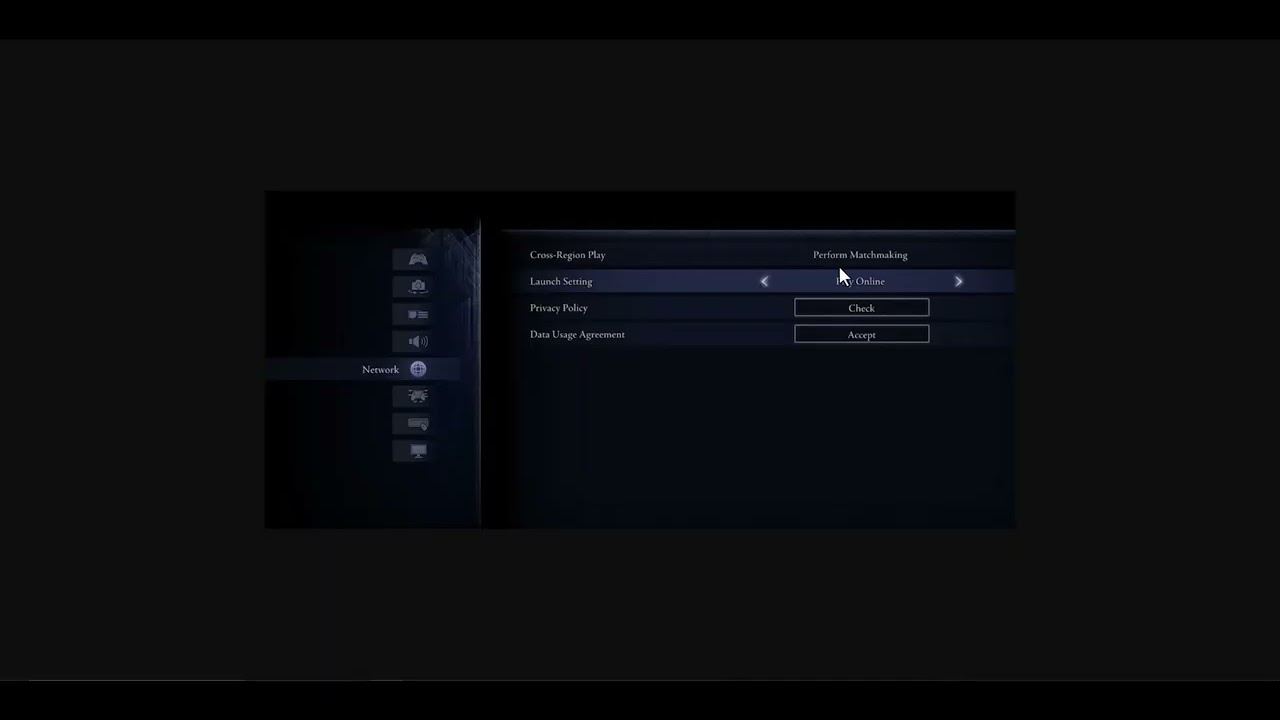
    Quick answer: In Nightreign, set Launch Setting to Play Online and Cross-Region Play to Perform Matchmaking, then restart the game. Clear an unintended multiplayer password and check Remembrance restrictions. Cross-region play widens the pool but can increase latency and does not add cross-platform matchmaking.

    Before you start

    • Install the latest Nightreign update on every player’s system.
    • Check the platform network and Bandai Namco service notices.
    • Confirm all friends use compatible platforms; Nightreign supports cross-generation play within a console family, not full cross-platform play.

    Fix Nightreign matchmaking

    1. Enable online launch: From the title screen open Settings > Network and set Launch Setting to Play Online.
    2. Expand the search: Set Cross-Region Play to Perform Matchmaking. Restart the game so the network session is rebuilt.
    3. Check passwords: Remove a multiplayer password when joining random players. When playing with friends, every member must enter the same password exactly.
    4. Review Remembrance progress: Bandai Namco says matchmaking can fail when multiple party members are progressing Remembrance missions. Let only one player pursue a personal objective and have that player start matchmaking.
    5. Choose a broader target: If available, select multiple Nightlord targets to widen the queue rather than repeatedly canceling and restarting.
    6. Restart the platform and router: Fully close Nightreign, restart the console or PC, then restart the router if other online games also have connection problems.

    Why this works

    Online launch allows network play, and cross-region matchmaking increases the available player pool. Matching passwords keep friends in the same private pool. The Remembrance rule is game-specific: two personal-objective sessions can conflict even when the connection itself is healthy.

    Alternatives

    • Try solo play to confirm the game reaches an expedition without matchmaking.
    • On PC, verify files through Steam after an interrupted update.
    • Use a wired connection or a stable 5 GHz Wi-Fi link for one test.
    • If services are down, wait and retest rather than changing router security settings.

    Warnings and reversal

    Cross-region matchmaking may produce higher ping. Set it back to Do Not Perform Matchmaking to prioritize nearby players. Do not expose the PC or console through broad port forwarding or DMZ settings for this problem.

    FAQ

    Does cross-region play enable PC-to-console play?

    No. It widens the region search on the same compatible platform family; it is not full crossplay.

    Why can random matchmaking work while friends cannot join?

    Check password spelling, platform compatibility, party size, and whether more than one player is advancing a Remembrance.

    Will changing this setting affect saves?

    No. It changes matchmaking behavior only.

    Official references

    Source video

    The video demonstrates the online-launch and cross-region settings. The Remembrance limitation and matchmaking context above come from Bandai Namco’s current guidance.

    As an Amazon Associate I earn from qualifying purchases.
  • Fix Dune: Awakening Crashing on Steam

    Fix Dune: Awakening Crashing on Steam

    Quick answer: Restart Windows, verify Dune: Awakening in Steam, and install the current stable GPU driver from NVIDIA, AMD, or Intel. Close overlays before retesting. Administrator mode from the video is a temporary diagnostic only; turn it off if it does not change the result.

    Before you start

    • Check Funcom’s Dune: Awakening service and known-issues pages.
    • Note whether the crash occurs at Play, during shader compilation, or after loading a save.
    • Return CPU, GPU, and memory tuning to stable defaults while testing.

    Fix Dune: Awakening crashes

    1. Restart the PC: Fully exit Steam first, then restart Windows.
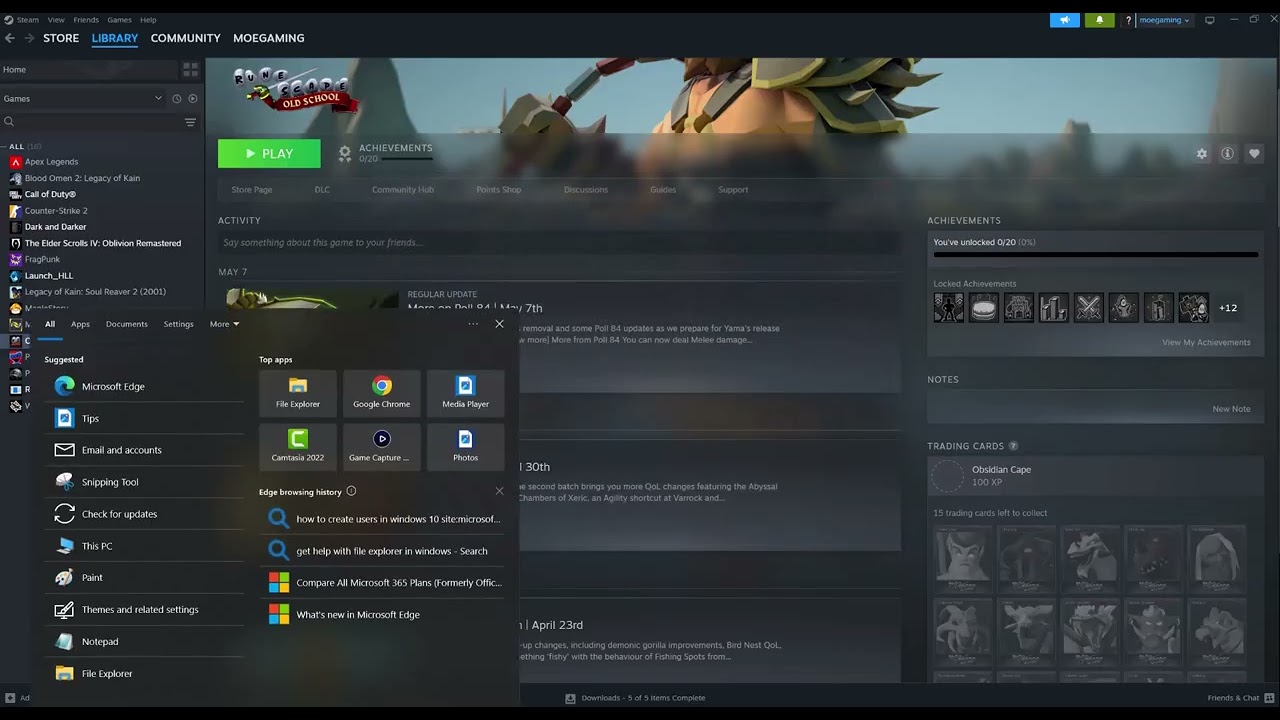
    2. Verify game files: In Steam, right-click Dune: Awakening, open Properties > Installed Files, and choose Verify integrity of game files. Let Steam redownload any damaged files.
    3. Update Windows: Install pending quality and component updates, then restart.
    4. Update the GPU driver: Use the official NVIDIA, AMD, or Intel download page for your exact adapter. Avoid third-party driver sites.
    5. Close overlays and injectors: Exit recording, performance-monitoring, RGB, and third-party overlay tools for one test.
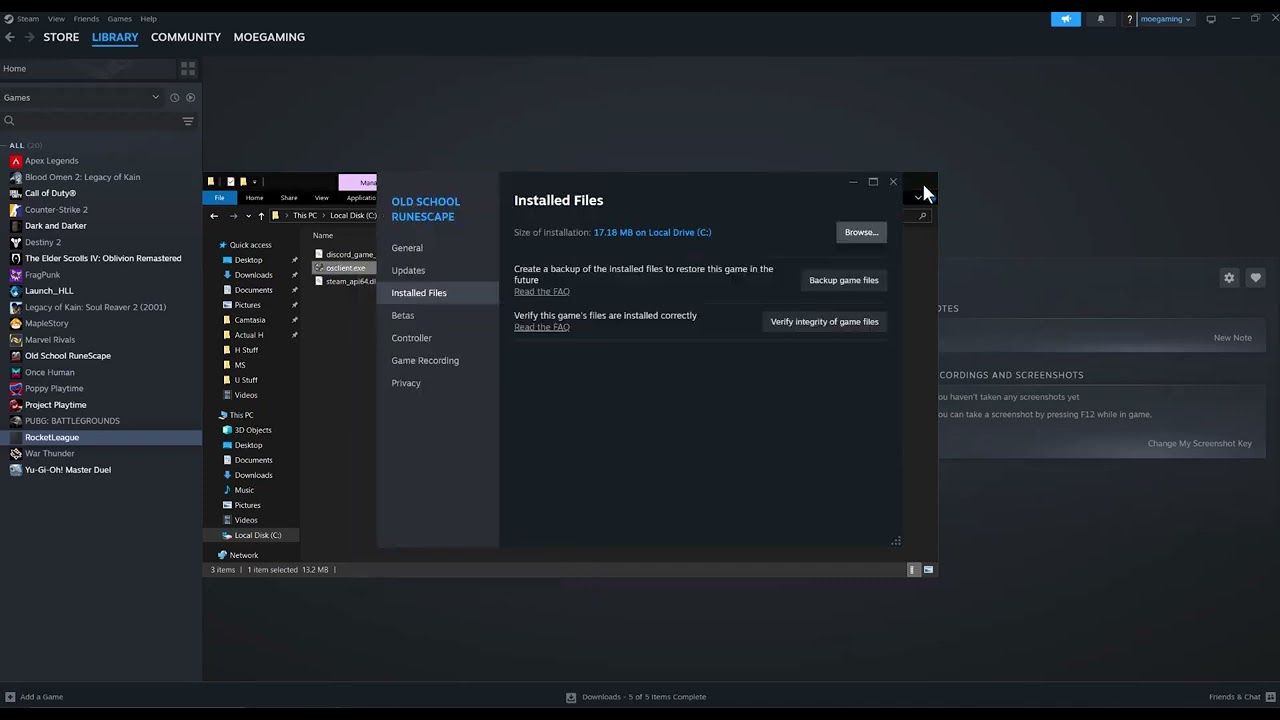
    6. Try administrator mode once: From Steam choose Manage > Browse local files, right-click the main game executable, open Properties > Compatibility, and enable Run this program as an administrator. Test once, then disable it if it does not help.
    7. Check the system requirements: Confirm the PC has enough RAM, storage, and a supported GPU before reinstalling.

    Why this works

    Steam verification replaces incomplete or corrupt game packages. Current drivers and Windows components reduce graphics-runtime conflicts. A clean overlay test isolates software that hooks the game. Elevation can reveal a permissions problem, but persistent administrator mode is not a repair for damaged files.

    Alternatives

    • Clear only the shader cache through the GPU vendor or Windows Storage settings, then allow shaders to rebuild.
    • Move the game to a healthy SSD with adequate free space if verification repeatedly finds damaged files.
    • If a patch introduced the crash, stop changing the PC and check Funcom’s current known issues.

    Warnings and reversal

    Do not download DLLs, driver packs, or “crash fixes” from file-sharing sites. To reverse the administrator test, clear the compatibility checkbox. Re-enable overlays one at a time after the game becomes stable.

    FAQ

    Will verification remove my character?

    No. It checks installed game files rather than account data.

    Should I use Device Manager for the GPU driver?

    Windows may not offer the newest game-ready driver there. Use the GPU manufacturer’s official site.

    When should I reinstall?

    Only after verification, updates, and an overlay-free test fail; reinstalling is a large download and may not fix a driver or server issue.

    Official references

    Source video

    The video demonstrates file verification, an administrator-mode test, and graphics-driver updates. This guide keeps elevation temporary and uses only first-party driver and support links.

    As an Amazon Associate I earn from qualifying purchases.
  • Fix Hell Let Loose Low-Level Fatal Errors on PC

    Fix Hell Let Loose Low-Level Fatal Errors on PC

    Quick answer: Verify Hell Let Loose in Steam or Epic, install the latest stable GPU driver, then try the video’s -dx12 launch option. If you have more than one GPU, assign the game executable to the high-performance GPU in Windows. The DirectX switch is an unofficial, reversible workaround—not a guaranteed fix.

    Before you start

    • Close Hell Let Loose, Steam or Epic Games Launcher, and non-essential overlays.
    • Record the full Unreal Engine or low-level fatal error message.
    • Remove any overclock or undervolt while testing.

    How to fix the low-level fatal error

    1. Restart the PC: This clears a stuck game, launcher, graphics, or Easy Anti-Cheat process.
    2. Verify the installation: In Steam use Properties > Installed Files > Verify integrity of game files. In Epic, open the three-dot menu for the game, choose Manage, then Verify.
    3. Update the graphics driver: Download the current stable driver directly from NVIDIA, AMD, or Intel for your exact GPU, install it, and restart Windows.
    4. Test DirectX 12: Open the game’s launch options and enter -dx12. Launch once. If the crash becomes more frequent, remove the option to return to the default renderer.
    5. Choose the high-performance GPU: Open Settings > System > Display > Graphics. Add the Hell Let Loose launcher and the shipping executable from the game’s HLL/Binaries/Win64 folder, choose Options, select High performance, and save.
    6. Retest without overlays: Temporarily exit Discord, GeForce, Radeon, Steam, recording, and monitoring overlays one at a time.

    Why this may work

    File verification replaces a damaged Unreal Engine asset. A current driver addresses graphics-runtime faults. The video-derived -dx12 test changes the renderer, while the Windows preference prevents a dual-GPU laptop from starting the game on an integrated GPU.

    Alternatives

    • Remove -dx12 and test the default renderer if DirectX 12 is unstable.
    • Install pending Windows updates, then restart.
    • If the message names Easy Anti-Cheat, use the game’s EAC repair path instead of changing graphics options.
    • Send Team17 Support the exact crash text and a DirectX Diagnostic report if the error continues.

    Warnings and reversal

    Do not download replacement DLLs, disable security software, or bypass Easy Anti-Cheat. To undo the workaround, delete -dx12 from launch options and change the Windows graphics preference back to Let Windows decide. Neither change affects saves.

    FAQ

    Is -dx12 an official guaranteed fix?

    No. It is demonstrated in the source video and may help only on some systems.

    Will verifying files delete progression?

    No. It checks the local installation; online account progression is separate.

    What if the game crashes only after a driver update?

    Use the GPU vendor’s supported rollback or clean-install procedure, then retest without -dx12.

    Official references

    Source video

    The video demonstrates the DirectX 12 launch option and Windows high-performance graphics preference. Those steps are identified here as unofficial and reversible; the file, driver, and support checks come from first-party guidance.

    As an Amazon Associate I earn from qualifying purchases.
  • How to Fix The Last of Us Part I Crashing on Steam

    How to Fix The Last of Us Part I Crashing on Steam

    Quick answer: Verify The Last of Us Part I in Steam, install the latest game and graphics-driver updates, then test once without overlays or overclocks. Running the executable as administrator can be used as a temporary diagnostic if Windows permissions are the problem, but do not leave it enabled unless it clearly fixes the crash.

    Before you start

    • Let Steam finish all game and shader-related updates.
    • Save other work and restart Windows.
    • Record where the crash happens and any message shown.
    • Back up an important save before deleting configuration files or reinstalling.

    Fix The Last of Us Part I crashing on Steam

    1. Verify installed files. Open Steam > Library, right-click The Last of Us Part I, and choose Properties > Installed Files > Verify integrity of game files. Wait for Steam to repair or redownload files.
    2. Install the current game update. Check the Steam Downloads page and do not launch until patching is complete. Restart Steam afterward.
    3. Update the graphics driver. Download the supported driver for the exact NVIDIA, AMD, or Intel GPU from the manufacturer. Restart Windows after installing it.
    4. Disable overlays for a test. Turn off Steam Overlay for this game and close Discord overlay, NVIDIA/AMD capture tools, MSI Afterburner, and RivaTuner. If the crash stops, re-enable one item at a time.
    5. Return hardware to default clocks. Remove GPU, CPU, or memory overclocks while testing. Stability in another title does not guarantee stability in this one.
    6. Try administrator mode once as a diagnostic. Browse to the game installation, right-click the game executable, choose Properties > Compatibility, check Run this program as an administrator, and launch it from Steam. If nothing changes, uncheck the box immediately.
    7. Reboot and retest. Launch with no custom Steam launch options. Allow any shader compilation process to complete instead of ending it early.

    Why these steps work

    Steam verification replaces damaged or incomplete installation files. Game patches and graphics drivers address known engine and GPU compatibility problems. Overlays attach to the rendering process and can conflict with a game or driver, while unstable overclocks can surface during shader compilation or heavy scenes. Administrator mode only changes Windows permissions; it is useful as a narrow test, not a universal performance fix.

    How to undo administrator mode

    Right-click the same executable, open Properties > Compatibility, clear Run this program as an administrator, and select Apply. Keeping a game elevated gives it broader access than normal and may also interfere with overlay or launcher behavior.

    Alternatives if crashes continue

    • Check Naughty Dog’s official PC support page and current patch notes for a known issue affecting your hardware.
    • Make sure Windows is current and the PC meets the game’s requirements.
    • Confirm the game is on an SSD with enough free space for updates and shader caches.
    • Lower graphics settings only after the game reaches its menu; do not treat a preset change as a fix for corrupted files.
    • Submit a support request with the PC specifications, driver version, crash timestamp, error text, and a DirectX Diagnostic report.

    Warnings

    Do not replace game DLLs with files from videos or file-sharing sites. Avoid registry cleaners and “VRAM boost” tools. Do not permanently disable antivirus or Windows security features to launch the game.

    Frequently asked questions

    Will Verify integrity delete saves?

    It is intended to repair installed game files, not saved games. Still, keep a backup of important saves before reinstalling or deleting folders manually.

    Why does the first launch take so long?

    The game may compile shaders. Interrupting that process can create another troubleshooting variable, so let it finish and keep the PC on stable power.

    Should I run the game as administrator forever?

    No. Use it only to test whether permissions are involved. If it does not solve the crash, turn it off; if it does, look for the specific folder or security permission causing the problem.

    What if the crash started after a driver update?

    Use the GPU vendor’s clean-install procedure and compare with its previous stable driver. Obtain both only from the official vendor.

    Official references

    Source video

    https://www.youtube.com/watch?v=H8HFCb1HRBE

    As an Amazon Associate I earn from qualifying purchases.
  • How to Fix Space Marine 2 Crashing on Steam

    How to Fix Space Marine 2 Crashing on Steam

    Quick answer: In Steam, verify Space Marine 2’s installed files, install the latest stable graphics driver, restart Windows, and test again with overlays and overclocks disabled. The Moe Gaming video demonstrates file verification and driver updates; both are safe first steps, but neither is a guaranteed cure for every crash.

    Before you start

    • Save other work and close the game.
    • Install pending Space Marine 2 updates in Steam.
    • Make sure Windows has free space on the system drive and the game drive.
    • Note any crash message and when it occurs—startup, loading a save, or joining Operations.

    Fix Space Marine 2 crashing on Steam

    1. Restart Steam and Windows. This clears a stuck update process and unloads overlay or driver components that may have failed.
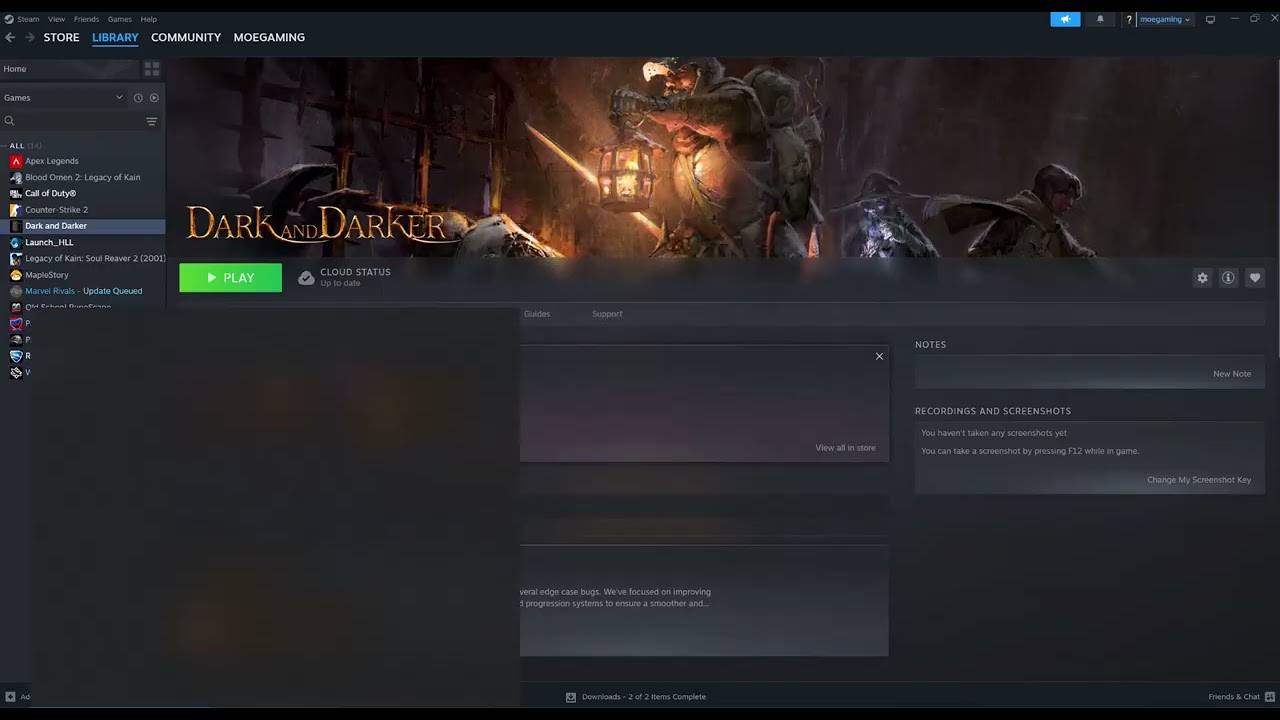
    2. Verify the game files. Open Steam > Library, right-click Warhammer 40,000: Space Marine 2, choose Properties > Installed Files > Verify integrity of game files. Let Steam reacquire any missing or changed files, then restart Steam.
    3. Update the graphics driver. Download the current stable driver from NVIDIA, AMD, or Intel for the exact GPU. Use the vendor’s clean-install option if the crash began immediately after a failed driver update, then restart the PC.
    4. Disable overlays temporarily. Turn off the Steam Overlay for this game and close Discord, GeForce Experience/NVIDIA App, AMD overlay, MSI Afterburner, and RivaTuner for one test. Re-enable them one at a time afterward.
    5. Remove overclocks. Return the GPU, CPU, and RAM to their default supported settings. A workload can expose instability even when other games seem fine.
    6. Check Windows and game updates. Install pending Windows updates and confirm Steam is not paused in Offline Mode.
    7. Test a fresh launch. Start the game from Steam without third-party launch options. If it runs, add overlays or custom settings back one at a time to identify the conflict.

    Why these steps work

    A crash after an interrupted update can come from a mismatched executable, shader, or data file. Steam verification compares the local installation with the current depot and redownloads files that do not match. Graphics drivers translate game rendering calls for the GPU; replacing a faulty or outdated driver can fix startup and device-loss crashes. Removing overlays and overclocks reduces the number of programs hooking the game and returns the hardware to a known baseline.

    Alternatives for persistent crashes

    • Check the official Space Marine 2/Focus support channels for a current known issue before changing more settings.
    • Confirm the PC meets the current minimum requirements and that the game is installed on suitable storage.
    • Temporarily lower texture and resolution settings if the crash happens only after reaching gameplay.
    • Run Windows Memory Diagnostic if multiple unrelated games crash.
    • Collect the crash timestamp, hardware specs, driver version, and steps to reproduce before opening a support ticket.

    Warnings

    Avoid random DLL replacements, “performance packs,” pirated executables, and registry cleaners. Do not disable antivirus permanently. If security software is blocking the game, use a narrow, documented exception for the verified Steam installation and undo it after testing.

    Frequently asked questions

    Will verifying files delete my save?

    Normally no. Steam verification repairs installation files. Cloud and local saves are stored separately, but backing up an important save before deep troubleshooting is still sensible.

    Steam says files failed to validate. Is that bad?

    Steam may reacquire one or more files that were missing or changed. Let it finish the download, restart Steam, and test again.

    Should I always install the newest driver?

    Start with the latest stable driver supported by the GPU. If crashing began immediately after that exact driver update, the vendor’s previous stable release may be a useful comparison.

    What if only multiplayer crashes?

    Check service status, network stability, and any current game announcement. A repeatable online-only crash may need publisher support even when local files are healthy.

    Official references

    Source video

    https://www.youtube.com/watch?v=yPUieq5ytbY

    As an Amazon Associate I earn from qualifying purchases.
  • Indiana Jones Failed to Allocate Video Memory: What to Do

    Indiana Jones Failed to Allocate Video Memory: What to Do

    Quick answer: First check your GPU’s dedicated video memory. Bethesda says Indiana Jones and the Great Circle requires at least 8 GB of VRAM, and its specific “Failed to allocate video memory” article says this message means the GPU does not meet that minimum. On a dual-GPU laptop, forcing the game to the high-performance GPU can help if Windows selected the integrated chip. It cannot add VRAM to unsupported hardware.

    Before you start

    • Close the game and save other work.
    • Know your GPU model and dedicated VRAM. In Windows, open Settings > System > Display > Advanced display > Display adapter properties, or use the GPU vendor’s control panel.
    • Confirm the game is installed on an SSD, which Bethesda lists in the PC requirements.

    Fix the video-memory error

    1. Compare the GPU with the minimum requirement. The supported baseline is 8 GB of dedicated VRAM. If the active GPU has less than 8 GB, skip “VRAM boost” claims: settings, page files, and launch options cannot turn system RAM into supported dedicated VRAM. The reliable fix is compatible hardware.
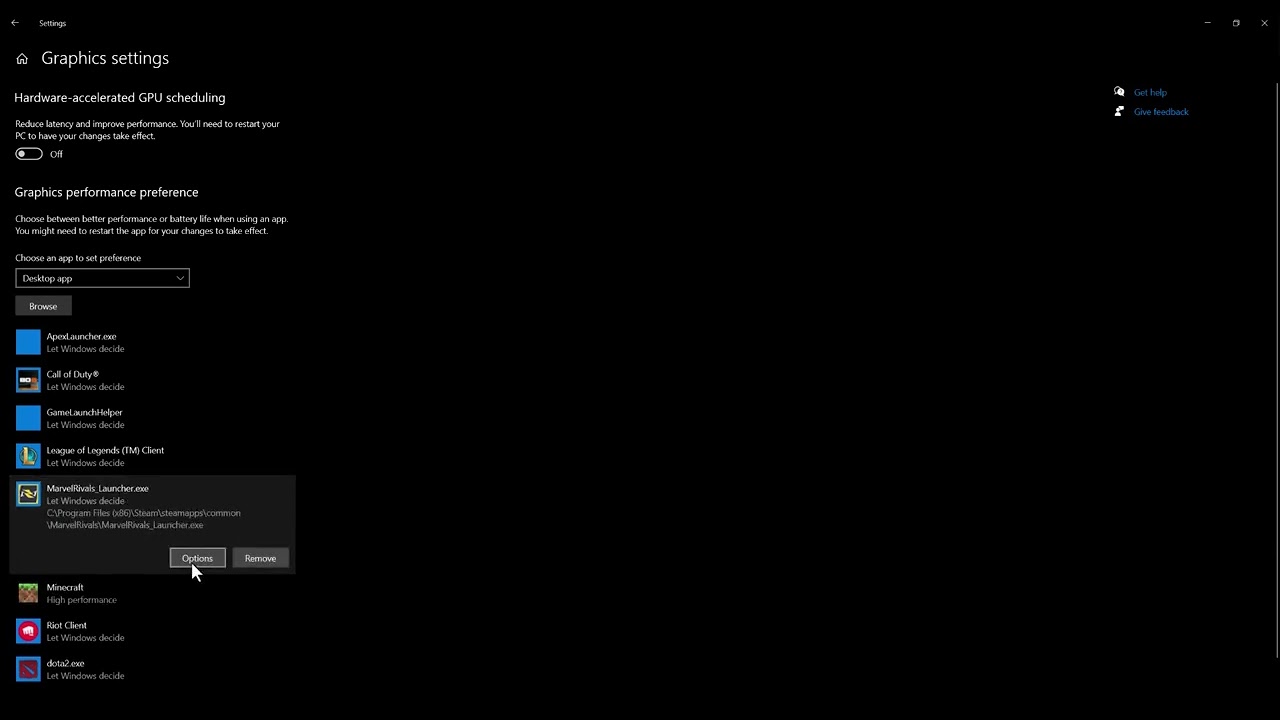
    2. Select the dedicated GPU on dual-GPU PCs. Open Windows Settings > System > Display > Graphics. Add the Indiana Jones executable if it is not listed, select it, choose Options, then choose High performance and save. The label should identify the discrete NVIDIA or AMD GPU.
    3. Repeat the choice in the vendor control panel if necessary. In NVIDIA Control Panel, use Manage 3D settings > Program Settings. On AMD systems, use the current Adrenalin graphics profile. Choose the dedicated GPU for the game only.
    4. Install the current graphics driver. Download it directly from NVIDIA, AMD, or Intel for the exact GPU. Restart Windows after installation.
    5. Close memory-heavy applications. Exit browsers with many tabs, capture tools, overlays, and other games. Bethesda specifically recommends closing unnecessary background programs.
    6. Verify the game installation. In Steam, open Library, right-click the game, select Properties > Installed Files > Verify integrity of game files. On the Xbox app or Microsoft Store version, use that launcher’s Repair/Verify option.
    7. Install Windows and game updates. Restart once more and test with the default game configuration.

    Why this works—and when it cannot

    The video demonstrates Windows’ High performance selection and a driver update. That is useful when the PC has both integrated graphics and a qualifying discrete GPU but Windows launches the game on the wrong one. A fresh driver can also correct allocation bugs. However, neither step increases physical VRAM. If the only GPU is below Bethesda’s 8 GB minimum, this error is a hardware-support boundary, not a tweakable graphics preset.

    Alternatives

    • On a desktop, connect the monitor to the ports on the discrete graphics card, not the motherboard video outputs.
    • Remove unsupported GPU overclocks and restore default clocks for testing.
    • Disable third-party overlays one at a time, then retest.
    • Submit a Bethesda Support ticket with the exact GPU model, VRAM amount, driver version, launcher, and a DirectX Diagnostic report.

    Warnings

    Do not download “VRAM unlockers,” modified DLLs, or registry packs. Do not increase the Windows page file expecting it to satisfy the 8 GB VRAM requirement. Shared system memory is slower and is not the same as dedicated graphics memory.

    Frequently asked questions

    Can lowering texture quality fix the launch error?

    It may reduce memory use after the game starts, but it does not change the official minimum. A launch-time allocation failure on a sub-8 GB GPU may remain.

    My laptop has 8 GB VRAM. Why do I still see the error?

    Windows may be selecting the integrated GPU, the driver may be outdated, background applications may be consuming resources, or game files may be damaged. Work through the steps in order.

    Does adding system RAM increase VRAM?

    No. More system RAM can help overall PC performance, but it does not add dedicated memory to a discrete GPU.

    Official references

    Source video

    https://www.youtube.com/watch?v=1EVUrpbt8k0

    As an Amazon Associate I earn from qualifying purchases.