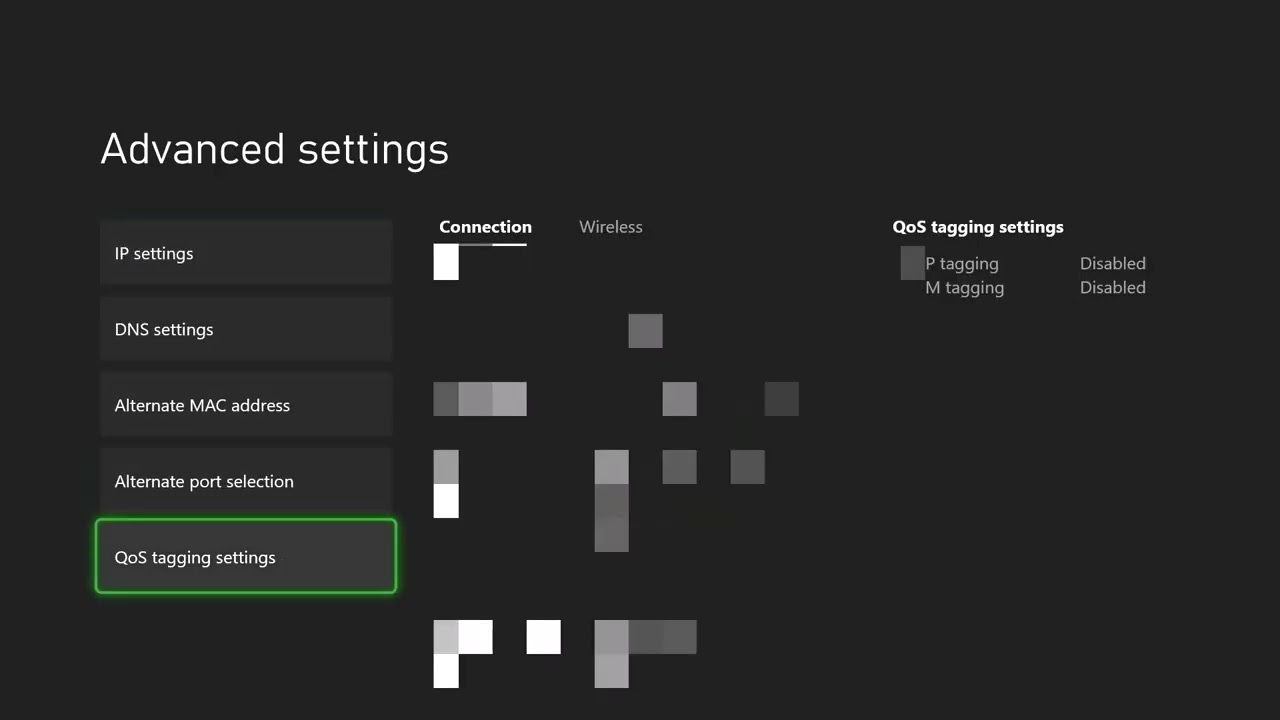
Quick answer: Test the Xbox NAT status, restart the console and network equipment, then make sure the router has UPnP enabled and the Xbox is not behind two routers. Avoid opening ports or factory-resetting the router until you have isolated the cause.
Before you start
- Check Xbox service status for a multiplayer outage.
- Note any custom DNS, alternate port, port-forward, or DMZ settings so you can undo them.
- If possible, have an Ethernet cable available for one isolation test.
Fix the Teredo IP address error
- Run the Xbox test: Go to Settings > General > Network settings. Run Test network connection, then Test NAT type.
- Restart the console fully: Hold the Xbox power button for about 10 seconds, disconnect power for 30 seconds, reconnect it, and start the console.
- Restart the modem and router: Unplug them, wait at least 30 seconds, power on the modem first, wait for it to reconnect, then power on the router.
- Remove a Wi-Fi variable: Test with Ethernet, or forget and re-add the Wi-Fi network. If Ethernet works, Wi-Fi interference or router wireless settings are the likely cause.
- Return the alternate port to Automatic: In Network settings > Advanced settings > Alternate port selection, select Automatic unless your network administrator gave you a specific port.
- Check UPnP and double NAT: In the router’s settings, enable UPnP and reboot the router. If an ISP gateway feeds a second router, use the gateway’s bridge/passthrough mode or place the Xbox behind only one routing device; contact the ISP if those options are unfamiliar.
- Retest NAT: Return to Xbox Network settings and run the NAT test again.
Why this works
Teredo carries Xbox multiplayer traffic across IPv4 networks. A stalled gateway session, blocked UDP mapping, manual port conflict, or two layers of NAT can prevent the console from obtaining a usable Teredo address. Restarting rebuilds the session; UPnP lets the console request mappings automatically.
Alternatives
- Temporarily test another network, such as a phone hotspot, only to isolate whether the home router or ISP path is responsible. Mobile data can be expensive and is not a permanent fix.
- Ask your ISP whether the connection uses carrier-grade NAT. The ISP may need to provide a public IPv4 address or compatible IPv6 service.
- If Xbox services are affected, wait and retest instead of changing the router.
Warnings and how to undo changes
Do not put the Xbox in a DMZ or forward a large port range as a first step. Those changes broaden exposure and can conflict with other consoles. Return any test DNS or port setting to Automatic, and disable any manual forwarding you added if it did not help. Do not factory-reset the router unless you have the ISP credentials and a configuration backup.
FAQ
Is Teredo an Xbox hardware fault?
Usually not. It describes the network tunnel used for multiplayer, so the problem is commonly in routing, NAT, or service availability.
Why does another console work?
Two consoles can compete for the same manual port mapping. Automatic alternate-port selection and UPnP are normally better for multi-console homes.
Will changing DNS fix Teredo?
DNS does not directly create a Teredo tunnel. It can help only if name resolution is the underlying problem, so leave DNS automatic unless a tested provider clearly improves the connection.
Official references
Source video
Captions remained unavailable after every retry. The guide therefore uses the public video topic only as the starting point and bases the reproducible steps on current Xbox network guidance.
As an Amazon Associate I earn from qualifying purchases.