Quick answer: Update Baldur’s Gate 3, Windows, and the graphics driver; verify the game in Steam; remove mod conflicts; then test the other launcher renderer—DirectX 11 or Vulkan. Back up saves before changing profile or cache folders.
Before you start
- Update the game completely and restart Steam.
- Back up local saves under
%LocalAppData%Larian StudiosBaldur's Gate 3PlayerProfilesif cloud sync is disabled. - Record whether the crash occurs at startup, during a save load, or in a specific area.
Fix Baldur’s Gate 3 crashes
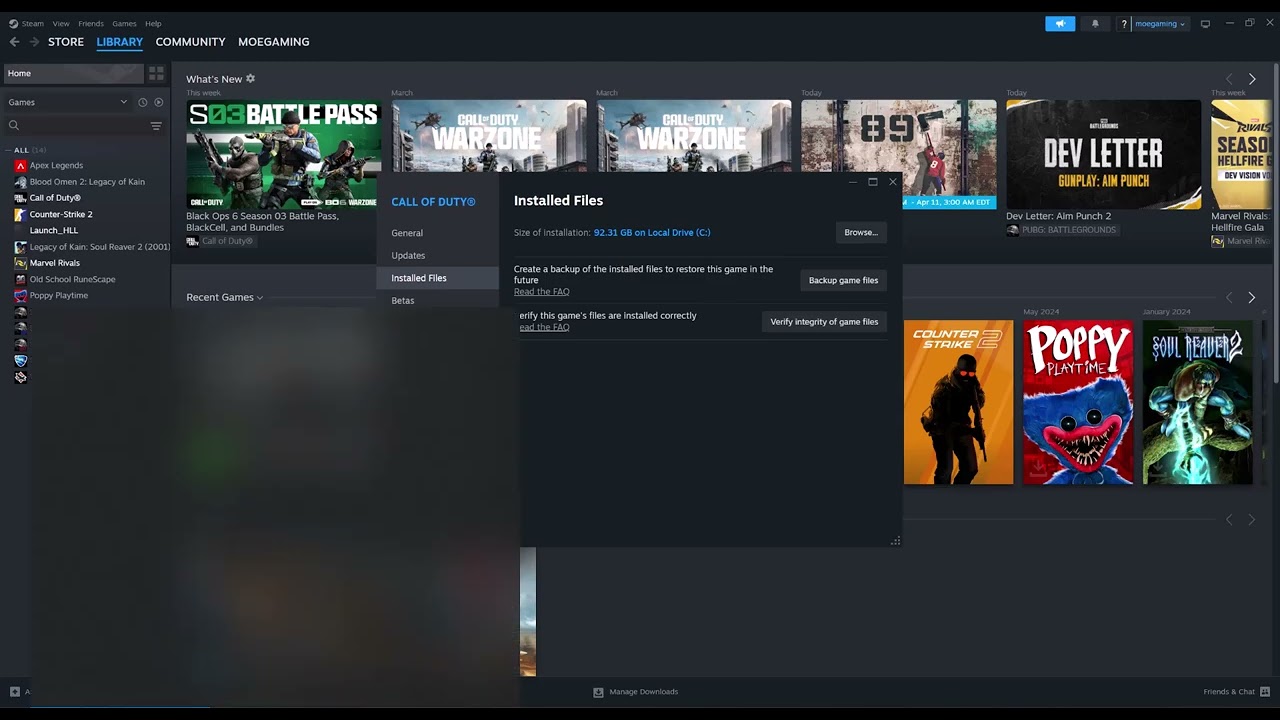
- Verify the Steam installation: In Steam, right-click Baldur’s Gate 3, open Properties > Installed Files, and choose Verify integrity of game files. Steam reacquires missing or changed files.
- Update Windows and the GPU driver: Install Windows updates, then get the current stable driver directly from NVIDIA, AMD, or Intel for your graphics card. Restart the PC.
- Switch renderer: In the Larian launcher, choose DirectX 11 if Vulkan crashes, or Vulkan if DirectX 11 crashes. Larian supports testing both.
- Disable overlays and monitoring tools: Turn off Steam Overlay, Discord overlay, GPU tuning overlays, and non-essential monitoring software for one test.
- Isolate mods: If you use mods, move them out of
%LocalAppData%Larian StudiosBaldur's Gate 3Modsinto a backup folder. Do not delete them until the game starts cleanly. - Test a clean configuration: Rename the
Baldur's Gate 3folder under%LocalAppData%Larian StudiostoBaldur's Gate 3-backup. Start the game so it creates a fresh folder. Restore the original name if this does not help. - Check the faulting module: Open Windows Event Viewer, go to Windows Logs > Application, and inspect the most recent
bg3.exeorbg3_dx11.exeerror before contacting Larian.
Why this works
Verification replaces damaged game files. A driver update repairs graphics-runtime compatibility. Switching renderer isolates a DirectX/Vulkan-specific failure, while removing overlays, tuning tools, and mods eliminates common injected-code and data-mismatch conflicts.
Alternatives
- Launch
bg3.exeorbg3_dx11.exedirectly from the game’sbinfolder to determine whether the Larian launcher is the failing component. - If a particular save crashes after an update, test a new game before modifying the save.
- Send Larian the
dxdiag,gold.log, and any CrashDump files requested in its support article.
Warnings and reversal
Do not permanently delete saves, profiles, or mods while diagnosing the crash. Renaming or moving folders is reversible: close the game, remove the new test folder, and restore the original name. Do not download replacement DLLs from third-party sites.
FAQ
Should I use DirectX 11 or Vulkan?
Use whichever is stable on your PC. Larian explicitly recommends switching between them as a troubleshooting test.
Can mods cause crashes after a patch?
Yes. UI and script-extender mods may become incompatible after updates. Test without them and add them back one at a time.
Will verifying files remove saves?
No. Steam verification checks installed game files, not the separate save-profile folder.
Official references
- Larian Studios: Crashing upon startup on PC
- Steam: Verify integrity of game files
- Microsoft: Install Windows updates
Source video
Captions remained unavailable after every retry, but the public chapters identify file verification and graphics-driver updates. Those steps and the additional alternatives above are confirmed by Larian and Steam guidance.
As an Amazon Associate I earn from qualifying purchases.