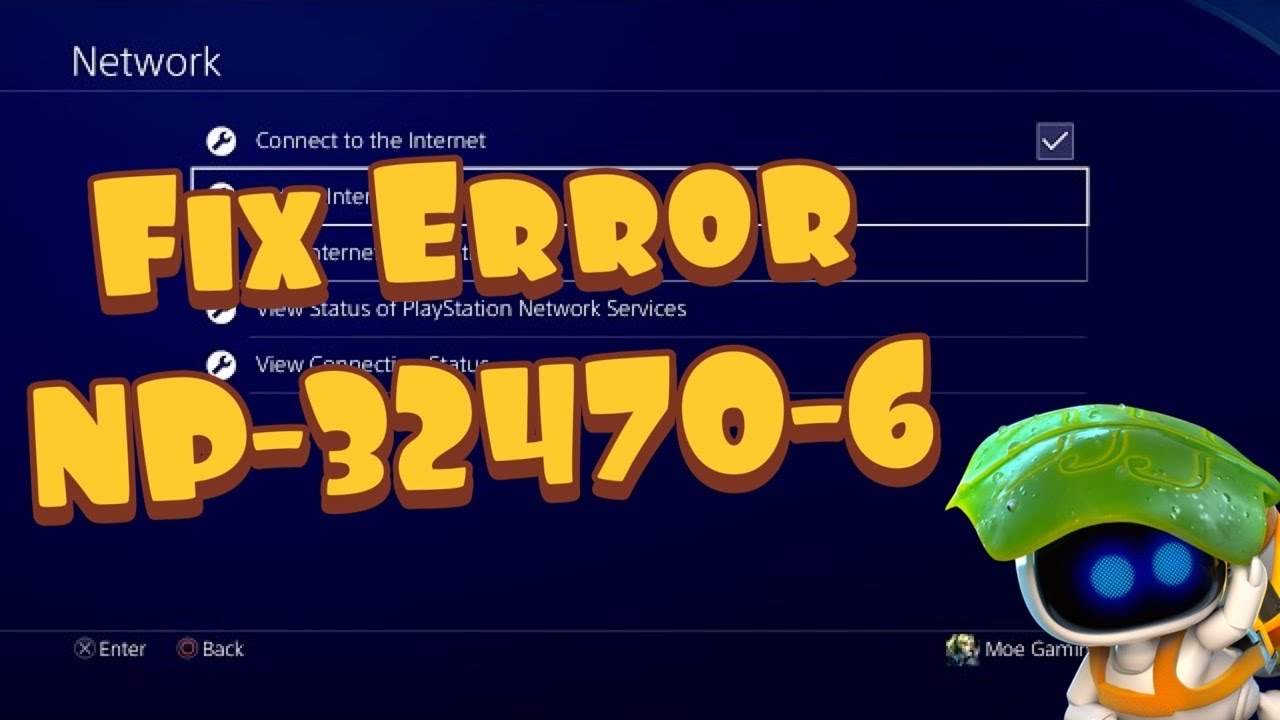
Quick answer: Start by checking PlayStation Network status. If PSN is operating normally, rebuild the PS4 connection and test it. The manual Cloudflare DNS values shown in the Moe Gaming video are an unofficial, reversible workaround that can help some DNS-routing failures, but they are not a guaranteed fix for NP-32470-6.
Before you start
- A DualShock 4 controller and access to the PS4 Settings menu.
- Your Wi-Fi password, or an Ethernet cable if you can use a wired connection.
- About five minutes. No saved games are deleted.
Fix PS4 error NP-32470-6
- Check PSN first. Open Settings > Network > View Status of PlayStation Network Services, or check the official PlayStation status page. If a service is unavailable, wait for Sony to restore it; changing local settings will not repair a server outage.
- Restart the connection. Fully restart the PS4 and power-cycle the router. Unplug the router for about 60 seconds, reconnect it, wait for it to come online, and test again.
- Prefer Ethernet when possible. A LAN cable removes Wi-Fi interference from the diagnosis. If you must use Wi-Fi, move the console closer to the router before continuing.
- Recreate the connection. Go to Settings > Network > Set Up Internet Connection. Choose Use a LAN Cable or Use Wi-Fi, then choose Custom.
- Set IP Address Settings to Automatic, DHCP Host Name to Do Not Specify, MTU Settings to Automatic, and Proxy Server to Do Not Use.
- Try the video’s DNS workaround only if the automatic setup still fails. At DNS Settings, choose Manual. Enter 1.1.1.1 as Primary DNS and 1.0.0.1 as Secondary DNS.
- Select Test Internet Connection. If sign-in works, retry the game or app that produced NP-32470-6.
Why this may work
The status check separates a PSN outage from a home-network problem. Recreating the connection clears a bad local configuration, while Ethernet bypasses weak wireless reception. The manual DNS values replace the resolver supplied by the internet provider; that can help only when name resolution or a particular DNS route is the problem. It does not repair a PSN outage, a suspended account, or a failing router.
How to undo the DNS change
Return to Settings > Network > Set Up Internet Connection, repeat the setup, and choose Automatic for DNS Settings. This restores the DNS servers supplied by your router or internet provider.
Other safe things to try
- Test a different network briefly, such as a phone hotspot, to separate the console from the home router.
- Pause other large downloads and temporarily disconnect bandwidth-heavy devices.
- Update PS4 system software before repeating the connection test.
- If every device has trouble, contact the internet provider. If only PSN fails after the status page is green, use PlayStation connectivity support.
Warnings
Do not enter a random static IP address, open every router port, disable router security, or place the PS4 in a DMZ just to chase this code. Those changes are unnecessary for this procedure and can create new reliability or security problems.
Frequently asked questions
Will changing DNS make games faster?
Usually not. DNS mainly translates names into network addresses. It may improve connection setup if the existing resolver is failing, but it does not increase the bandwidth sold by your internet provider.
Will this delete games or saves?
No. These steps change only the network profile. They do not delete installed games, screenshots, or saved data.
What if the error returns?
Put DNS back on Automatic, restart the router, and compare wired and wireless tests. A recurring failure across multiple devices points more strongly to the router or internet provider.
Official references
Source video
As an Amazon Associate I earn from qualifying purchases.
Leave a Reply