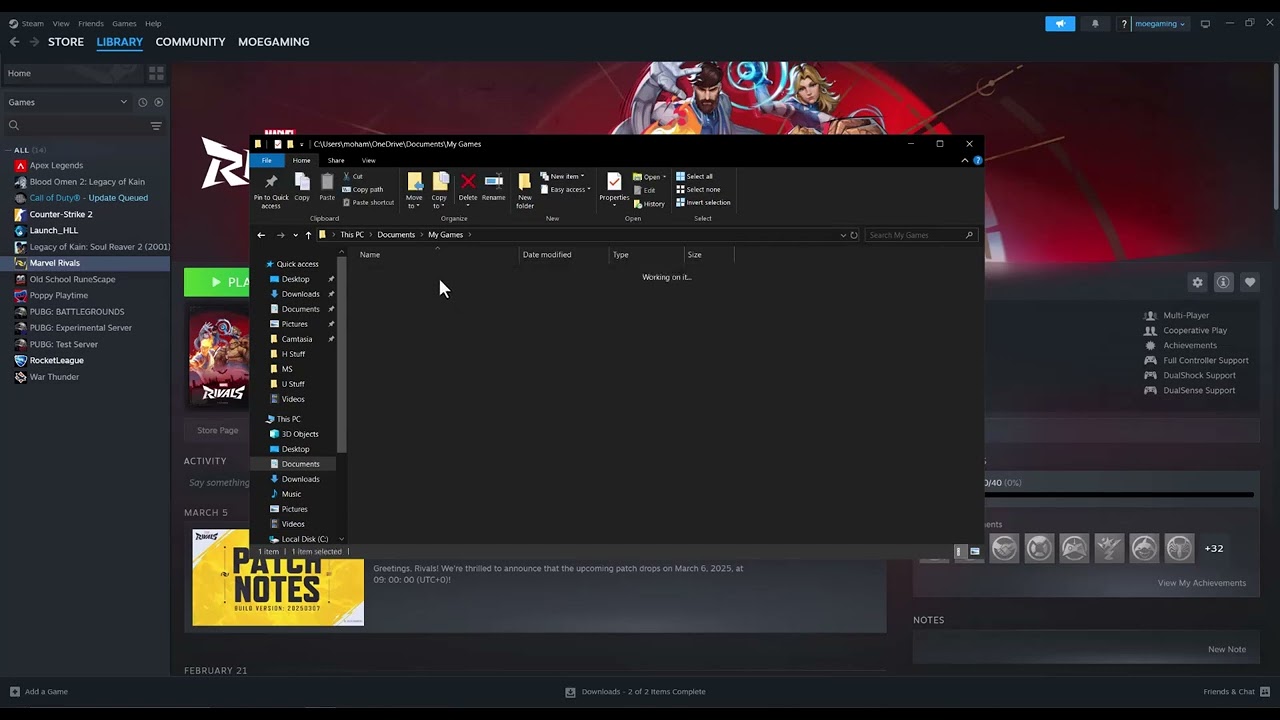
Quick answer: Restart Steam and Ubisoft Connect, verify Rainbow Six Siege, then rename—not delete—GameSettings.ini so the game can build a clean copy. This video-derived workaround may help when an update leaves an incompatible local setting. It resets local display and control settings but not online progression.
Before you start
- Close Rainbow Six Siege, Steam, and Ubisoft Connect completely.
- Take a screenshot of important display, sensitivity, and keybind settings.
- Confirm the update has fully installed in both launchers.
Fix Siege after an update
- Restart the launchers: Exit Steam and Ubisoft Connect from the notification area, reopen them, and sign in again.
- Verify files in Steam: Right-click Rainbow Six Siege, choose Properties > Installed Files > Verify integrity of game files.
- Verify in Ubisoft Connect if offered: Open the game’s Properties or Manage menu and run Verify files.
- Back up the settings file: Open
Documents/My Games/Rainbow Six - Siege. Inside the profile folder, renameGameSettings.initoGameSettings.ini.bak. - Launch the game: Siege should create a fresh settings file. Reapply settings manually and test before copying anything from the backup.
- Update drivers and Windows: If the game still does not open, install current official GPU and Windows updates, restart, and retest without overlays.
Why this may work
The GameSettings.ini file stores local rendering and control choices. A game update can make an older value incompatible with the current build. Renaming the file preserves a backup while forcing Siege to generate supported defaults.
Alternatives
- Temporarily disable Steam, Ubisoft, Discord, or GPU overlays and test again.
- Remove unsupported launch options added before the update.
- If Ubisoft reports an outage, wait and retest before reinstalling.
- Use Ubisoft Support with launcher logs if a clean file and verified installation still fail.
Warnings and reversal
The source video deletes the file; renaming is safer and reversible. The workaround resets local graphics, audio, sensitivity, and keybind settings. To undo it, close the game, remove the newly generated file, and rename GameSettings.ini.bak back to GameSettings.ini. Do not replace the file while the game is running.
FAQ
Will this erase operators or rank?
No. Those are tied to the Ubisoft account. The local file stores settings.
What if the file is not there?
Launch once, check the correct Windows Documents folder, and ensure OneDrive has not redirected Documents.
Should I reinstall first?
No. Verification and a reversible settings rebuild are faster and preserve more local setup.
Official references
- Ubisoft: Verify game files in Ubisoft Connect
- Steam: Verify game files
- Ubisoft: Rainbow Six Siege support
Source video
The video demonstrates removing GameSettings.ini after an update. This guide changes the method to a backup-and-rename workflow, labels it unofficial, and explains the settings tradeoff and full reversal.
As an Amazon Associate I earn from qualifying purchases.
Leave a Reply