Quick answer: EA says Battlefield 6 errors containing DXGI_ERROR_DEVICE_HUNG can occur when a background app is stuck. Fully restart the PC first. If the error returns, update the graphics driver, verify the game files, close overlays and monitoring tools, remove any GPU overclock, and make sure Battlefield 6 uses the high-performance GPU.
What the error means
DXGI_ERROR_DEVICE_HUNG means Windows lost reliable communication with the graphics device while Battlefield 6 was rendering. This does not automatically mean the GPU is defective. A stalled background process, unstable driver, overlay, overclock, or corrupted game file can trigger the same message.
EA’s current Battlefield 6 error-code guide specifically tells players with this error to fully restart the system because a stuck background application can be responsible.
Before you start
- Save open work because the first step is a full Windows restart.
- Remove experimental DirectX launch arguments while troubleshooting.
- Return CPU, GPU, and VRAM overclocks or undervolts to their default values.
- Confirm the PC meets Battlefield 6’s minimum requirements.
How to fix Battlefield 6 DXGI_ERROR_DEVICE_HUNG
1. Fully restart Windows
- Exit Battlefield 6 and close Steam or the EA app.
- Open Start > Power > Restart.
- After Windows loads, open only the required launcher and Battlefield 6.
Do not use Sleep or Hibernate for this test. A full restart clears graphics-driver state and closes the background process EA identifies as a common cause.
2. Remove forced DirectX launch options
If you added -dx11, -dx12, -d3d12, or another renderer switch in Steam, remove it for the baseline test:
- Open Steam and select Library.
- Right-click Battlefield 6 and choose Properties.
- Under General, clear the Launch Options box.
- Close Properties and relaunch the game.
Important: EA’s official Battlefield 6 troubleshooting does not prescribe those generic switches for this error. An unsupported switch can introduce a second problem or prevent the game from launching, so test the supported fixes with a clean launch configuration.
3. Update the graphics driver and Windows
- Install the newest stable driver for the exact NVIDIA, AMD, or Intel GPU from its manufacturer.
- Restart when the installer finishes.
- Open Settings > Windows Update, select Check for updates, and install available updates.
- Check Advanced options > Optional updates for relevant device drivers.
EA notes that DirectX errors can indicate a driver problem. Microsoft also recommends Windows Update for current hardware drivers in its driver-update guidance.
If the error began immediately after a new GPU driver, use the driver installer’s clean-install option or roll back to the last stable release rather than repeatedly installing over the same files.
4. Verify the Battlefield 6 game files
Steam:
- Right-click Battlefield 6 in the Library and choose Properties.
- Select Installed Files.
- Choose Verify integrity of game files and allow the scan to finish.
EA app:
- Open the game in your Library.
- Select Manage, then use the available Repair option.
- Wait for the repair and any download to finish before launching.
Steam documents file verification in its official verification guide. This step replaces missing or changed files without deleting saves.
5. Close overlays and hardware-monitoring tools
Quit nonessential software before testing, especially:
- Discord, GeForce Experience, AMD, Steam, or EA overlays
- MSI Afterburner, RivaTuner, RGB utilities, and frame-limit injectors
- screen recorders and third-party performance overlays
- browser tabs playing hardware-accelerated video
Then launch the game with only the launcher and core Windows services running. If that works, restore applications one at a time to identify the conflict. Microsoft’s clean-boot guide provides a controlled test when the conflicting app is not obvious.
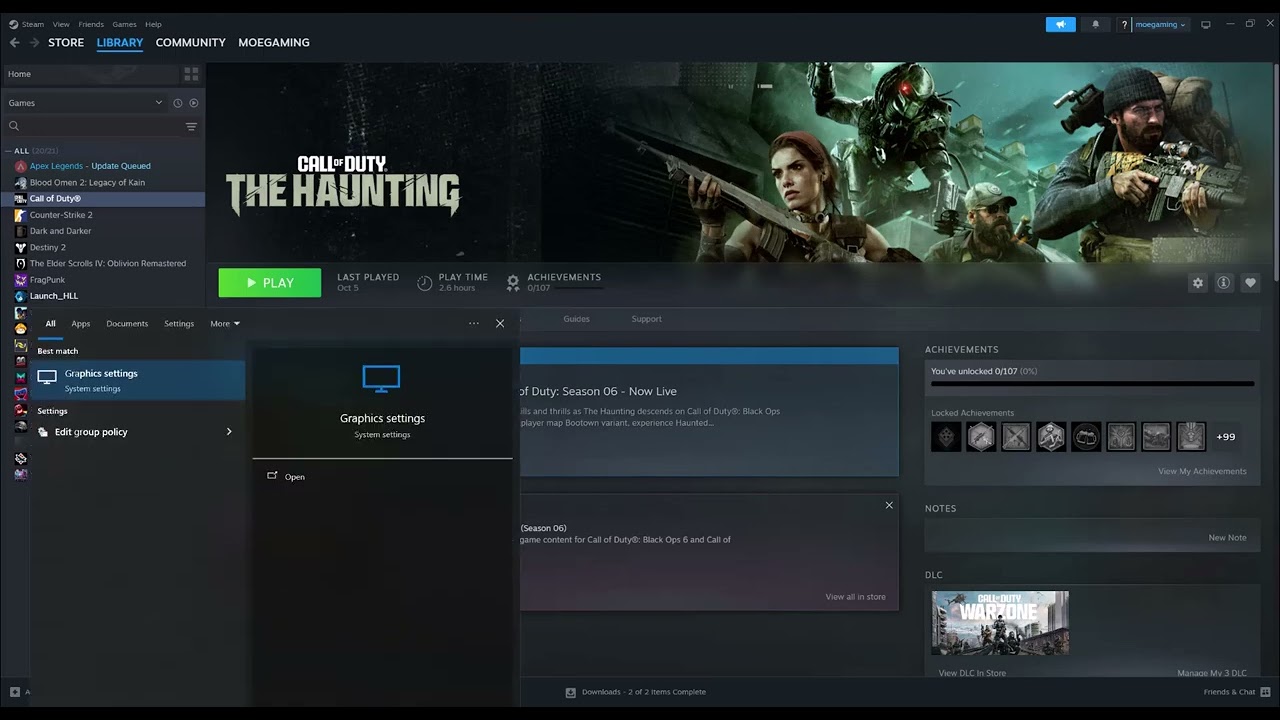
6. Select the high-performance GPU
- Open Settings > System > Display > Graphics.
- Add or select the Battlefield 6 executable.
- Choose Options, select High performance, and save.
- Restart the game.
This matters most on laptops with both integrated and dedicated graphics. Microsoft documents the per-app graphics choice in its Windows graphics settings guide.
7. Test at stock settings
Reset GPU tuning, CPU tuning, VRAM overclocks, and aggressive undervolts to default. Also disable third-party frame-generation or injection tools for the test. A setting that is stable in another game can still cause a device-hung error in Battlefield 6.
Why these fixes work
A restart clears stuck graphics and background processes. A current driver repairs the software layer between DirectX and the GPU. File verification replaces damaged shaders or game binaries, while closing overlays removes programs that hook into the same rendering pipeline. Testing at stock clocks rules out instability before you consider hardware problems.
If the error continues
- Lower texture quality and disable demanding ray-tracing features temporarily.
- Check CPU and GPU temperatures for thermal throttling.
- Run a clean boot and test again.
- Generate a DxDiag report and include it in an EA support case.
- Check the Battlefield 6 support hub for a newly acknowledged issue.
Frequently asked questions
Should I force Battlefield 6 to use DX11?
Not unless EA documents that switch for your exact build and error. Remove unverified launch options first and use EA’s supported restart, driver, and file-repair steps.
Does DXGI_ERROR_DEVICE_HUNG mean my GPU is broken?
No. It can be caused by a stuck application, driver instability, overlays, an overclock, or corrupted files. Hardware is only one possibility after software causes are ruled out.
Will verifying files delete my settings or saves?
It normally checks installed game files and replaces damaged items. Cloud or local saves are not the target of the repair, but backing up important local data is always sensible.
Watch the original walkthrough
Official references
- EA: Battlefield 6 Error Codes
- EA: Battlefield 6 Support
- Steam: Verify Game Files
- Microsoft: Perform a Clean Boot
As an Amazon Associate I earn from qualifying purchases.