Quick answer: To fix the Battlefield 6 Connection Failed error on PC, check EA’s Battlefield 6 server status first. If services are online, fully restart the game and PC, power-cycle the router for about one minute, disable any VPN or manual proxy for testing, and try Ethernet. Then repair the game files, clear the EA app cache, and use Microsoft’s supported Windows network-reset commands. Treat firewall and DNS changes as later tests—not the first fix.
This guide builds on Moe Gaming’s video walkthrough and verifies the troubleshooting order against current EA and Microsoft documentation. Work through the steps in sequence so you can separate a temporary outage from an EA app, game-file, or Windows network problem.
Before changing network settings
- Confirm that ordinary websites and another online service work on the PC.
- Write down the exact Battlefield 6 message or error code, if one appears.
- Pause game downloads, cloud sync, streaming, and other bandwidth-heavy activity.
- Close Battlefield 6 and the EA app completely before repairing files or clearing the app cache.
- Use an administrator account only for the Windows commands and firewall changes described below.
How to fix Battlefield 6 Connection Failed
1. Check Battlefield 6 and EA server status
Open EA’s server-status page and select Battlefield 6. EA’s current error guide says connection and network messages can appear when the game cannot reach EA servers, the platform is offline, or a connection times out. If EA reports an outage or maintenance, local router and Windows changes will not restore the service; wait for EA to resolve it.
If there is no reported outage, continue with the local checks below.
2. Restart Battlefield 6, the launcher, and Windows
Exit Battlefield 6, close the EA app or Steam from the notification area, and restart Windows. Then open the launcher, make sure it is online, and launch the game normally. EA recommends restarting the game and system when an error is not specifically listed.
If Steam owns the game, confirm that Steam is online and that the correct Steam account is linked to the expected EA Account.
3. Power-cycle the router
- Shut down Battlefield 6 and the PC’s launcher.
- Turn the router off and unplug its power cable.
- Wait about one minute.
- Reconnect the router and wait until internet service is fully restored.
- Restart the PC and try Battlefield 6 again.
This refreshes the internet session and can clear a temporary routing, address-assignment, or router-state problem. EA specifically recommends restarting the router for connection issues.
4. Remove avoidable connection interference
- Disconnect from a VPN while testing. Some Battlefield 6 connection errors are associated with unstable DNS or VPN routing.
- Turn off any manual Windows proxy you do not intentionally use.
- Close large downloads, streaming apps, cloud backup, and unnecessary background applications.
- Connect the PC directly to the router with Ethernet if possible.
A wired test is especially useful: if Battlefield 6 connects over Ethernet but not Wi-Fi, focus on signal strength, interference, router placement, or the wireless adapter rather than reinstalling the game.
5. Repair Battlefield 6 and clear the EA app cache
If the network works but Battlefield 6 alone fails, verify or repair the installation in the launcher you use. EA’s current Battlefield error guide recommends repairing the game for certain unknown online errors on both EA app and Steam.
For the EA app cache, open the EA app menu, go to Help > App Recovery, and select Clear cache. Temporary launcher data can become stale and interfere with sign-in, updates, or game handoff. Relaunch the app and sign in again after it finishes.
6. Reset the Windows network stack
If the error continues and other basic checks pass, use Microsoft’s supported network-command sequence:
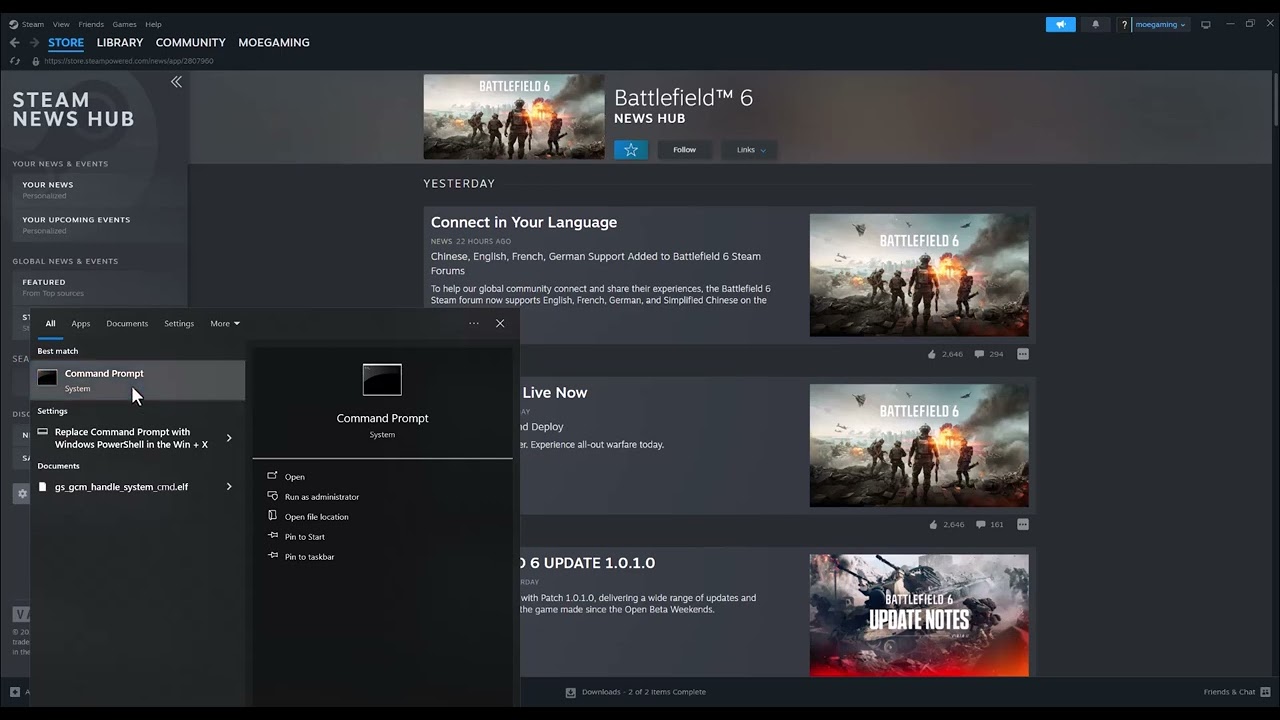
- Open Start, type Command Prompt, and choose Run as administrator.
- Run
netsh winsock reset. - Run
netsh int ip reset. - Run
ipconfig /release. - Run
ipconfig /renew. - Run
ipconfig /flushdns. - Restart Windows and test the game.
The connection may briefly drop while the IP address is released and renewed. These commands reset Windows networking and clear cached DNS results; they do not repair an EA server outage.
7. Allow the game and launcher through Windows Firewall
Open Windows Security > Firewall & network protection > Allow an app through firewall. Confirm that Battlefield 6 and the launcher you use are allowed on the appropriate network type. Microsoft recommends allowing the specific app rather than permanently disabling the firewall or opening random ports.
If a third-party security suite controls the firewall, use its supported app-exception process. Re-enable any protection you temporarily changed for a controlled test.
8. Try a known public DNS only as an optional test
EA lists changing DNS as a possible connection test when the provider’s resolver is unreliable. Google Public DNS uses 8.8.8.8 and 8.8.4.4 for IPv4. Record the current automatic or manual values before changing them, test Battlefield 6, and revert if there is no improvement.
DNS can help the PC resolve service addresses, but it does not fix an EA outage, damaged game files, or a firewall rule.
Why these fixes can work
The same generic “Connection Failed” message can represent several layers of failure. EA’s status check rules out a service-side outage. Restarting the game, launcher, PC, and router clears temporary sessions. Ethernet and closing background traffic reduce local packet loss and congestion. File repair and cache clearing address corrupted or stale launcher data. The Windows commands rebuild local network state, while the firewall check makes sure the operating system is not blocking the game’s traffic.
If Battlefield 6 still cannot connect
- Test another EA online game. If every EA title fails, check the EA Account and launcher rather than Battlefield 6 alone.
- Confirm the PC’s date, time, and time zone are correct; EA notes that incorrect device time can cause connection problems.
- Check the exact error code against EA’s Battlefield 6 error guide.
- If the message is a matchmaking or game-join error, refresh the server list, install pending updates, and verify that required cross-play settings match the error.
- If only the home network fails, test a different connection briefly. A successful test elsewhere points to the router or internet provider.
- Contact EA Support with the error code, launcher, platform account, troubleshooting already completed, and the approximate time of failure.
Important warnings
- Do not permanently disable Windows Firewall or antivirus protection.
- Do not open random router ports without a current first-party instruction for the exact error.
- Do not download “network repair” utilities from unverified websites.
- Do not reinstall Windows for a game connection error.
- Do not keep a manual DNS setting unless testing shows that it is more reliable.
Optional connection accessories
As an Amazon Associate I earn from qualifying purchases.
- Cable Matters Cat 6 Ethernet cable — useful for testing whether Wi-Fi interference is causing the connection failure.
- PS5/PC-compatible gaming headset — relevant for Battlefield squad communication, though it does not repair the connection itself.
Watch the original walkthrough
Frequently asked questions
Is Battlefield 6 down if I see Connection Failed?
Possibly, but not always. Check EA’s Battlefield 6 server status first. If services are online, continue with the launcher, router, Windows, and firewall checks.
Should I disable my firewall?
No. Allow Battlefield 6 and its launcher through the firewall instead. Microsoft warns that adding exceptions or opening ports has security implications, so make the narrowest change necessary.
Will flushing DNS fix Battlefield 6?
It can help if Windows has stale DNS information, but it will not fix an EA outage or corrupted game files. Use it as part of Microsoft’s supported network-command sequence.
Should I use 8.8.8.8 and 8.8.4.4?
They are Google’s documented public DNS addresses and can be tested if the current DNS is unreliable. Keep your existing setting unless the test produces a clear improvement.
Why does Battlefield 6 work on Ethernet but not Wi-Fi?
That result points to local wireless interference, weak signal, congestion, or a Wi-Fi adapter or router issue. Focus on Wi-Fi troubleshooting instead of reinstalling the game.
Official references
- EA Help: Troubleshoot Battlefield 6 error messages
- EA Help: Server status
- EA Help: Troubleshoot connections to EA games
- EA Help: Clear the EA app cache
- Microsoft Support: Fix Wi-Fi connection issues in Windows
- Microsoft Support: Allow an app through Windows Firewall
- Google: Configure Google Public DNS