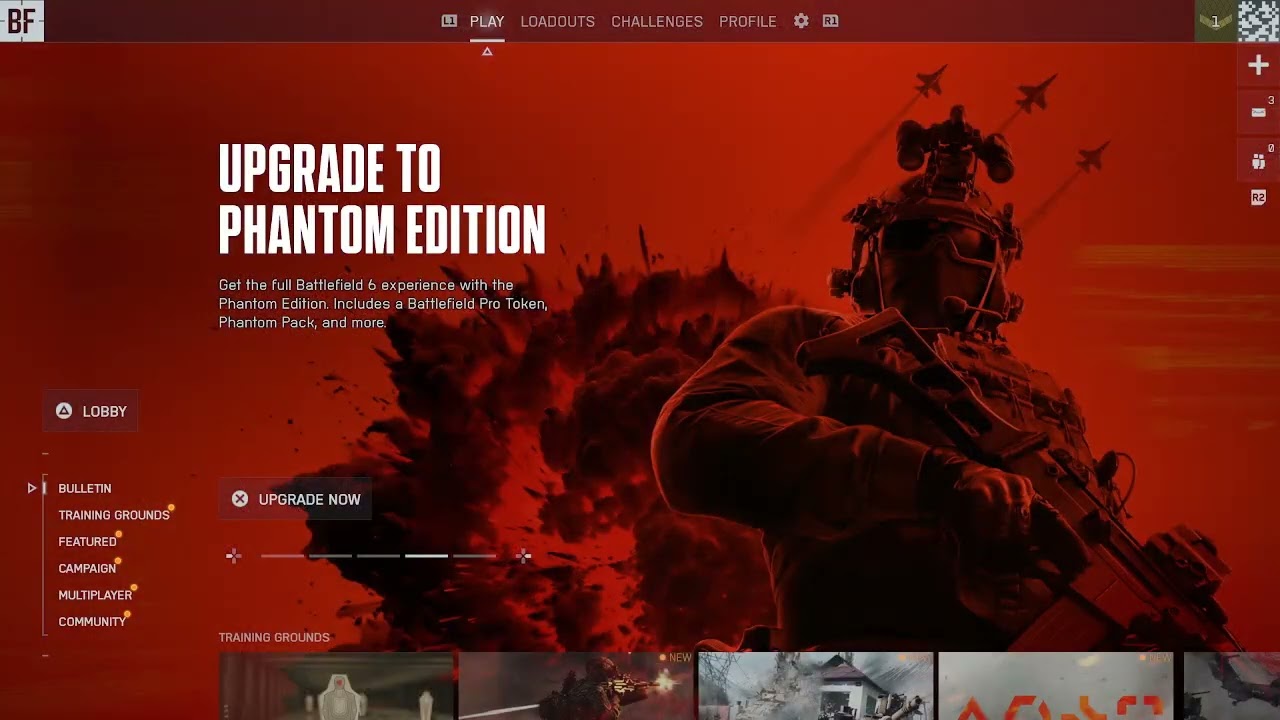
Battlefield 6 can display “Content Not Installed,” “Multiplayer Not Installed” or “Purchase to Play” when a mode has not been enabled in the game’s Install/Uninstall screen or when the platform does not recognize the content license. EA says the original installation/purchase issue has been fixed, but the content-management steps remain useful when a component is missing.
Before you begin
- Confirm whether you own the full Battlefield 6 experience or are using free-to-play Battlefield REDSEC.
- Sign in to the EA account and platform account tied to the purchase.
- Make sure there is enough free storage and no paused download.
- Do not delete saved data while changing installed components.
How to install the missing Battlefield 6 content
1. Use Battlefield’s Install/Uninstall menu
Launch Battlefield 6 and open Settings. Select System. Under the Setup section, choose Edit next to Install/Uninstall. Enable the component or mode you are trying to play. EA’s current Battlefield error guide lists this exact path for multiplayer-not-installed and purchase-to-play messages.
2. Wait for the platform download to finish
Selecting a component can begin a separate platform download. Leave the game and check the system’s download queue. Do not relaunch the mode until the installation is complete, then fully close and restart Battlefield 6.
3. Check Manage Game Content on PlayStation
On PS5, highlight Battlefield 6 on the home screen, press Options, and open Manage Game Content. Install any missing single-player, multiplayer or language component needed by your edition. If a required pack is listed as installed but fails validation, remove and reinstall that pack.
4. Restore the PlayStation license
If the correct files are present but the game still asks you to purchase them, highlight the game, press Options, and choose Restore License. The full path is Settings > Users and Accounts > Other > Restore Licenses. This refreshes the entitlement without deleting progress.
5. Verify files on PC
On PC, use the repair or verify-files option in the EA app, Steam or Epic Games launcher, then restart the launcher. EA recommends repairing or verifying files for Battlefield installation or launch problems.
Full game versus Battlefield REDSEC
Battlefield REDSEC is a free-to-play experience with its own available modes. It can play alongside Battlefield 6 users, but downloading REDSEC does not necessarily unlock paid full-game content. If “Purchase to Play” appears only on a paid mode, confirm the edition on the store account before reinstalling.
If the message remains
- Restart the PC or console and the EA app or platform launcher.
- Check EA’s server status before repeatedly reinstalling files.
- Confirm that the correct platform account is linked to the intended EA account.
- On PlayStation, make sure the account region and any disc/add-on region are compatible.
- For a true connectivity message rather than an install message, use the Battlefield 6 connection-failed guide.
Why the fix works
Battlefield checks both the local component and the account entitlement. Enabling the mode installs its files; repairing or reinstalling the pack corrects damaged local data; restoring a license refreshes platform ownership. Those are different problems, so completing them in that order avoids an unnecessary full reinstall.
Warnings
- Do not delete saved data or cloud saves when removing a game component.
- Do not assume free REDSEC access includes every paid Battlefield 6 mode.
- Do not interrupt a content pack while it is installing or copying.
- Only reinstall the entire game after component-level repair fails.
Frequently asked questions
EA says the issue was fixed, so why do I still see it?
The server-side issue can be fixed while a local mode remains uninstalled, a download is paused or a platform license needs refreshing.
Does Restore Licenses delete Battlefield progress?
No. PlayStation states that restoring licenses does not affect data.
Can REDSEC players access the full Battlefield 6 game?
REDSEC provides its advertised free modes. Paid Battlefield 6 content still requires the appropriate entitlement.
Watch the original walkthrough
The original Moe Gaming video demonstrates Battlefield’s Install/Uninstall menu and the PS5 content/license checks. Source video: How To Fix Battlefield 6 Content Not Installed Purchase To Play.
Two additional walkthroughs confirm the current in-game path: Settings > System > Edit beside Install/Uninstall. If a named pack is checked but still produces the error, uncheck it, close the game while the component is removed, then recheck it and allow the download to finish. On Steam, the second video also shows checking the game’s installed DLC; use the EA in-game menu as the cross-platform source of truth.
Optional PlayStation hardware
For readers shopping for supported current-generation hardware, the PlayStation 5 Digital Edition is a direct product link. New hardware is not required to repair an installation or entitlement error on an existing console.
Affiliate disclosure: As an Amazon Associate I earn from qualifying purchases.