PlayStation defines CE-112987-8 as a problem purchasing, downloading or installing content on PS5. The safest recovery order is to update the console, clear the failed download, restart, sign out and back in, then restore licenses. Network changes should come later, only if the console also fails a connection test.
What CE-112987-8 means
This code is tied to a store purchase, download or installation rather than a general hardware failure. It can appear when a download entry is stuck, account authentication needs refreshing or the console cannot validate the content license.
How to fix CE-112987-8
1. Update the PS5 system software
Go to Settings > System > System Software > System Software Update and Settings, then select Update System Software. Install any available update and restart the console. PlayStation lists current system software as the first requirement in its error and download guidance.
2. Remove the failed download and retry
Press the PS button to open Control Center and select Downloads/Uploads. Highlight the failed content, press Options, and choose Cancel and Delete. This removes the incomplete download entry, not your game save. Return to Game Library or PlayStation Store and start the download again.
3. Restart the PS5
Fully restart the console instead of entering Rest Mode. PlayStation’s current CE-112987-8 page specifically recommends a restart before moving to license troubleshooting.
4. Sign out and sign back in
Open Settings > Users and Accounts > Other, sign out of the PlayStation account, then sign in again. This refreshes the account session used to validate the purchase and download.
5. Restore licenses
Go to Settings > Users and Accounts > Other > Restore Licenses and restore the affected license. You can also highlight owned content on the home screen or in Game Library, press Options, and select Restore License. PlayStation says the process does not affect data.
6. Check the purchase or payment only when relevant
If CE-112987-8 appears during checkout rather than after a completed purchase, confirm the transaction history and payment method under the account’s payment and subscription settings. Do not buy the same content twice while the original transaction is still processing.
Network checks are optional, not the first fix
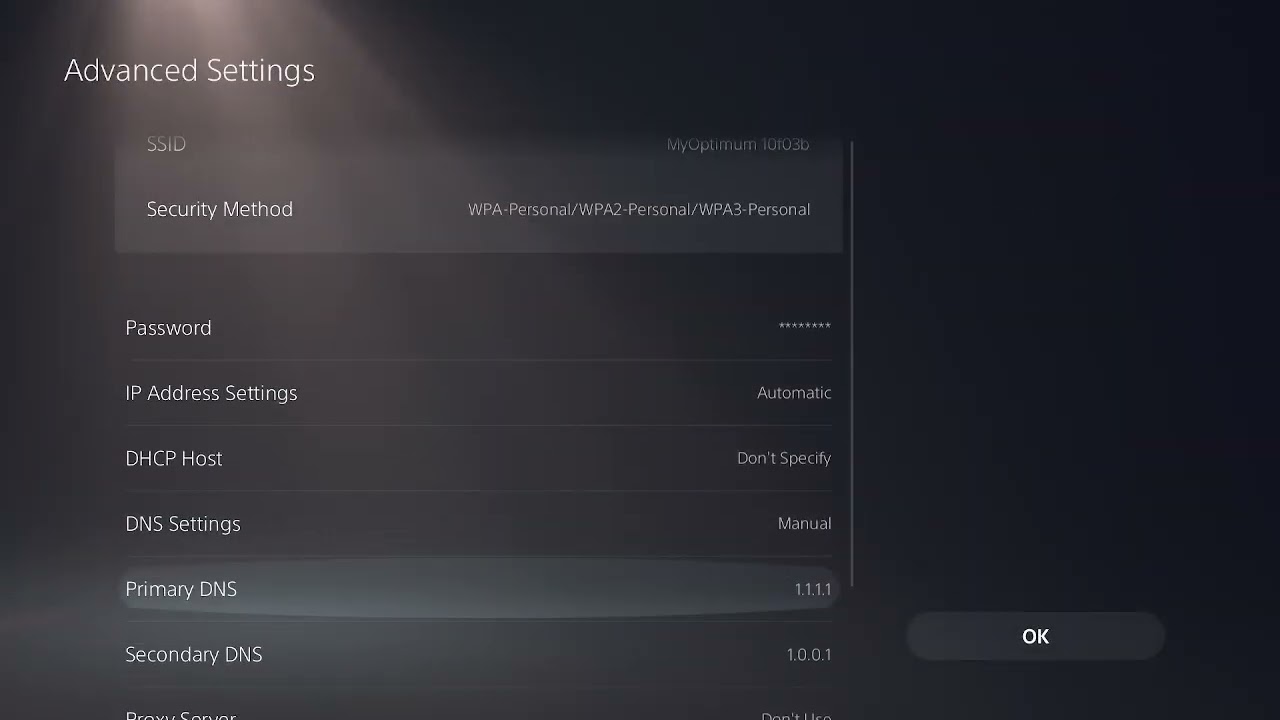
The original video demonstrates changing Wi-Fi band and DNS after signing in again. Those steps can help only if the console also has a connection or name-resolution problem. First run Settings > Network > Connection Status > Test Internet Connection and check PlayStation service status. If the connection is healthy, keep DNS automatic and focus on the failed download and license.
If the error continues
- Pause and resume the download once before canceling it.
- Check that the console has enough free storage.
- Try downloading from Game Library rather than a stale store page.
- For disc add-ons, confirm that the disc and PlayStation account regions match.
- Use PlayStation’s Safe Mode database-rebuild guidance only after normal download steps fail; do not choose Reset PS5.
Why these steps work
A system update repairs compatibility problems, deleting the failed queue entry removes incomplete installation state, signing back in refreshes account authentication, and restoring licenses asks PlayStation to revalidate ownership. None of those steps requires erasing the console.
Warnings
- Canceling a failed download is different from deleting saved data.
- Do not factory-reset the PS5 for this error.
- Do not repeatedly repurchase content while a transaction is pending.
- Only change DNS after confirming a network problem; custom DNS is not a universal fix for store errors.
Frequently asked questions
Does Restore Licenses erase games or saves?
No. PlayStation states that restoring licenses does not affect data.
What if the error appears while buying content?
Check transaction history and the payment method before retrying. If a charge is pending, avoid purchasing the same item again.
Should I use 1.1.1.1 DNS?
Only as a targeted network test when the PS5 connection test or name resolution is failing. It is not part of PlayStation’s primary CE-112987-8 recovery sequence.
Watch the original walkthrough
The Moe Gaming video demonstrates signing out and the optional network menus. This guide places PlayStation’s current download and license steps first. Source video: How To Fix PS5 Error Code CE-112987-8.
Affiliate disclosure: As an Amazon Associate I earn from qualifying purchases.