When Where Winds Meet crashes, freezes, or refuses to launch on PS5, start with the current game and system updates, a full restart, and a license restore. If the problem continues, use PlayStation’s supported cache/database steps and reinstall only after checking whether the issue follows one save file or affects the whole game.
Quick answer
- Close Where Winds Meet completely and restart the PS5.
- Check for the latest game and PS5 system-software updates.
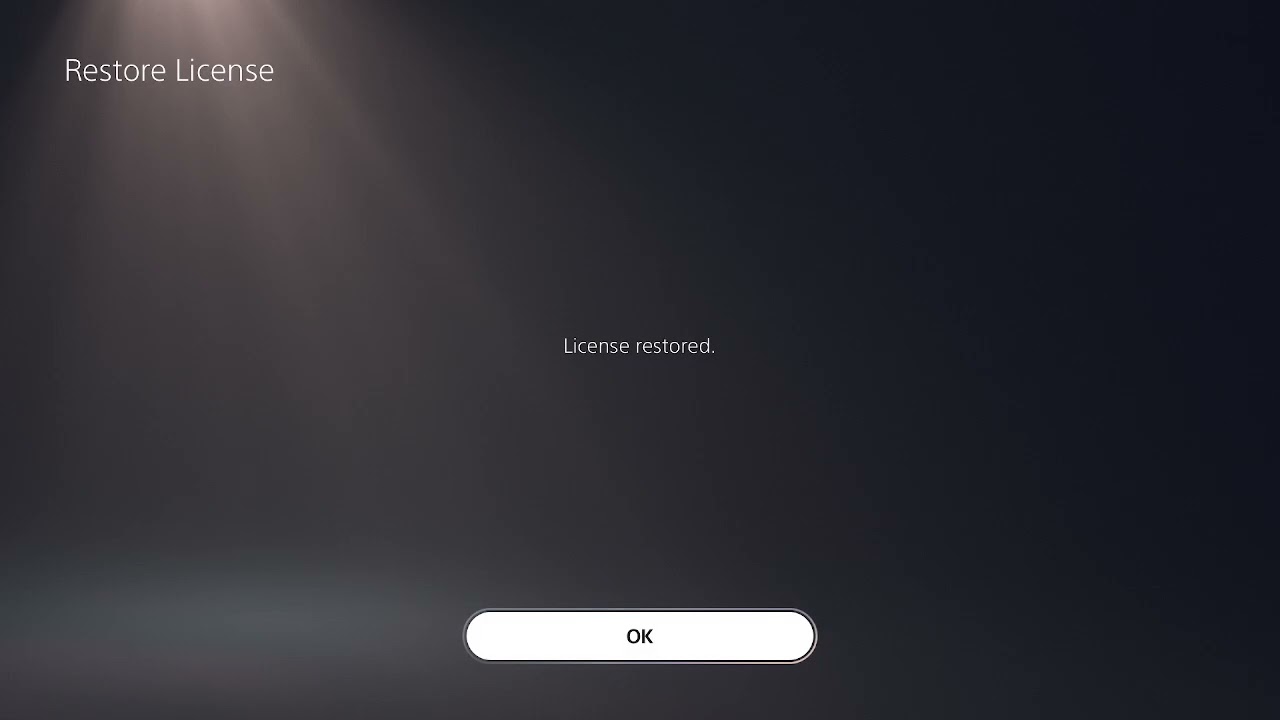
- Highlight the game, press Options, and choose Restore License.
- Sign out and back in to PlayStation Network if the launch authorization appears stuck.
- Use Safe Mode to clear the system cache and rebuild the database.
- Reinstall the game only if the supported steps above fail.
Before you start
- Confirm whether only Where Winds Meet crashes or several games do.
- Note whether the failure occurs at launch, while loading a save, or during gameplay.
- Sync important saves to cloud storage or make a backup before destructive troubleshooting.
- Do not reset or reinstall PS5 system software for a single-game problem unless PlayStation Support specifically directs you to do so.
How to fix Where Winds Meet crashing or not launching on PS5
1. Check for a current service or patch issue
Look for a new Where Winds Meet patch and review the game’s official news. The developers have continued PS5 stability work, including memory optimization intended to reduce crashes. If the problem began immediately after a new update and many players report it, avoid repeated reinstalls while waiting for a corrective patch.
2. Close the game and restart the PS5
Press the PS button, highlight Where Winds Meet in the switcher, press Options, and close the game. Restart the console rather than returning from Rest Mode. This clears the running game process and temporary system state.
3. Update the game and PS5 system software
Highlight Where Winds Meet, press Options, and select Check for Update. Then open Settings > System > System Software > System Software Update and Settings. Install available updates and restart before testing again.
4. Restore the game license
Highlight Where Winds Meet on the home screen, press Options, and select Restore License. You can also go to Settings > Users and Accounts > Other > Restore Licenses. Sony states that this process does not affect your data.
This step is especially relevant when the game suddenly refuses to start, shows a lock, or returns to the home screen before loading.
5. Refresh the PlayStation Network sign-in
Open Settings > Users and Accounts > Other > Sign Out, restart the PS5, and sign back in to the account that owns or is entitled to the game. Several viewers of the original walkthrough reported that a license restore or refreshed sign-in allowed the game to launch again.
6. Test without the existing save if the crash happens during loading
If the game opens but one character or save crashes at the same point, sync or back up the save and test a new game or another profile without overwriting the original. Sony recommends this comparison because a damaged save can look like a general game crash.
7. Clear cache and rebuild the database in Safe Mode
Turn off the PS5. Press and hold the power button, releasing it after the second beep. Connect the controller by USB, choose Clear Cache and Rebuild Database, and first try Clear System Software Cache. If needed, return and choose Rebuild Database.
Rebuilding scans the console’s content index; it is not the same as resetting the PS5. Do not choose Reset PS5 or Reinstall System Software, because those are destructive options.
8. Reinstall Where Winds Meet
If the game still fails while other PS5 games work, delete only Where Winds Meet and download a fresh copy from your library. Install it to the PS5’s internal storage for the first retest. Make sure the download and update finish completely before launching.
9. Treat full console shutdowns as a hardware-safety warning
If the PS5 powers off completely, displays an overheating message, smells hot, or also crashes in other games, stop repeatedly launching the game. Move the console to a well-ventilated area, disconnect unnecessary USB devices, and use PlayStation’s hardware diagnostic or repair support. A full loss of power is different from an ordinary game crash.
Why these fixes work
Updates address known game and system bugs. A restart clears temporary state, while a license restore and new sign-in repair entitlement authorization. Cache clearing and database rebuilding target damaged temporary data or content indexing. The save-file test separates a corrupted save from an installation problem, and reinstalling replaces the game files only after the faster checks are exhausted.
Fixes to avoid
- Do not repeatedly delete optional language packs unless official support identifies one as the cause.
- Do not reset the entire PS5 for one crashing game.
- Do not delete a cloud or local save until it has been backed up and tested safely.
- Do not ignore complete console shutdowns or overheating warnings.
Frequently asked questions
Does restoring licenses delete my Where Winds Meet save?
No. Sony says restoring licenses does not affect your data.
Should I rebuild the PS5 database?
It is a supported step after updates, restart, and license checks fail. Choose only Clear Cache and Rebuild Database in Safe Mode—not the reset or system-software reinstall options.
Why does the game crash only on one save?
A repeatable crash on one save may indicate damaged or incompatible save data. Back it up and test another save or profile before changing the whole console.
What if Where Winds Meet crashes after every new patch?
Install the latest hotfix, check official patch notes, and report the exact version, location, and action that triggers the crash. Recurrent patch-specific crashes may require a developer fix rather than another reinstall.