Quick answer: Close Rainbow Six Siege and Ubisoft Connect completely, including the tray process, then start Ubisoft Connect with administrator rights for one test and launch the game. If the error returns, check Ubisoft service status, verify the game files, and reset cloud-save synchronization carefully. Never overwrite a newer local save with an older cloud copy without checking timestamps.
Before you start
- Close Rainbow Six Siege before changing Ubisoft Connect settings.
- Take a screenshot of any local-versus-cloud save prompt and its timestamps.
- Confirm Windows date, time, and time zone are correct.
- Do not delete save folders or launcher folders until supported repair steps fail.
How to fix Rainbow Six Siege synchronization failed
- Check Ubisoft service status. If Ubisoft Connect or Rainbow Six Siege online services are degraded, wait for recovery. Local file changes cannot repair a server-side synchronization outage.
- Exit both processes completely. Close the game, right-click the Ubisoft Connect icon in the notification area, and choose Exit. Open Task Manager and confirm that the game and Ubisoft Connect processes have ended.
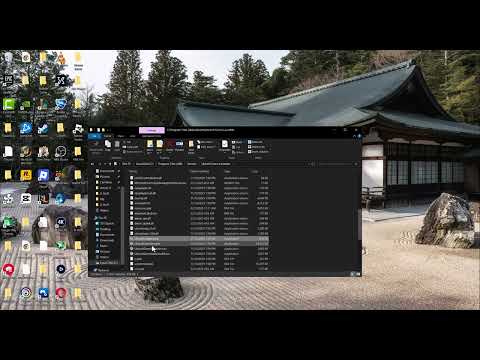
- Run Ubisoft Connect as administrator for one test. Search for Ubisoft Connect, right-click it, and choose Run as administrator. The video demonstrates opening the launcher’s file location and setting its executables to always run as administrator. Ubisoft does support administrator rights for permission-related problems, but start with the temporary one-time test rather than permanently changing every executable.
- Launch Rainbow Six Siege from Ubisoft Connect. Allow the launcher to sign in and finish any update before starting the game. Close and reopen both apps if an update was pending.
- Verify the game files. In Ubisoft Connect, open the game’s Properties and use Verify files. If you own it through Steam, verify there as well, then let Ubisoft Connect repair anything it finds.
- Reset cloud-save synchronization. Ubisoft’s cloud-save troubleshooting recommends starting Ubisoft Connect as administrator, temporarily disabling cloud-save synchronization and the Ubisoft Connect overlay, launching and closing the game, then turning cloud synchronization back on and testing again. Change one setting at a time so you know what helped.
- Choose the correct save if a conflict appears. Compare dates, progression, and file size. Keep a copy of the local save before choosing. If uncertain, cancel the prompt and contact Ubisoft Support instead of overwriting progress.
- Check security software and connectivity. Allow Ubisoft Connect and Rainbow Six Siege through Windows Firewall, disable a VPN or proxy for one test, and follow Ubisoft’s PC connectivity steps. Restore security settings after testing.
- Reinstall Ubisoft Connect last. Back up local saves first. Reinstalling the launcher is more disruptive than restarting, verifying files, and resetting cloud synchronization.
Why administrator access can help
Ubisoft Connect needs permission to update launcher files and read or write local save data before syncing it. A one-time administrator launch can reveal a permissions problem. It is not a universal fix, and leaving every executable permanently elevated expands what the program can change. Revert the compatibility setting if it does not help.
If synchronization fails after every match
- Check whether security software is quarantining or blocking the save folder.
- Make sure the Windows account has write access to the Documents and Ubisoft save directories.
- Pause OneDrive Known Folder Backup for one controlled test if it is redirecting the save folder, then restore it.
- Collect Ubisoft Connect logs and the exact error time for a support case.
Warnings
- Do not delete the local save simply because cloud synchronization failed.
- Do not choose a cloud or local version without checking which is newer.
- Do not permanently run all launcher executables as administrator unless the one-time supported test proves it necessary.
Optional PC gaming gear
For voice chat and game audio, the WESEARY PS5/PC wireless gaming headset is a compatible optional accessory. A Cable Matters Cat 6 Ethernet cable can help isolate unstable Wi-Fi during online testing; neither item repairs damaged save data.
As an Amazon Associate I earn from qualifying purchases.
Frequently asked questions
Will disabling cloud saves delete my Rainbow Six Siege progress?
Temporarily disabling synchronization stops the launcher from exchanging files during the test. Do not delete local files, and turn synchronization back on afterward.
Should I run all Ubisoft executables as administrator?
No. Try launching Ubisoft Connect as administrator once. Make a permanent compatibility change only if it solves a confirmed permissions problem.
What should I choose in a cloud-save conflict?
Choose the version that contains the newest valid progress after checking timestamps. If you cannot tell, cancel and back up the local save before continuing.