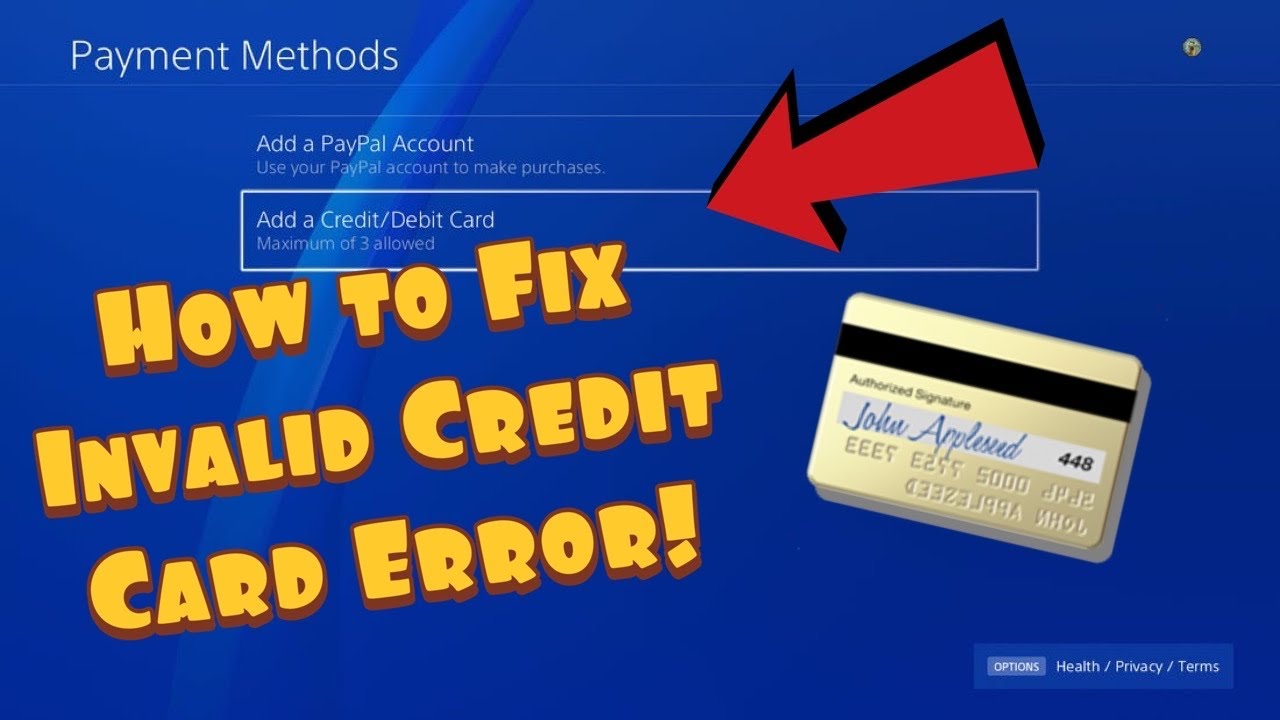
PS4 error WC-34737-4 means PlayStation could not validate the information saved for your payment method. The usual causes are an expired card, a billing-address mismatch, incorrect card details, or a temporary payment restriction.
Quick answer: Open Settings > Account Management > Account Information > Wallet, remove the affected payment method, and add it again with the exact billing details held by the bank. If it still fails, use another accepted method or wait 24 hours before retrying.
Before you start
- Check the card’s expiration date and available balance.
- Use the billing name and address exactly as the bank records them.
- Make sure the payment method is supported in the PlayStation account’s country/region.
- Do not post card numbers, screenshots, or billing details in comments or support forums.
Fix PS4 error WC-34737-4
- Open the PS4 wallet settings. Go to Settings > Account Management > Account Information > Wallet > Payment Methods.
- Inspect the saved details. Check the card number, expiration date, cardholder name, security code when requested, and billing address.
- Remove the payment method. Delete the affected card from the wallet rather than repeatedly submitting the same saved record.
- Add it again carefully. Enter the details exactly as shown by the card issuer. Avoid abbreviations or an old postal code if the bank has a different billing address.
- Retry one purchase. Close and reopen PlayStation Store, then make one careful attempt.
- Try another accepted payment method. Sony recommends a different card or another supported option if the first method still fails.
- Wait 24 hours. Sony warns that several registration or deletion attempts in a short period can temporarily prevent payment changes.
- Use wallet funds if appropriate. A PlayStation Store voucher can be an alternative, but buy it only from a trusted retailer and for the correct account region.
Why this works
PlayStation compares the saved payment information with the card issuer’s records. Removing and re-adding the method replaces stale details. Waiting helps when fraud-prevention systems have temporarily limited repeated edits or checkout attempts.
What viewers reported
Viewer results were mixed: correcting an old address helped some people, while others needed a different payment method or time for the restriction to clear. That is why this guide avoids promising that repeated card removal will work immediately.
Alternatives
- Edit or add the payment method through official PlayStation Account Management.
- Check the WS-43709-3 guide if PlayStation specifically says the card has expired.
- Use our WS-43689-0 guide for a more general payment-failed message.
- Ask the bank whether it declined the transaction, without sharing sensitive details with third parties.
Warnings
- Do not retry rapidly; repeated failures can extend a temporary restriction.
- Never change the account country/region or use a VPN to force a payment.
- Do not buy discounted voucher codes from unverified sellers.
Frequently asked questions
Why is correct card information still rejected?
The billing address may not match the issuer’s record, the card may not be supported for that account region, or a temporary security hold may be active.
Will removing a card cancel subscriptions?
It can affect the payment method used for future renewals. Review active subscriptions and add a valid method before the next billing date.
Should I keep trying during the 24-hour wait?
No. Sony specifically warns that repeated changes in a short time can restrict payment-information updates.
Watch the source video
Official references
- PlayStation: PS4 error WC-34737-4
- PlayStation: Manage payment options
- PlayStation: Credit or debit card problems
- PlayStation: Accepted payment methods
Affiliate disclosure: As an Amazon Associate I earn from qualifying purchases. No product was added because these fixes do not require new hardware.