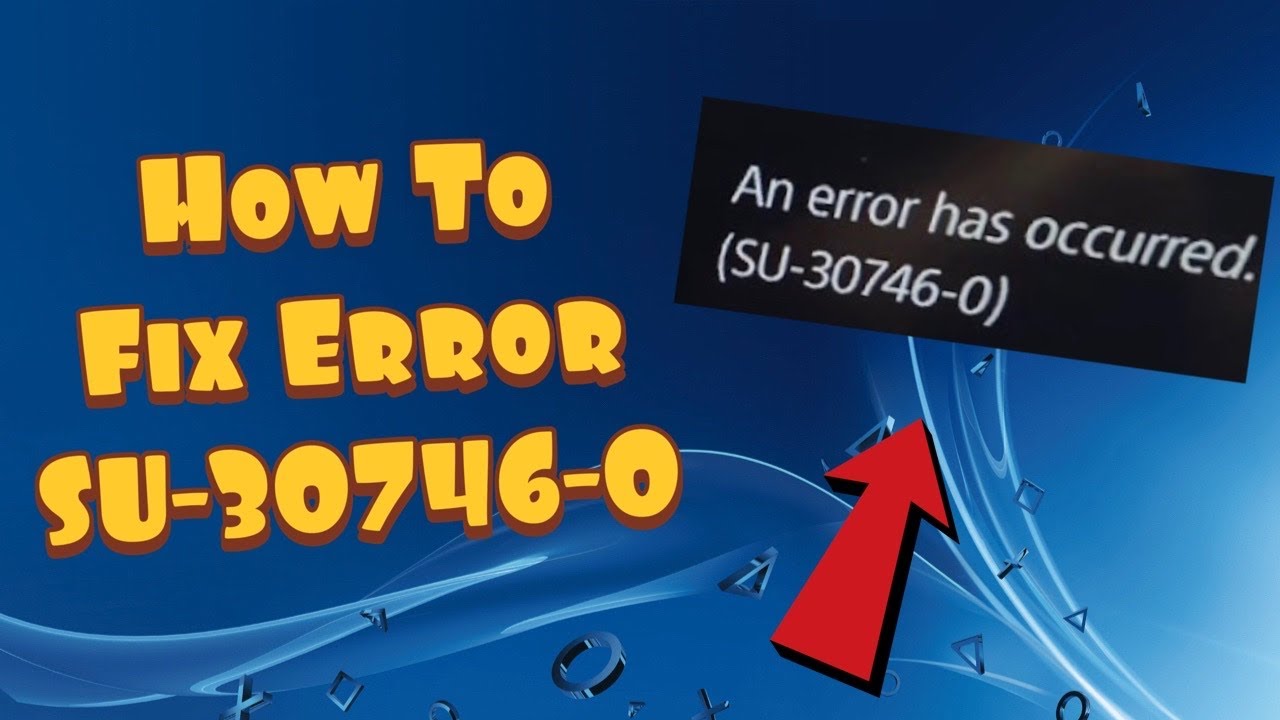
PS4 error SU-30746-0 means the system software update failed. A partially downloaded update, unstable connection, or damaged update file can prevent the console from completing the installation.
Quick answer: Restart the PS4 and retry the update over wired internet. If it fails again, delete the failed update from Notifications and go to Settings > System Software Update. Use Sony’s official USB update only after the normal update continues to fail.
Before you start
- Connect the DualShock 4 with a USB data cable if you may need Safe Mode.
- Use a stable wired internet connection when available.
- Keep the console connected to power throughout the update.
- For a USB update, use a FAT32 or exFAT drive and download files only from PlayStation.
Fix PS4 error SU-30746-0
- Restart the PS4. Open Power > Restart PS4, then allow the console to reconnect before trying the update again.
- Switch to wired internet. Connect the PS4 directly to the router when possible. Sony recommends a wired connection for the retry.
- Delete the failed update notification. Open Notifications, highlight the system update file, press OPTIONS, and select Delete.
- Start a fresh online update. Go to Settings > System Software Update and follow the prompts. Do not turn off the console while it installs.
- Try Safe Mode’s update option. Turn the PS4 off, hold the power button until the second beep, connect the controller by USB, and choose Update System Software.
- Prepare the official USB update. On a computer, format a USB drive as FAT32 or exFAT. Create
PS4and thenUPDATEfolders. - Download the correct file. From Sony’s PS4 system-software page, save the update file as
PS4UPDATE.PUPinsidePS4/UPDATE. - Install from USB. Start Safe Mode and choose Update System Software > Update from USB Storage Device > OK.
Why this works
Deleting the failed notification prevents the PS4 from reusing a damaged download. Wired internet reduces interruption risk, while the official USB method supplies a fresh update file directly to Safe Mode.
What viewers reported
Some viewers said Safe Mode’s Rebuild Database helped when the normal update remained stuck, and others needed a controller connected by a data-capable USB cable. Rebuild Database is a secondary maintenance step, not a substitute for the correct update file.
If the update still fails
- Verify the folder names and
PS4UPDATE.PUPcapitalization exactly. - Try a different USB port or a known data-capable controller cable.
- Use Safe Mode > Rebuild Database only after the update paths above fail.
- Contact PlayStation Support before choosing Initialize PS4 or a full reinstallation.
Warnings
- Do not download PS4 update files from mirrors or third-party sites.
- The normal update file and the larger reinstallation file are not interchangeable.
- Initialize PS4 and Reinstall System Software can erase console data; back up first and use them only as a last resort.
Frequently asked questions
Does SU-30746-0 mean the PS4 hard drive has failed?
Not by itself. It means the system update failed. Try Sony’s fresh update sequence before assuming a hardware fault.
Can I update without a USB drive?
Yes. Restart, delete the failed notification, and retry through Settings first. USB is the fallback for repeated download failures.
Will Rebuild Database delete games?
Rebuild Database reorganizes the content index and is not intended to erase installed games, but you should still maintain backups of important saved data.
Watch the source video
Official references
- PlayStation: PS4 error SU-30746-0
- PlayStation: PS4 system software
- PlayStation: Update system software in Safe Mode
- PlayStation: Safe Mode on PS4 and PS5
Affiliate disclosure: As an Amazon Associate I earn from qualifying purchases. No product was added because these fixes do not require new hardware.