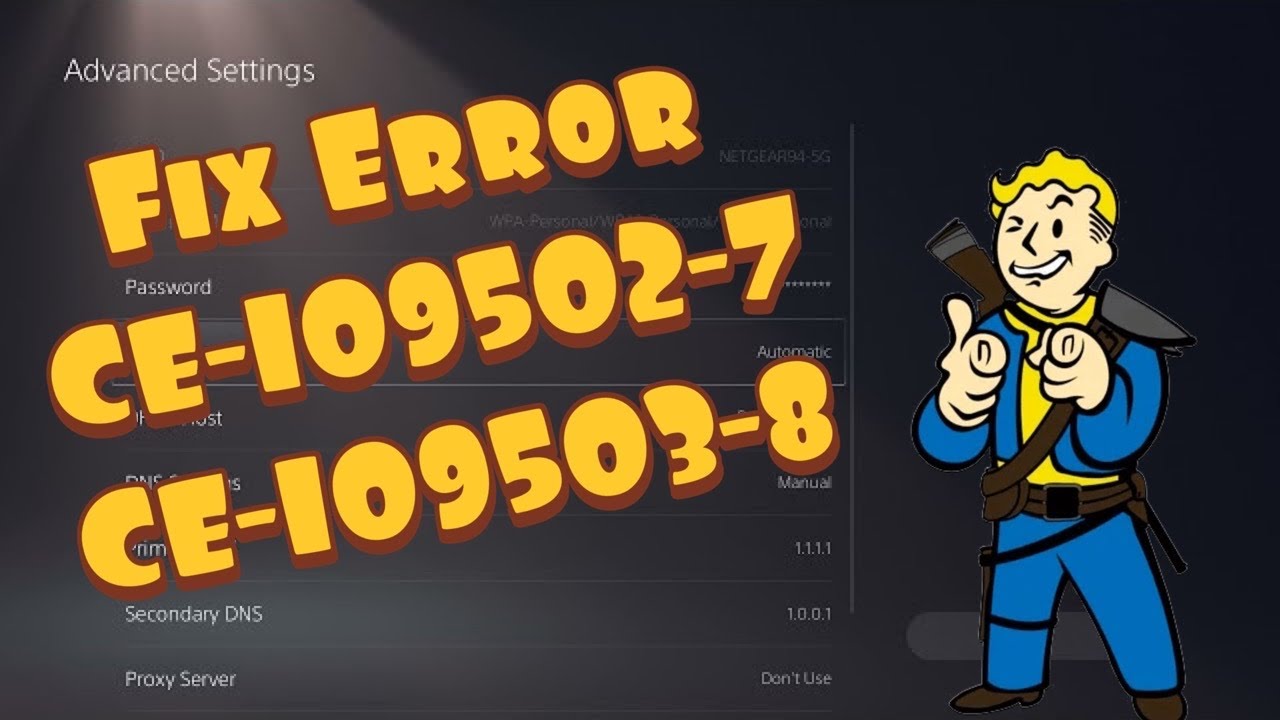
Quick answer: Check PlayStation Network status, restart the PS5 and power-cycle the modem/router. Then test Ethernet if possible, or switch the saved Wi-Fi connection between 5 GHz and 2.4 GHz. If the error continues, forget and reconnect to the network. A manual DNS resolver can be tested last and reversed easily.
What the errors mean
CE-109502-7 and CE-109503-8 are connection errors. CE-109503-8 is documented by PlayStation as an error connecting to PlayStation, and the on-screen message may say the console could not obtain an IP address within the time limit. The cause can be a service outage, a stalled router lease, weak Wi-Fi or incorrect saved settings.
Before you start
- Check whether phones and computers can use the same network.
- Save the Wi-Fi password before forgetting the connection.
- Do not press the router’s recessed factory-reset button unless you intend to erase its configuration.
Fix CE-109502-7 and CE-109503-8
- Check PSN status. If Account Management, Gaming and Social or the PlayStation Store is reporting an incident, wait for service recovery rather than changing the home network.
- Restart the PS5. Use Power > Restart PS5. A restart renews network services more completely than Rest Mode.
- Power-cycle the network equipment. Turn the PS5 off, unplug the modem/router for about 60 seconds, reconnect it and wait for normal status lights before starting the console.
- Test Ethernet. Connect the PS5 directly to the router with a known-good cable and set up the wired connection. If Ethernet works, the error is likely limited to Wi-Fi range, interference or saved wireless settings.
- Choose a Wi-Fi band manually. Go to Settings > Network > Settings > Set Up Internet Connection. Highlight the network, press Options and test 5 GHz and 2.4 GHz separately. Five GHz is faster at short range; 2.4 GHz usually travels farther.
- Forget and reconnect. Delete the saved network from the PS5, restart the console and enter the Wi-Fi password again. Leave IP Address, DHCP Host Name, MTU and Proxy on Automatic or Do Not Use unless the network administrator gave you specific values.
- Optional DNS test. In Advanced Settings, set DNS to Manual and try Cloudflare 1.1.1.1 / 1.0.0.1 or Google 8.8.8.8 / 8.8.4.4. Use one pair, not a mix, and restore Automatic if it does not help.
- Update the router and PS5. Install current PS5 system software. Check the router maker’s instructions for firmware updates, then test again.
Why this works
The PS5 must receive an IP address from the router and reach PlayStation services. Restarting clears stale leases and sessions. Ethernet bypasses radio interference. Selecting a band can stabilize a weak connection, which matches the useful viewer reports on the source video. DNS changes only the lookup service and are therefore a secondary test.
Alternatives
- Move the console or router into a clearer line of sight.
- Pause large downloads and disconnect unused devices for one test.
- Use a phone hotspot briefly to distinguish a console problem from the home network; monitor data use.
- Contact the ISP if multiple devices cannot obtain an IP address.
Warnings
Power-cycling means unplugging and reconnecting the router. It is not the same as holding the Reset pin, which may erase the Wi-Fi name, password and ISP configuration. Do not assign a manual IP copied from another device, because duplicate addresses cause more connection failures.
FAQ
Should I use 5 GHz or 2.4 GHz?
Use 5 GHz near the router and 2.4 GHz when range or walls are the issue. Test both and keep the one that stays connected.
Will DNS fix a weak Wi-Fi signal?
No. DNS can affect name resolution, not radio strength. Ethernet, placement and band selection address signal problems.
Do I need a factory reset?
No. These are network errors; exhaust the reversible connection checks first.
Official references
Source video
As an Amazon Associate I earn from qualifying purchases.