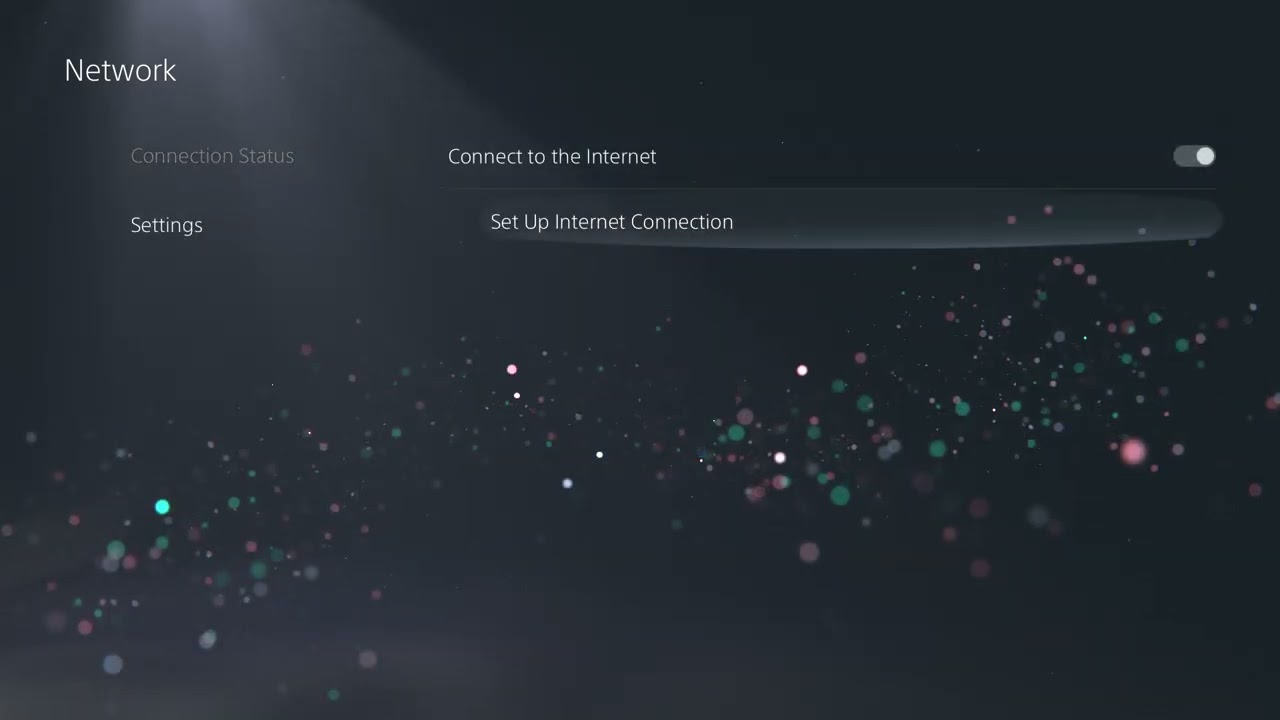
Quick answer: PS5 errors NW-102261-2 and NW-102265-6 both mean the console could not connect to a server. Check PlayStation Status, restart the PS5, use wired Ethernet if possible, and power-cycle the modem/router for at least five minutes. Sony lists reconfiguring the network and temporarily changing DNS as later steps.
What you need
- Access to the modem/router and the PS5 network settings.
- An Ethernet cable if you can test a wired connection.
- Your ISP or router documentation before changing ports, firmware, or static addresses.
Fix NW-102261-2 or NW-102265-6
- Check PlayStation Status. Open status.playstation.com. If sign-in, gaming, or store services are degraded, wait and retry later.
- Restart the PS5. Use Power > Restart PS5; do not only enter Rest Mode.
- Test Internet Connection. Go to Settings > Network > Connection Status > Test Internet Connection. Note whether internet or PlayStation Network sign-in fails.
- Prefer Ethernet for the test. Connect the PS5 directly to the router when possible, then set up the wired connection under Settings > Network > Settings.
- Improve Wi-Fi conditions. Move the console/router closer, remove obvious interference, and test the other Wi-Fi band if your router provides separate 2.4 GHz and 5 GHz networks.
- Power-cycle networking equipment. Turn off the PS5. Unplug the modem and router, wait at least five minutes as Sony specifies, then reconnect the modem first and the router second.
- Reconfigure the saved network. Forget the connection and set it up again, carefully re-entering the Wi-Fi password.
- Check router firmware. Follow the router manufacturer’s documentation or ask the ISP. Do not install firmware for a different model.
- Temporarily change DNS if needed. In the connection’s Advanced Settings, select Manual DNS. The videos demonstrate Cloudflare 1.1.1.1 and 1.0.0.1. Sony allows testing a reputable public DNS. Return to Automatic if there is no improvement.
- Leave advanced changes to the network owner. Sony also lists a static IP and specific TCP/UDP ports, but incorrect settings can break other devices. Ask the ISP or router vendor for help.
Why these steps work
Both codes describe a failed server connection, not damaged console storage. A status check separates a PlayStation outage from a local fault. Restarting renews the PS5 session; wired testing removes wireless interference; a modem/router cycle renews network state; and DNS replacement tests whether hostname resolution is the weak point.
Alternatives
- Try a mobile hotspot briefly to determine whether the home ISP or router is involved. Avoid large downloads over metered data.
- Pause other heavy uploads and downloads.
- Ask the ISP whether maintenance, filtering, or carrier-grade NAT is affecting the connection.
Warnings
Do not factory-reset the router, open every port, or invent a static IP. Port forwarding should use only Sony’s documented ports and should be handled by someone who understands the local network. A public DNS does not fix a PlayStation outage.
Frequently asked questions
Are NW-102261-2 and NW-102265-6 the same problem?
They are separate codes, but Sony currently describes both as being unable to connect to a server and publishes the same troubleshooting sequence for each.
Should I rebuild the PS5 database?
No. These are network/server errors, so start with Sony’s connectivity steps.
Why did changing DNS help?
It may have changed how the console resolved a service hostname. If it makes no difference, return DNS to Automatic.
Source videos
Official references
As an Amazon Associate I earn from qualifying purchases.