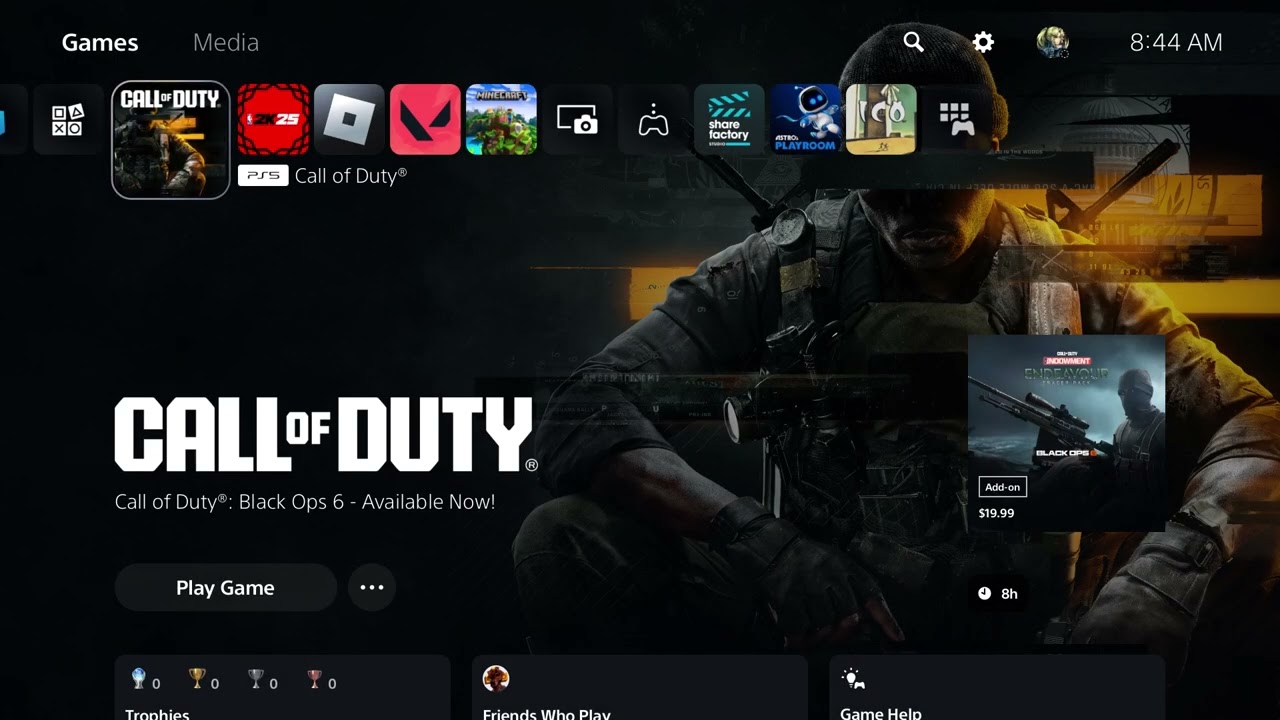
Quick answer: If Black Ops 6 opens to a black screen or will not launch on PS5, fully close the game, restart the console, install both the PS5 system update and the latest Black Ops 6 update, then restore licenses. If it still fails, clear the PS5 system-software cache before reinstalling the game.
The source video’s captions did not load after repeated checks, so the steps below rely on current Activision and PlayStation procedures rather than an unverified transcript. Viewer reports on the video mention updates and restoring licenses, but those reports are not guarantees.
Before you start
- Make sure the PS5 has enough free storage for the game and its temporary update files.
- Use the PS5 version included with your purchase; Activision notes that cross-gen bundles can show more than one version.
- Do not delete saved data. A normal reinstall removes game files, not cloud saves, but confirm synchronization first.
Fix a Black Ops 6 black screen on PS5
- Close the game completely. Highlight Black Ops 6 on the home screen, press Options, and select Close Game. Do not leave it suspended.
- Restart the PS5. Use Power > Restart PS5. A restart clears a stalled launch session more reliably than Rest Mode.
- Update the PS5. Go to Settings > System > System Software > System Software Update and Settings > Update System Software.
- Check the game update. Highlight Black Ops 6, press Options, and select Check for Update. Let every download finish before launching.
- Restore licenses. Go to Settings > Users and Accounts > Other > Restore Licenses. This does not delete games or saves.
- Confirm the installed version and content. Open Options > Manage Game Content and make sure the required Black Ops 6 content is installed. Remove obsolete packs only when the console identifies them as unnecessary.
- Clear the system-software cache. Turn off the console. Hold the power button until the second beep, connect the controller by USB, choose Clear Cache and Rebuild Database, then Clear System Software Cache.
- Reinstall only as a last non-destructive step. Delete Black Ops 6, restart, then download the standalone PS5 version again over a stable connection.
Why these steps can work
A black screen can come from an incomplete game update, a mismatched PS4/PS5 build, a stale entitlement, or damaged cached launch data. Updating addresses known game and firmware defects; restoring licenses refreshes purchase entitlements; clearing the cache removes temporary system data without erasing saves.
If the screen is still black
- Check Activision’s known-issues page before repeatedly reinstalling.
- Test another game. If every title shows a black screen, troubleshoot the PS5 display path, HDMI cable, and TV input instead.
- Disable 120 Hz or VRR temporarily under Settings > Screen and Video to rule out a display-mode handshake problem, then turn the setting back on after testing.
- If the console itself crashes or powers off, stop testing and use PlayStation hardware support.
Warnings
Do not choose Reset PS5 or Reinstall System Software for a single-game launch problem; those options erase data. Avoid deleting saved data or downloading unofficial files.
FAQ
Will restoring licenses delete anything?
No. It refreshes digital entitlements and does not remove installed games or save data.
Should I install the PS4 or PS5 version?
Use the PS5 version on a PS5 unless you have a specific compatibility reason to use the PS4 build. Confirm the version from the game’s three-dot menu.
Is this a server problem?
A server outage usually affects sign-in or online modes after the game launches. A black screen before the menu more often points to local game, cache, entitlement, or display state.