Quick answer: If Steam says “No Internet Connection” while a game is downloading or updating, clear Steam’s download cache first. If that does not work, change the download region, check the network, and then test a trusted public DNS such as Google Public DNS.
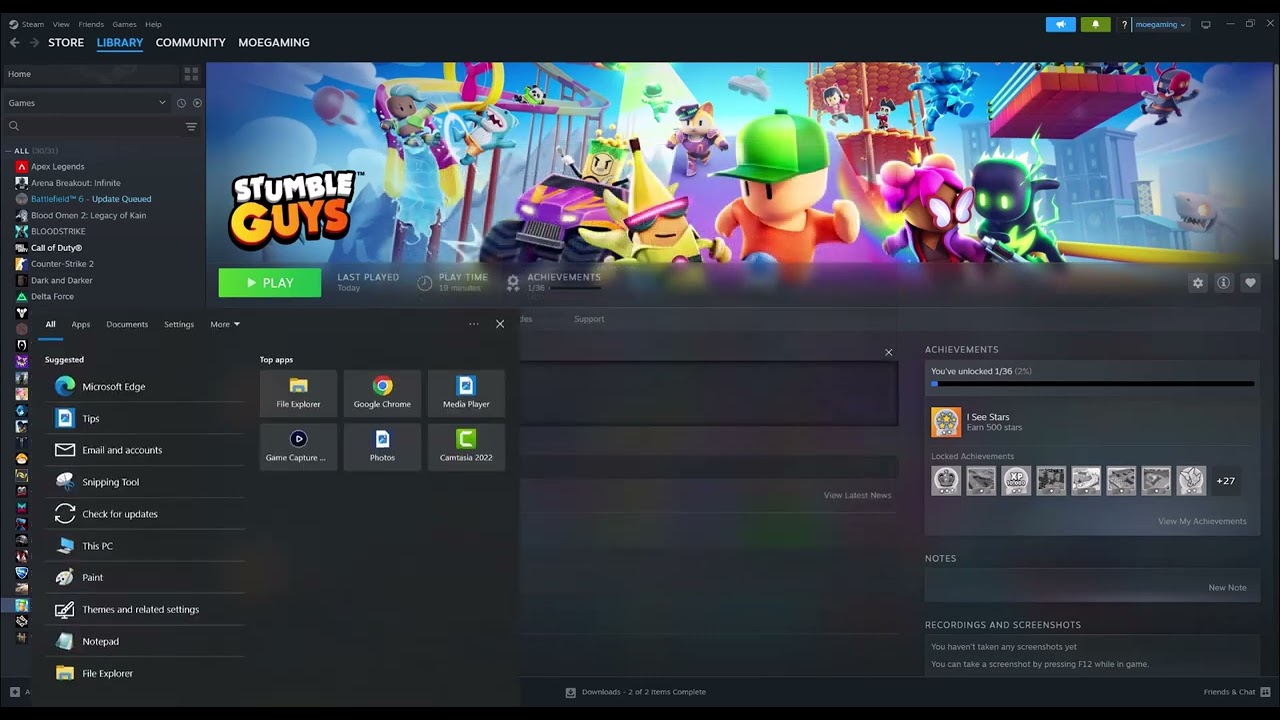
This Steam no internet connection error usually points to a stuck download cache, a problem reaching the selected content server, or a Windows DNS/network issue. Start with the least disruptive fixes below and test the download after each one.
1. Clear the Steam download cache
- Open Steam.
- Select Steam > Settings.
- Open Downloads.
- Select Clear Download Cache, then confirm.
- Let Steam restart and sign in again if prompted.
This does not uninstall your games. It makes Steam discard locally cached download configuration and request fresh information from its servers. Valve specifically recommends this for games that will not download or start.
2. Change the Steam download region
A nearby Steam content server can be temporarily overloaded or unreachable even while the rest of your internet works.
- Go back to Steam > Settings > Downloads.
- Open Download Region.
- Select your closest region. If it is already selected, test another reasonably close region.
- Restart Steam and retry the download.
Avoid choosing a distant region unless nearby options all fail; long distance can reduce download speed.
3. Confirm that the problem is limited to Steam
- Open a few normal websites in your browser.
- Check Steam Support and the Steam client for a service alert.
- Pause any VPN or proxy temporarily and test again.
- Restart Steam, your PC, and then your router.
- Make sure security software is not blocking Steam or its game-download traffic.
If every device on the network is offline, troubleshoot the router or internet service first. If browsers work but only Steam fails, continue below.
4. Change the DNS server in Windows
The video demonstrates opening the active Ethernet or Wi-Fi adapter, selecting Internet Protocol Version 4 (TCP/IPv4), and changing the DNS setting from automatic to manual. One current, documented option is Google Public DNS:
- Preferred DNS:
8.8.8.8 - Alternate DNS:
8.8.4.4
Windows 11 method
- Open Settings > Network & internet.
- Select the connected Wi-Fi or Ethernet network.
- Find DNS server assignment and select Edit.
- Choose Manual, enable IPv4, and enter the addresses above.
- Save, restart Steam, and test the download.
Classic Control Panel method
- Search Windows for View network connections.
- Right-click the active Wi-Fi or Ethernet adapter and choose Properties.
- Select Internet Protocol Version 4 (TCP/IPv4), then Properties.
- Select Use the following DNS server addresses and enter the two addresses above.
- Select OK and retry Steam.
Write down your original settings first. If the change makes no difference—or causes a new problem—switch DNS back to Automatic.
5. Flush DNS and reset the Windows network only if needed
Before a full network reset, open Command Prompt as administrator, run ipconfig /flushdns, and retry Steam. Microsoft also offers a Windows network reset, but treat that as a later step because it removes and reinstalls network adapters and may require VPN or virtual-network software to be configured again.
Optional connection upgrade
If large downloads repeatedly fail over unstable Wi-Fi, a wired connection can remove wireless interference. As an Amazon Associate I earn from qualifying purchases. You can view the Cable Matters Cat 6 Ethernet cable on Amazon. This is optional; it will not fix a Steam server outage or corrupted cache.
Optional PC gaming accessories
- For general PC gaming audio, view this PC-compatible wireless gaming headset on Amazon.
- For Steam games with controller support, view the Xbox wireless controller on Amazon.
- For a compatible high-refresh-rate display setup, view the certified Silkland HDMI 2.1 cable on Amazon.
These are general gaming recommendations and will not fix Steam’s connection error.
Video walkthrough
Frequently asked questions
Will clearing the Steam download cache delete installed games?
No. It clears cached download configuration, not installed game files. Steam may ask you to sign in again.
Why does Steam say no internet when my browser works?
Steam may be unable to reach its selected content server, or its local cache and DNS lookup may be stale, while ordinary web traffic still works.
Should I reinstall Steam?
Usually not at first. Cache, region, server-status, and network checks are faster and less disruptive. Reinstall only after Steam’s official troubleshooting steps fail and you have protected any game-library data you do not want to redownload.