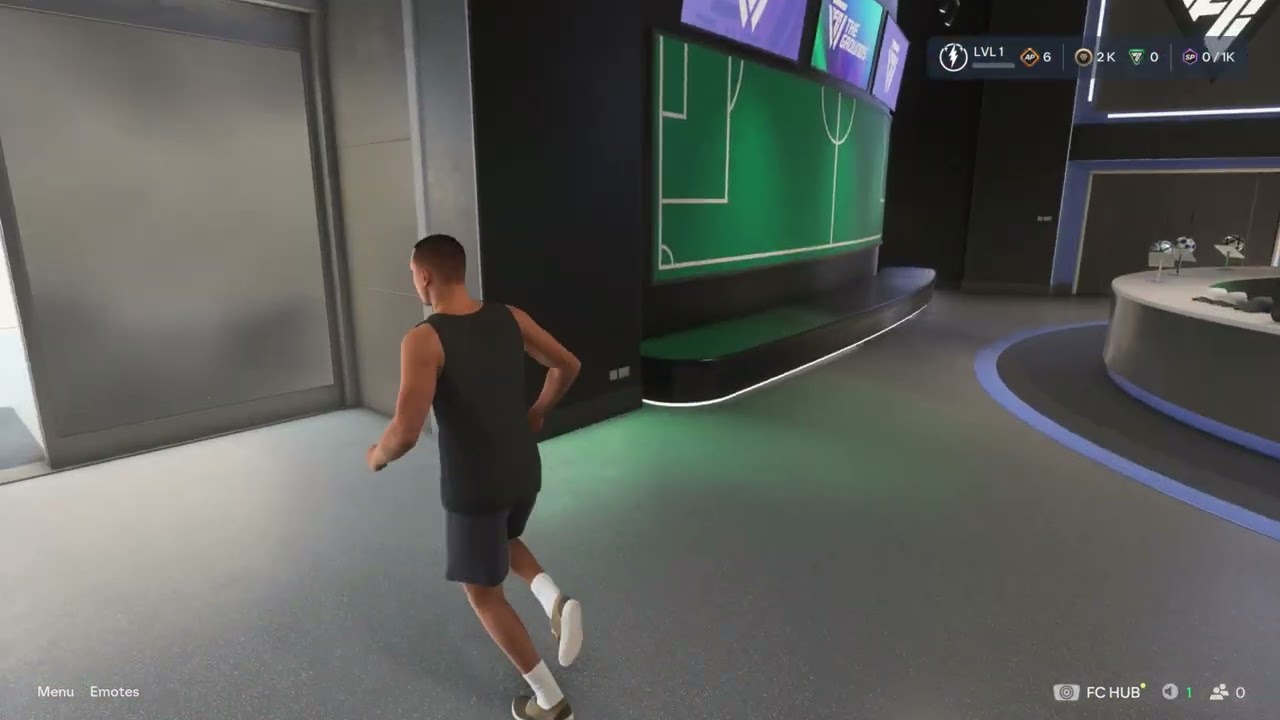
Quick answer: Open the World Map in FC 27 The Grounds, then use the shoulder-button tabs to reach Appearance, Objectives, Store, or Archetype. Select a labeled activity marker to queue for it. Use the marker name instead of relying on a fixed map position, because the layout and live events can change.
Before you start
- Use the current-generation FC 27 version that includes The Grounds.
- Connect to EA servers and complete the first-time Grounds setup.
- For purchases, check the currency, requirements, expiry, and purchase limit before confirming.
- For an Archetype change, note your current setup before spending Attribute Points.
Open the main Grounds menus
- Enter The Grounds.
- Open the World Map.
- Use the shoulder-button tabs shown at the top of the screen.
- Choose Appearance, Objectives, Store, or Archetype.
- Back out to the map when you want to travel or queue for an activity.
Edit your appearance
- Open the World Map and switch to Appearance.
- Choose the Street or Match Day category available to your player.
- Select a body, hair, clothing, or accessory category.
- Preview the change and confirm it.
Purchased or earned appearance items are stored in the Appearance Inventory. A video may show stock that is no longer available; treat every brand and item as an example.
Find Objectives and claim rewards
- Open the World Map and switch to Objectives.
- Review Mentor, Event, Club, or Player Milestone groups.
- Open an objective to read its exact requirement and progress.
- Use Go to Objective when the game offers it.
- Claim the reward after completion.
Objectives can award Grounds Coins and other content. Use the wording displayed on your own account because weekly and event objectives change.
Edit an Archetype and upgrade attributes
- Open the World Map and select Archetype.
- Choose the active Archetype you want to inspect.
- Review Attributes, PlayStyles, Specializations, and body information.
- Spend available Attribute Points only after checking the cost and effect.
- Confirm the change, then test it in a low-stakes activity.
Attribute choices affect how the Archetype plays. The source videos demonstrate the menu route, but they do not establish that every allocation is optimal. Record your original setup so you can restore it if the game offers a reset or respec option.
Find a World Store or use the Store tab
- Open the World Map.
- Select a labeled World Store marker and travel to it, or switch to the Store tab.
- Browse Amps, Consumables, or other eligible categories.
- Read the effect, currency, requirements, duration, and purchase limit.
- Confirm only the item or currency bundle you intend to buy.
EA currently lists World Stores in the Terrace, Montclair, Parkside, and Zeiza. The menu Store sells Amps and Consumables, while vanity items require a physical World Store. Prices and bundles shown in videos can vary by region and over time, so the live store screen is authoritative.
What the currencies buy
- Grounds Coins are earned through matches and Objectives.
- FC Points may be used for eligible items; check the live price and platform purchase confirmation.
- Some items come from Objectives or gameplay rewards instead of purchases.
Items cannot be traded or sold. Purchased or earned appearance items remain in inventory, subject to EA’s current service rules.
Find and play Grounds activities
- Open the World Map.
- Select the activity by its label, not only by its position.
- Read the current player-count and event rules.
- Queue alone or form a party if the activity allows it.
- Confirm matchmaking and wait for the session to start.
- Balloon Ball: the source video shows a four-player queue.
- 3v3 Classic: the source video shows a six-player queue.
- Rush: the source video shows an eight-player queue.
- Team Keepaway: select the labeled marker and verify the live rules before joining.
- Bucket Ball: the source video shows a four-player activity with different scoring zones.
- Bocce Ball: the source video shows a three-player accuracy activity.
- The Big Race: the source video shows a four-player queue.
- 1v1 Classic: select its labeled marker on the right side of the demonstrated map.
- Rush Stadium: select the stadium marker, then choose the currently available Rush or 5v5 event.
Player counts, map positions, and playlists can rotate. EA’s current Grounds overview confirms in-world 1v1, Rush, Rush Stadium, and 11v11 Drop-In, but the two new videos whose narration explicitly described FC 24 were not used for FC 27 instructions.
Enter the Clubhouse
- Open the World Map.
- Select the labeled Clubhouse marker.
- Choose the travel or enter action.
- Open the Club menu inside the Clubhouse.
Create or join a Club
- Select Create Club to set a name, abbreviation, language, and available access settings; or select Join Club to search.
- Review the Club details and conduct rules.
- Confirm creation, or send the available join request.
- Invite friends through the Club or EA Connect interface.
A Club name must follow EA’s conduct rules. Do not include personal information, impersonation, hate speech, or misleading official branding.
Why these routes work
The World Map is The Grounds navigation hub. Its tabs lead to player setup and commerce, while labeled map markers launch places and activities. Using names instead of memorized positions makes the steps more resilient when EA rotates events or updates the interface.
Warnings and limitations
- Do not treat a video price, bundle, map position, or event roster as permanent.
- Items can require a particular Archetype level, have purchase limits, or disappear after an offer expires.
- Featured Bundles can mix vanity items, Amps, Consumables, and other content. Review every item before buying.
- Do not spend FC Points merely to troubleshoot a menu.
- If a marker is missing, confirm the supported game version, server availability, and any mode prerequisites.
Frequently asked questions
Where do purchased items go?
Street vanity items appear in the Appearance Inventory. Amps and Consumables appear in their respective Archetype inventories.
Can I buy vanity items from the Store tab?
No. EA’s current guidance says to visit a World Store for vanity items.
Why can’t I buy an item?
You may be below its Archetype level, at the purchase limit, outside the offer period, or short of the required currency.
Why can’t I find an activity?
Playlists and events can rotate. Look for the activity label, confirm server status, and check whether the current version requires a prerequisite.
Can I undo an appearance or Archetype change?
You can select another owned appearance item. For attribute spending, use only the reset or respec option shown by the current game; do not assume a free reset is available.
More FC 27 help
Official references
- EA: The Grounds stores and purchases
- EA: The Grounds connection and supported activities
- EA: FC 27 support hub
Source videos
The menu routes and activity locations below come from Moe Gaming’s FC 27 demonstrations; live prices, playlists, player counts, and map positions should be checked in the current game.