Quick answer: Fortnite Error 30004 is an Easy Anti-Cheat startup failure. Restart Windows, verify Fortnite in the Epic Games Launcher, use Easy Anti-Cheat’s official repair option, and repair Windows system files if the anti-cheat service still cannot start.
Before you start
- Install pending Windows and Fortnite updates.
- Close Fortnite and Epic Games Launcher before repairing anti-cheat.
- Do not disable Windows security or download replacement DLL files.
How to fix Fortnite Error 30004
- Restart Windows. Use Start > Power > Restart. This clears a stuck Easy Anti-Cheat service or pending update.
- Check Fortnite service status. If Epic reports an incident, wait for recovery before changing the PC.
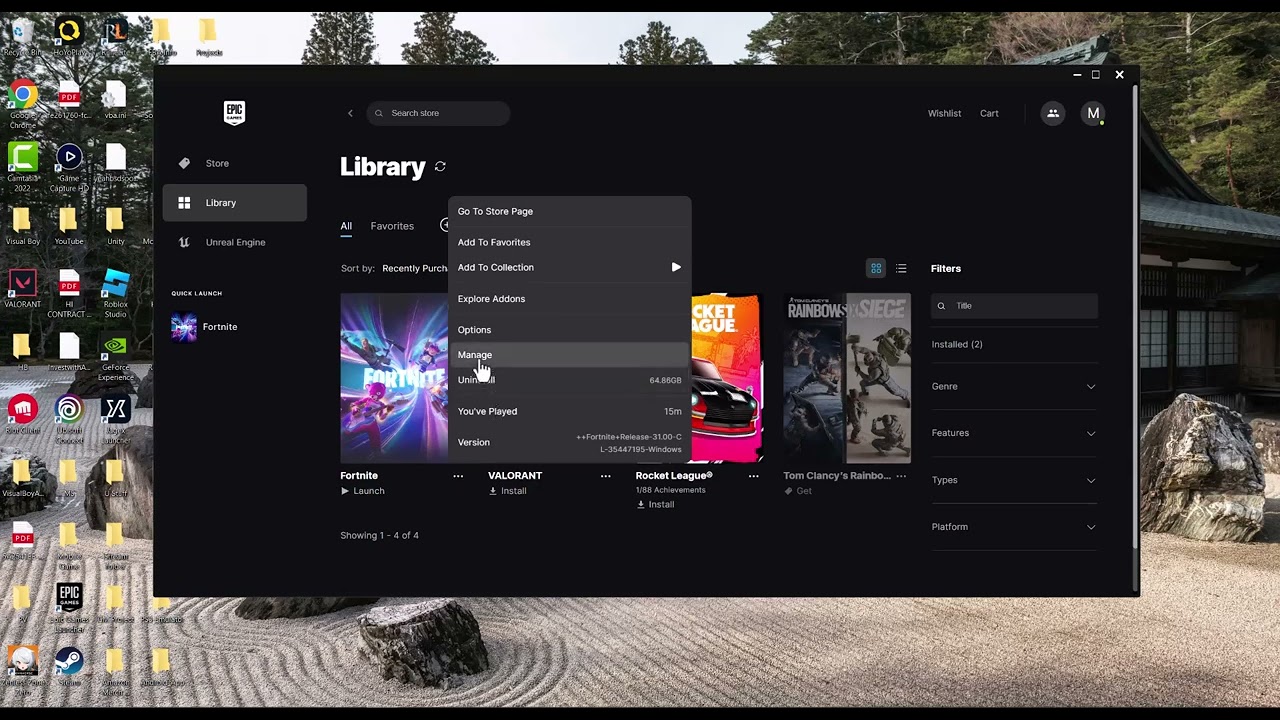
- Verify Fortnite. Open Epic Games Launcher > Library, select the three dots beside Fortnite, choose Manage > Verify, and let the scan finish.
- Repair Easy Anti-Cheat. Use Epic’s Easy Anti-Cheat repair instructions or the setup program installed with Fortnite. Select Fortnite when prompted, choose Repair Service, and restart the PC.
- Install Windows updates. Open Settings > Windows Update, check for updates, install them, and restart.
- Repair Windows system files. Open Terminal or Command Prompt as administrator. Run
DISM.exe /Online /Cleanup-image /Restorehealth, wait for completion, then runsfc /scannow. Restart after both finish. - Temporarily close conflicting utilities. Exit unsupported injectors, debuggers, macro tools, and low-level monitoring utilities. Do not close security software permanently.
- Reinstall Easy Anti-Cheat or Fortnite last. Follow Epic’s official EAC installation guidance. Reinstall Fortnite only if verification and service repair fail.
Why these steps work
Error 30004 appears before Fortnite enters a match because Easy Anti-Cheat cannot initialize correctly. Verification restores Epic-signed files, EAC repair rebuilds its service, and DISM/SFC restore damaged Windows components that the service depends on.
Alternatives
- Perform a clean boot to identify a startup-app conflict, then re-enable services in small groups.
- Check Windows Security Protection History for a quarantined legitimate Fortnite or EAC file; verify the game after resolving it.
- Contact Epic Support with the exact error and EAC logs if repair repeatedly fails.
Warnings
Do not bypass Easy Anti-Cheat, replace its files from another PC, or use unofficial “fix” downloads. Those steps can compromise security or trigger enforcement. Disabling antivirus is not a safe permanent fix; use product-specific allow-list guidance only when the security vendor confirms a false positive.
Frequently asked questions
Is Error 30004 a Fortnite ban?
No. It indicates the anti-cheat service failed to start; it is not itself a ban notice.
Will Verify remove my skins?
No. Cosmetics are tied to the Epic account, not local installation files.
Is SFC safe?
System File Checker is a Microsoft repair tool. Let it complete and restart afterward; do not interrupt DISM while it is repairing the Windows image.
Official references
- Epic Games: Easy Anti-Cheat support
- Easy Anti-Cheat: repair and installation
- Microsoft: DISM and System File Checker
Source video
Transcript note: YouTube captions were unavailable after repeated checks. The steps above use current Epic, Easy Anti-Cheat, and Microsoft repair guidance.
As an Amazon Associate I earn from qualifying purchases.