Quick answer: Close GTA V and every store launcher, end only the stuck Rockstar Games Launcher and Social Club processes in Task Manager, then restart Windows. If the message returns, make the game launcher and store client use consistent permissions, verify GTA V files, and use Rockstar’s clean-install instructions as the last step.
Before you start
- Save work in other applications.
- Know whether GTA V was installed through Rockstar, Steam or Epic Games.
- Do not delete launcher folders before uninstalling or backing up settings.
Fix the “already running” message
- Close the visible launchers. Exit GTA V, Rockstar Games Launcher and the store used to own the game. Check the system tray and choose Exit where available.
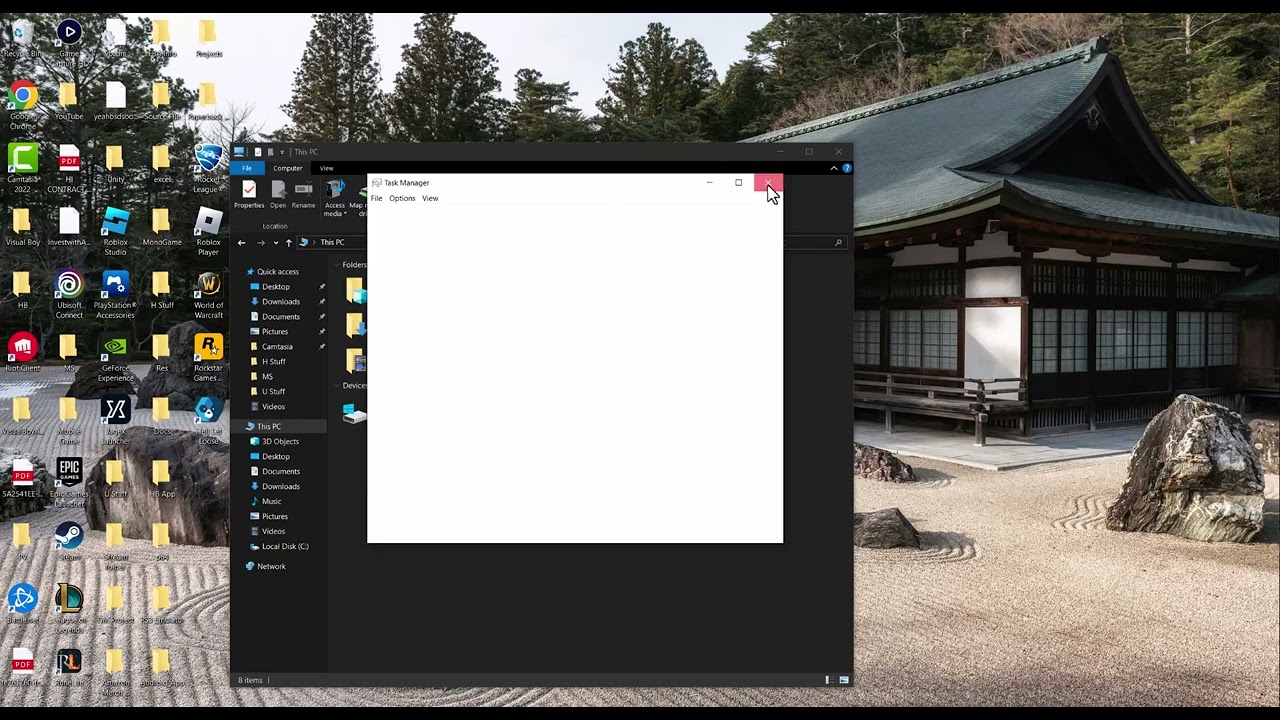
- End the stuck processes. Press Ctrl + Shift + Esc to open Task Manager. Under Processes or Details, end Rockstar Games Launcher, Social Club and GTA V entries that remain after the apps are closed. Do not end unrelated Windows processes.
- Restart Windows. A restart is safer than repeatedly killing a process that immediately returns. Launch only the store client first, then GTA V.
- Use consistent permissions. Rockstar’s current article for this error recommends running the involved launcher executables as administrator. Apply the setting to Rockstar Games Launcher and, if applicable, Steam or Epic Games Launcher so one client is not elevated while another is not. Revert the compatibility setting if it changes nothing.
- Verify GTA V files. Use the verification command in Rockstar Games Launcher, Steam or Epic Games Launcher. This repairs missing or changed game files without downloading the entire game again.
- Update the launchers. Let Rockstar and the store client install pending updates. Check Windows Update and restart once more.
- Clean reinstall the Rockstar launcher last. Follow Rockstar Support’s current clean-install procedure. Uninstall through Windows first, preserve save or profile data as instructed, remove only the documented leftover folders, then download the installer from Rockstar.
Why this works
The message often appears when a background launcher process survives after its window closes, or when a store client cannot communicate with a differently elevated launcher. Ending the orphaned process resets the current session; file verification and a supported reinstall address damaged program files.
If Task Manager cannot end the process
- Restart Windows instead of repeatedly clicking End task.
- Temporarily disable launcher auto-start from Task Manager’s Startup apps, restart and open the launcher manually.
- Check Rockstar service status and attach the launcher log to a support request.
Warnings
The video suggests uninstalling and deleting the Launcher folder. That can be appropriate only as part of Rockstar’s documented clean-install sequence. Deleting program or profile folders out of order can remove settings or leave the installation less repairable. Do not download replacement launcher files from third-party sites.
Frequently asked questions
Will ending the launcher process delete GTA V saves?
No. Ending a process closes it. Still back up local Story Mode saves before a clean reinstall.
Should everything run as administrator forever?
Use Rockstar’s current compatibility guidance for this error, but keep the scope to the launcher executables and undo the change if it is ineffective.
Do I need to reinstall GTA V?
Usually not first. Restart, align launcher permissions and verify files before a full game reinstall.
Official references
Source video
The video demonstrates ending duplicate launcher processes and reinstalling the launcher. The guide adds a safe order, Rockstar’s permissions guidance, file verification and a warning against deleting folders prematurely.
As an Amazon Associate I earn from qualifying purchases.