Quick answer: Close Black Ops 6 and the Xbox app completely, restart Windows, and try again. If error 0x800705b4 returns, update the Xbox app, Microsoft Store, Gaming Services and Windows. Repair the Xbox app first; use Reset only if Repair fails. Then run the Gaming Services Repair Tool and verify the Call of Duty installation.
Before you start
- Save open work and note the drive where Call of Duty is installed.
- Confirm Xbox, Microsoft Store and Windows use the same Microsoft account where appropriate.
- Keep the Microsoft-account password available; Reset can sign you out.
- Do not manually delete protected Gaming Services folders.
Fix error 0x800705b4
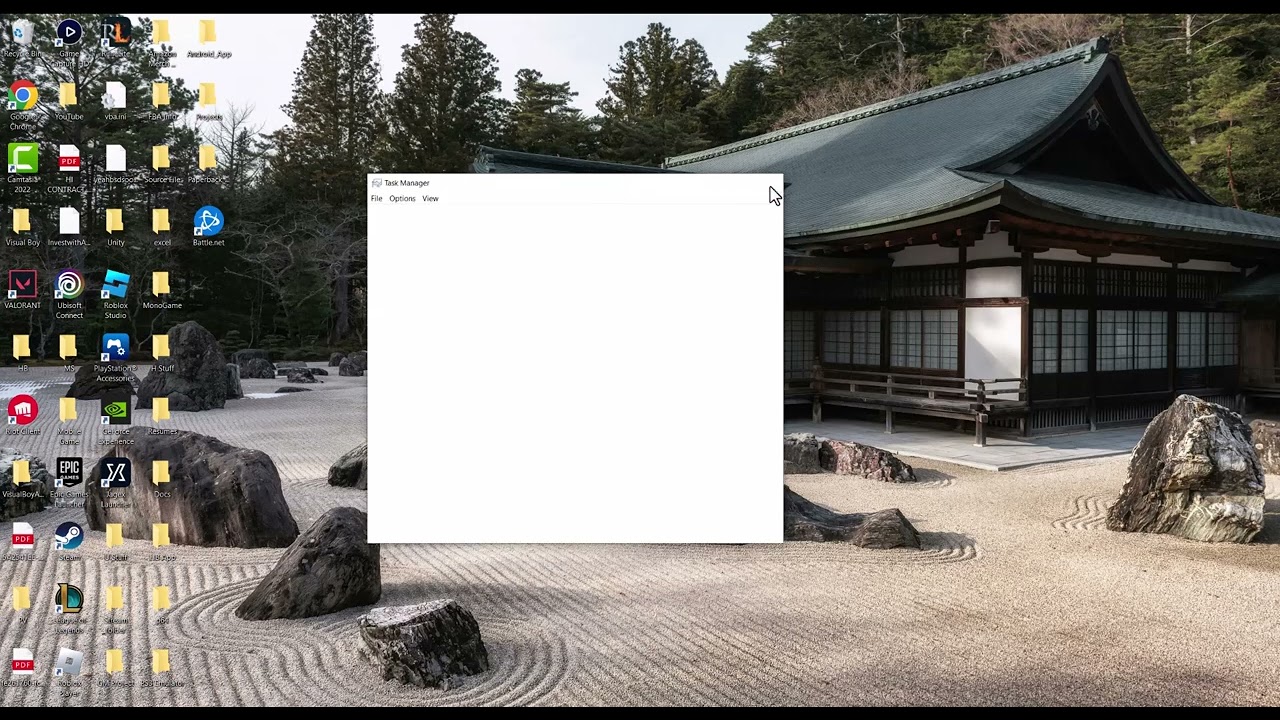
- End the stuck session. Close the game and Xbox app. Open Task Manager and end only remaining Xbox, Gaming Services or Call of Duty processes, then restart Windows.
- Update Store apps. Open Microsoft Store > Library and choose Get updates. Install Xbox app and Gaming Services updates.
- Update Windows. Open Settings > Windows Update, install current updates and restart.
- Repair the Xbox app. Go to Settings > Apps > Installed apps > Xbox > Advanced options > Repair. Microsoft recommends Repair before Reset.
- Reset only if needed. Return to Advanced options and choose Reset. This clears Xbox app data and signs you out; it normally does not remove separately installed game files.
- Run Gaming Services Repair Tool. In the Xbox app, use Support > Gaming Services Repair Tool when available. Let the tool finish, then restart.
- Verify the game. Open the game’s Manage page in the Xbox app, choose Files, and run Verify and Repair if offered. Keep required shared Call of Duty content in the same supported installation.
- Check Activision services. If the app opens but the game times out, check Activision Online Services before reinstalling anything.
Why this works
0x800705b4 commonly signals a Windows operation timing out. A stuck process, outdated Store package, damaged Xbox app state or Gaming Services registration can prevent the launch request from completing. Repair preserves app data; Reset creates a clean app state; file verification addresses the game package separately.
Alternatives
- Sign out of the Xbox app and Microsoft Store, restart, then sign in again.
- Pause VPNs or proxy software for one test and re-enable them afterward.
- Make sure the system drive and game drive both have free space.
- If other Game Pass titles also fail, report the Gaming Services issue to Xbox Support.
Warnings
Reset clears app settings and sign-in state. Do not use registry cleaners, third-party DLL downloads or PowerShell commands from unverified videos. Reinstall the entire game only after repair and file verification fail.
FAQ
Will Reset delete Black Ops 6?
Resetting the Xbox app normally clears the app’s data, not installed game packages. Confirm the game remains listed before deleting anything manually.
Should I reinstall Gaming Services?
Use the official repair tool first. Manual removal is a last resort that Xbox Support should guide.
What if only Call of Duty fails?
Verify its files and required content, then check Activision service status.
Official references
Source video
As an Amazon Associate I earn from qualifying purchases.