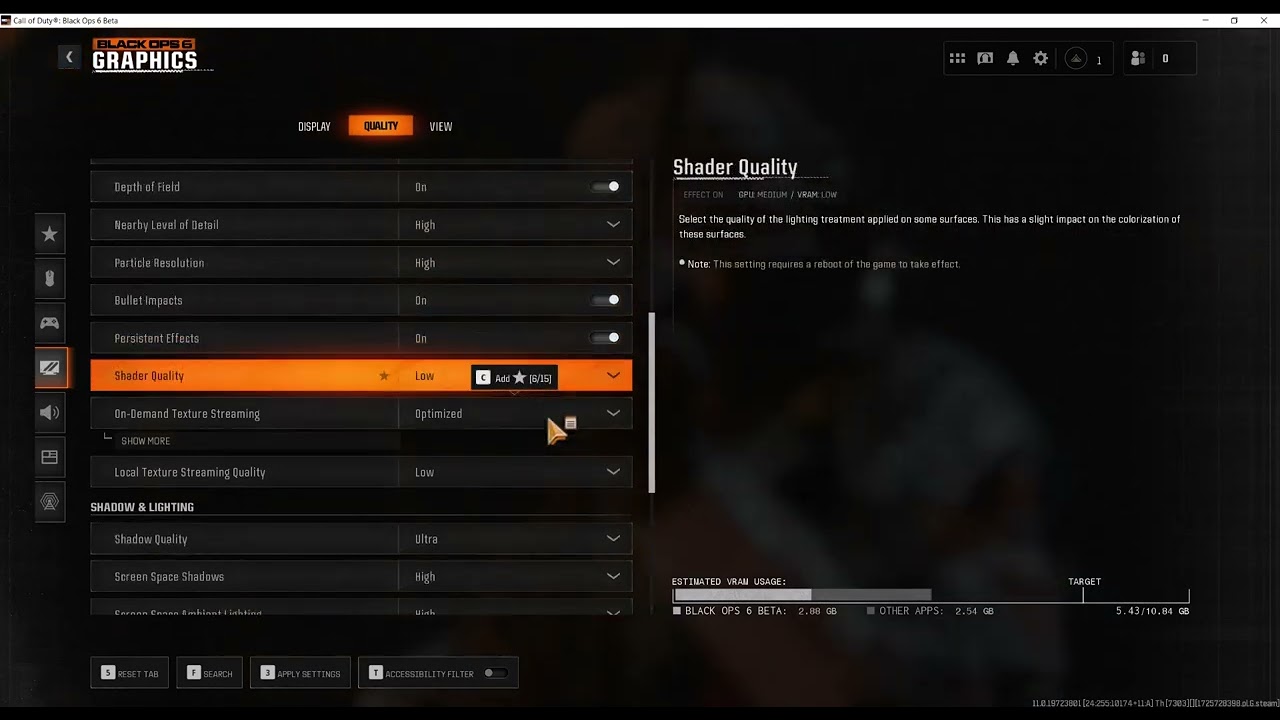
Quick answer: First decide whether Black Ops 6 is dropping frames or suffering network latency. For low FPS, let shader preloading finish, update the graphics driver, verify the game files and start with the Minimum quality preset before raising settings gradually. For rubber-banding or packet loss, check Activision services, stop background transfers and test Ethernet. Public DNS does not increase frame rate.
Before you start
- Restart the PC and install current Windows and GPU-driver updates.
- Note the CPU, GPU, RAM and whether the game is on an SSD.
- Use the in-game telemetry for FPS, latency and packet loss instead of treating every slowdown as the same problem.
Fix low FPS and stutter
- Finish shader preloading. Stay on the main menu until Shader Preloading completes. Activision warns that leaving the menu pauses it and can cause performance problems.
- Apply a safe baseline. Open Settings > Graphics > Quality and choose the Minimum preset. Restart the game when prompted.
- Raise settings one group at a time. Increase texture quality or detail only while frame pacing remains stable. Keep heavy shadow, particle and volumetric settings low on weaker hardware.
- Use an appropriate upscaler. Choose the option supported by the installed GPU and avoid aggressive sharpening. If the image becomes unstable, disable it for comparison.
- Verify files. In Steam, open the game’s Properties > Installed Files > Verify integrity of game files. Battle.net users should use its Scan and Repair command.
- Close overlays and heavy background apps. Test without capture tools, extra browser tabs and nonessential overlays, then re-enable them one at a time.
Fix network lag
- Check Activision Online Services before changing the PC.
- Pause downloads, cloud sync and streaming on the PC and other household devices.
- Use Ethernet or improve Wi-Fi placement, then restart the router if multiple devices are affected.
- Test another nearby game server or playlist. Record packet loss and time of day if the problem persists.
Why this works
Low FPS is a rendering workload problem; latency is a network-path problem. Shader completion, lower graphics and file repair address rendering and installation. Ethernet and bandwidth control address packet delay. Changing DNS may alter name lookup but cannot directly raise FPS or repair packet loss after a connection is established.
Alternatives
- Cap FPS to a stable value below the machine’s fluctuating maximum.
- Disable on-demand texture streaming temporarily if it competes with a limited connection.
- Reset graphics settings to default if several manual changes made performance worse.
Warnings
The Minimum preset reduces visual quality. Note original settings so you can undo changes. Do not download third-party “FPS boosters,” delete system files or disable security software. To undo the video’s DNS test, return the network adapter’s DNS setting to Automatic.
FAQ
Why does Black Ops 6 stutter after an update?
Shaders may need to preload again, and updated files or drivers can change the workload. Let preloading finish before judging performance.
Does 1.1.1.1 fix low FPS?
No. DNS changes name resolution, not GPU or CPU performance.
Should I use the Minimum preset permanently?
Use it as a baseline. Raise settings gradually until the balance of image quality and stable frame time suits the PC.
Official references
Source video
The Moe Gaming video below is source material. Current first-party instructions and the warnings in this guide take priority.
As an Amazon Associate I earn from qualifying purchases. This guide includes no product recommendations or affiliate purchase links.