Quick answer: A Roblox “memory dump” usually means the client crashed and wrote diagnostic data; it does not by itself prove that system RAM is defective. Restart Windows, install updates and perform a clean Roblox reinstall. Remove the local Roblox folder only after uninstalling so stale client files are replaced. Do not permanently run every Roblox executable as administrator.
Before you start
- Save Roblox Studio projects outside the application folder.
- Close Roblox Player, Roblox Studio and related browser sessions.
- If Roblox Support asked for logs, copy the requested log files before clearing local data.
- Use only Roblox’s official site or Microsoft Store listing for reinstalling.
Fix the memory dump error
- Restart Windows. Roblox lists a reboot as the first general desktop troubleshooting step.
- Update Windows and the GPU driver. Install stable updates from Windows Update and the GPU manufacturer, then restart again.
- Test a clean launch. Close overlays, recorders and nonessential background tools. Keep antivirus enabled; if it blocks Roblox, create a narrow allow rule rather than disabling protection.
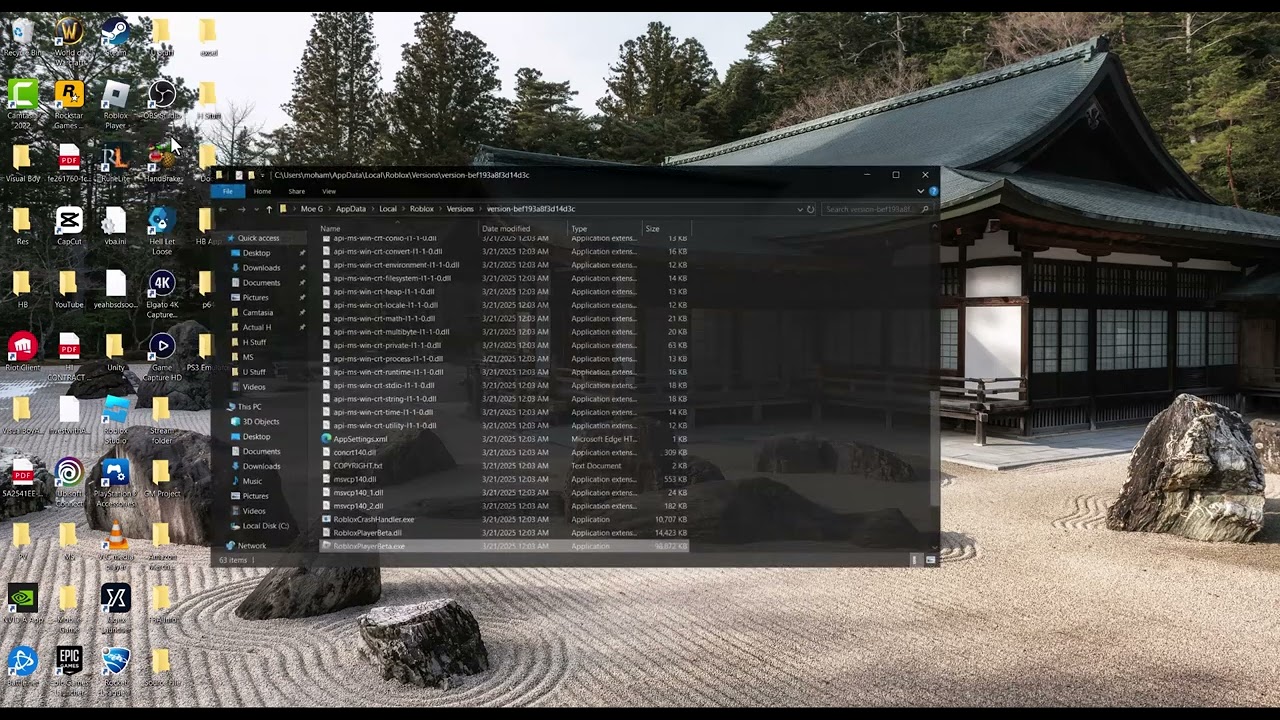
- Uninstall Roblox. Open Windows Settings > Apps > Installed apps, select Roblox and uninstall it.
- Clear the leftover client folder. Press Win+R, enter
%localappdata%and remove the Roblox folder only after uninstalling. This deletes cached client files and logs, not the online account. - Restart and reinstall. Download Roblox again from its official source and test one experience before restoring extra tools or overlays.
- Check storage and memory pressure. Keep free disk space available and close memory-heavy applications. If many unrelated programs crash, run Windows Memory Diagnostic and seek hardware support.
- Contact Roblox Support. Preserve the exact crash time, Windows version and requested logs. Send logs only through Roblox’s official support process.
Why this works
A clean reinstall replaces corrupted or mismatched client files. Restarting clears stuck processes; current drivers address graphics-related crashes; removing only the leftover Roblox folder prevents old cache data from surviving the reinstall.
Alternatives
- For the Microsoft Store version, try its Windows Repair option before Reset or reinstall.
- Test another Windows user profile to identify damaged per-user settings.
- If Roblox Studio alone crashes, reset Studio settings from within Studio when it can still open.
Warnings
Deleting the entire local folder removes logs and local settings, so preserve anything Roblox Support requested first. Permanent administrator mode expands the application’s privileges and is not a necessary default fix. Do not download replacement DLL files or “memory dump fix” utilities from random sites.
FAQ
Does a memory dump mean my RAM is bad?
No. It records crash information. Hardware testing becomes relevant only when multiple unrelated apps also fail or Windows reports memory errors.
Will clearing Local AppData delete my Roblox account?
No. The account is online, but the local client cache and logs are removed.
Should I send a dump file publicly?
No. Crash logs can contain system and path details. Send only files requested by official Roblox Support through its support channel.
Official references
Source video
The Moe Gaming video below is source material. Current first-party instructions and the warnings in this guide take priority.
As an Amazon Associate I earn from qualifying purchases. This guide includes no product recommendations or affiliate purchase links.