Quick answer: Check both PlayStation and the affected game’s service status, run Settings > Network > Connection Status > Test Internet Connection, then restart the PS5 and network equipment. Change Wi-Fi band or DNS only as a diagnostic if the standard connection still fails.
Before you start
- The exact game or app that shows WV-109156-2.
- Your Wi-Fi name and password, or an Ethernet cable.
- Access to the router’s power plug; router administration is not required.
How to fix PS5 error WV-109156-2
- Check for an outage first. Review PlayStation status and, for an EA title, EA server status. If either reports a problem, wait rather than changing the console.
- Test the PS5 connection. Open Settings > Network > Connection Status > Test Internet Connection. Note whether obtaining an IP address, internet access, or PlayStation Network sign-in fails.
- Restart cleanly. Turn off the PS5. Unplug the router and modem for at least five minutes, reconnect them, wait until they are fully online, and then start the console.
- Forget and reconnect to Wi-Fi. In Settings > Network > Settings > Set Up Internet Connection, highlight the network, press Options, forget it, and reconnect with the current password.
- Try the other Wi-Fi band. From the network list, press Options and switch Wi-Fi Frequency Bands between Automatic, 5 GHz, and 2.4 GHz. Use 5 GHz near the router and 2.4 GHz when distance or walls weaken the signal.
- Test a wired connection or a phone hotspot briefly. A second network is a diagnostic: if the game works there, the home or hotel network is the likely bottleneck. Stop using the hotspot after the test to avoid mobile-data charges.
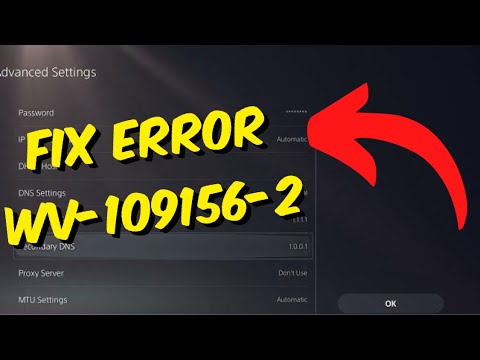
- Use manual DNS only as an optional test. Edit Advanced Settings and try a reputable public resolver, then return DNS to Automatic if it makes no difference. DNS cannot repair an EA or PlayStation outage.
Why these steps work
The error appears while an online game or service is trying to complete a network session. Status checks separate a remote outage from a local fault. Reconnecting refreshes the console’s address and Wi-Fi authentication, while band, wired, hotspot, and DNS tests isolate signal, captive-portal, router, or name-resolution problems.
Other safe options
- On hotel, dorm, or public Wi-Fi, ask the network operator how to complete its sign-in or captive-portal step.
- Confirm the platform account is linked to the intended game-publisher account; do not unlink accounts casually because relinking restrictions may apply.
- Move the console closer to the router or use Ethernet for a stable test.
Warnings and how to undo changes
Do not factory-reset the router, enter default administrator passwords from a video, or unlink an EA account as an early troubleshooting step. To undo this guide, set DNS and Wi-Fi Frequency Bands back to Automatic, then reconnect to the original network. A phone hotspot test may consume mobile data.
Source video
The video is source material, not a guarantee. Where its advice differed from current first-party support, the safer official sequence is used above.
Frequently asked questions
Is WV-109156-2 always an EA outage?
No. The code can surface during an online-session failure, but a service outage is only one possibility. Test PlayStation and the game’s service separately.
Should I use Google or Cloudflare DNS permanently?
Only keep a manual resolver if it clearly improves reliability. If nothing changes, restore Automatic so the network can supply its normal DNS settings.
Why does the PS5 work on a hotspot but not hotel Wi-Fi?
Public networks often require a web sign-in, device registration, or network-owner approval. That result points to the network, not a damaged PS5.
Official references
As an Amazon Associate I earn from qualifying purchases.