“Lag” in Battlefield 6 can mean two different problems: high ping from the network or low frame rate from the PC. Diagnose which number is spiking before changing settings. EA’s Performance Display can show FPS and ping together, making it much easier to apply the right fix.
First identify ping lag or FPS lag
In supported EA games, open Settings > Gameplay and enable Performance Display. Watch the FPS and ping readings when the problem occurs.
- High or unstable ping: players teleport, shots register late, or a network warning appears.
- Low or unstable FPS: the entire image stutters or feels choppy even in menus or local rendering.
- Both: work through the network steps first, then graphics changes one at a time.
Fix high ping and network lag
1. Check Battlefield service status
A server incident cannot be fixed with PC settings. Check EA’s Battlefield server status before changing the network. EA’s current high-ping guide begins with service status and connection quality.
2. Stop background traffic
Pause game downloads, cloud backups, streaming and large updates on the PC and other devices. EA recommends closing background activity that consumes bandwidth.
3. Restart the PC and router
Restart the PC. Unplug the modem and router for about 30 seconds, reconnect them, and wait for internet service to return. EA recommends this to clear congestion and refresh the connection.
4. Prefer Ethernet
Connect the PC directly to the router when possible. EA specifically recommends wired connections for Battlefield 6 high ping. If Wi-Fi is unavoidable, move closer to the router and test a less congested wireless channel.
5. Treat custom DNS as an optional name-resolution test
Changing DNS does not directly lower game-server ping, but it can help when domain resolution is failing. Cloudflare documents 1.1.1.1 and 1.0.0.1 for IPv4. After changing DNS, Windows’ ipconfig /flushdns command clears the DNS resolver cache. If there is no DNS-related symptom, leave the setting automatic.
Fix low FPS and rendering stutter
1. Use Battlefield’s verified graphics settings
Open Battlefield 6 Settings > Graphics. Make sure Fullscreen Resolution and Refresh Rate match the Windows display settings. EA recommends testing Vertical Sync off to reduce lag, then lowering the performance preset or graphics quality if the frame rate remains unstable.
2. Select the correct Windows GPU
In Windows 11, open Settings > System > Display > Graphics, add Battlefield 6 if needed, open Options, and choose High performance when the PC has both integrated and discrete GPUs. Save the setting and restart the game. Microsoft also lists Let Windows decide as a valid option, so it is not necessary to change it on a single-GPU system.
3. Update drivers and verify the game
Install the current graphics driver supported by the GPU vendor and Windows, restart the PC, then repair or verify Battlefield 6 in the EA app, Steam or Epic launcher. If the problem is a DirectX crash rather than lag, use the separate Battlefield 6 DXGI_ERROR_DEVICE_HUNG guide.
Why this order works
Ping and frame rate come from different systems. A DNS or router change cannot repair GPU frame-time spikes, and lowering graphics will not fix an overloaded internet connection. Measuring both values first prevents random changes and makes it clear whether each step helped.
Warnings
- Do not assume custom DNS will lower game-server ping.
- Do not select Power saving for a demanding game on a multi-GPU PC unless you are intentionally testing power usage.
- Change one graphics setting at a time so you can identify the real cause.
- A server outage requires waiting; repeated reinstalls will not repair it.
Frequently asked questions
What is a good first test for Battlefield 6 lag?
Enable Performance Display and compare FPS with ping while the lag occurs. That immediately separates most graphics and network problems.
Does 1.1.1.1 DNS reduce ping?
Not generally. It changes DNS resolution, not the route to the Battlefield server. Use it only when DNS resolution is part of the problem.
Should I disable V-Sync?
EA recommends testing V-Sync off for lag, but the best result depends on the monitor and frame-rate behavior. Re-enable it if tearing becomes worse than the latency improvement.
Watch the original walkthrough
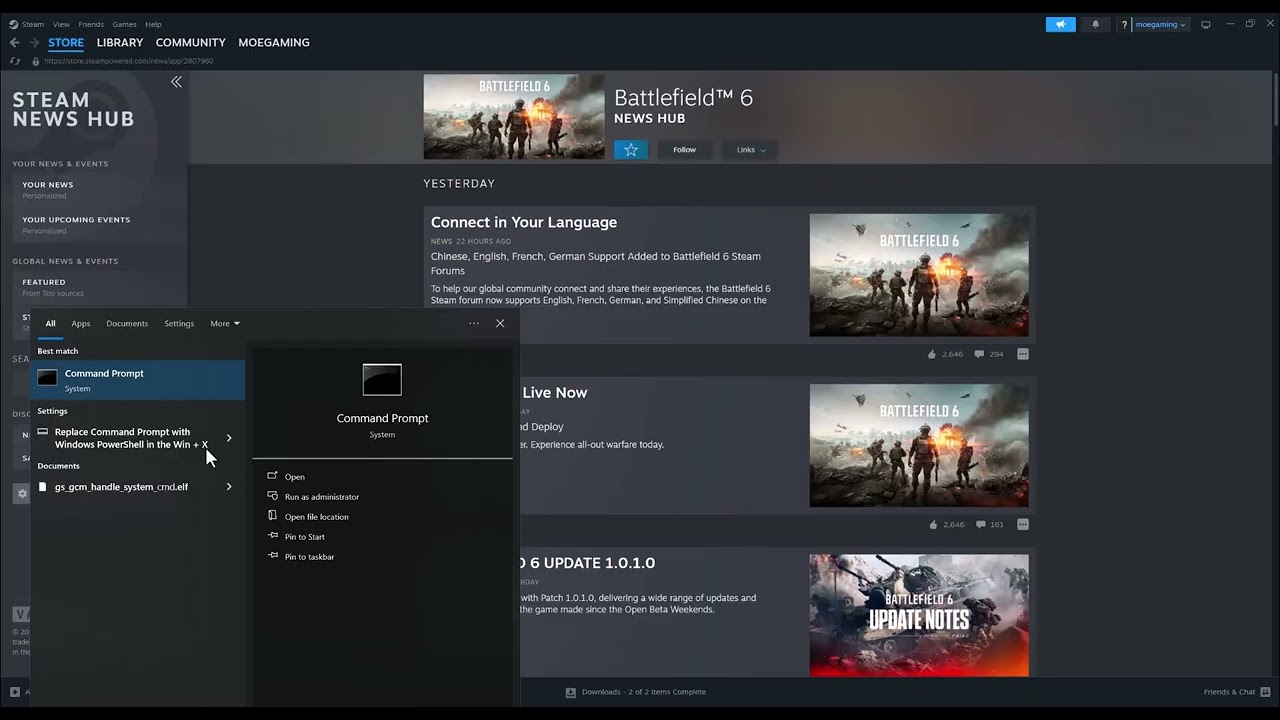
The Moe Gaming video demonstrates Windows DNS and graphics-preference menus. This guide adds EA’s current ping/FPS diagnosis and corrects the claim that Windows’ automatic GPU choice is never valid. Source video: How To Fix Lag Battlefield 6 On PC.
Recommended network hardware
If Wi-Fi instability is the confirmed cause and the router is within cable reach, a direct wired connection is usually the cleanest test. The Cable Matters Cat 6 Ethernet cable is a direct product option.
Affiliate disclosure: As an Amazon Associate I earn from qualifying purchases.