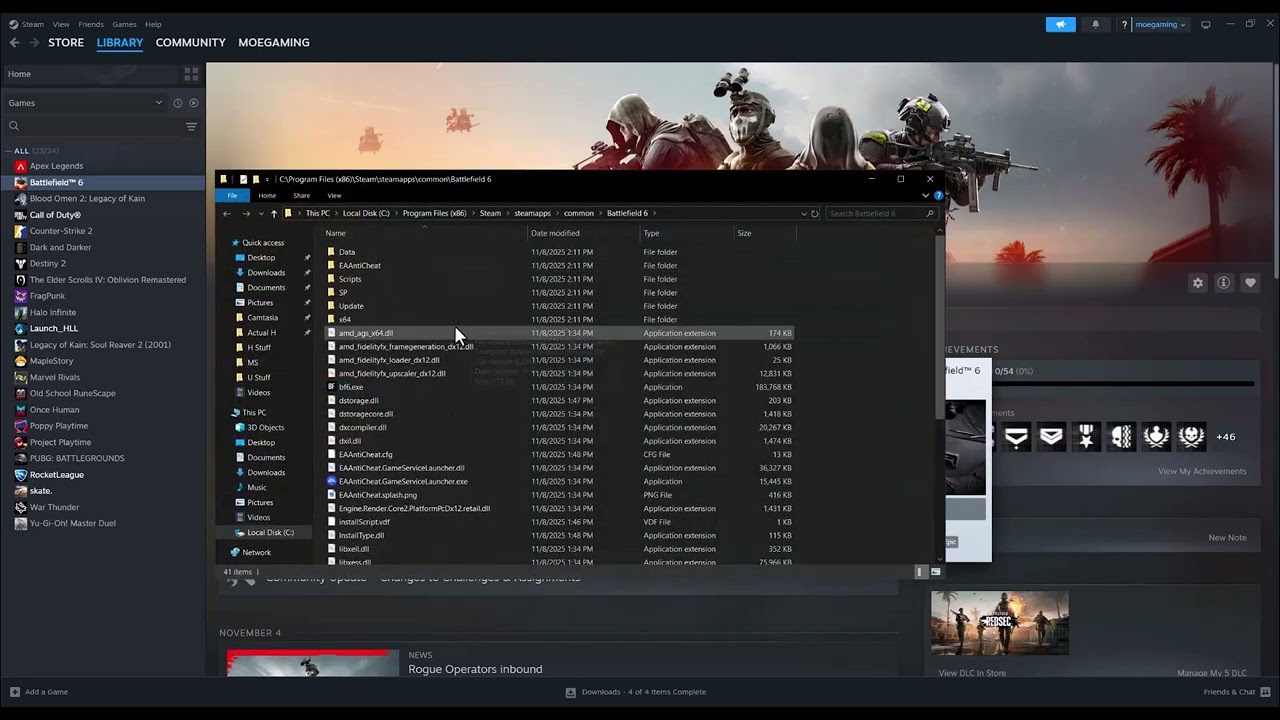
Quick answer: Restart the PC, update Battlefield and the graphics driver, then repair the game files. If the DirectX GetDeviceRemovedReason crash remains, turn off the Steam and other overlays for one test, return CPU/GPU tuning to stock, and launch again. Running the launcher or game as administrator can be tested temporarily, but it should not be treated as a permanent requirement.
Before you start
- Write down the complete DirectX or DXGI message and when it appears.
- Confirm the PC meets the current Battlefield requirements.
- Save work and restart Windows before changing settings.
- Download graphics drivers only from NVIDIA, AMD or Intel.
Fix the GetDeviceRemovedReason crash
- Install game and Windows updates. Let Steam or the EA app finish every Battlefield update, install pending Windows updates and restart the PC.
- Update the graphics driver. Install the current stable driver for the exact GPU. Choose the vendor installer’s clean-install option if the error began after a failed or partial driver update, then restart.
- Repair the game files. In Steam, open Library, right-click the game, select Properties > Installed Files > Verify integrity. In the EA app, open Library, use the game’s Manage menu and choose Repair.
- Disable overlays for one test. In Steam Properties > General, turn off Enable the Steam Overlay while in-game. Also close Discord, Xbox Game Bar, GPU recording/overlay tools and hardware-monitoring overlays. Re-enable them one at a time after testing.
- Return hardware to stock settings. Remove GPU undervolts or overclocks, restore default CPU/RAM tuning and reboot. Device-removed errors can appear when the graphics driver resets under load.
- Clear the launcher cache. For the EA app, use Help > App Recovery > Clear Cache. Restart the launcher and sign in again.
- Test administrator mode once. Browse to the game executable from Steam’s Installed Files page. Right-click it, open Properties > Compatibility and test Run this program as an administrator. If it makes no difference, turn the option off again. Permanent elevation increases the impact of any compromised add-on or overlay.
- Reduce the graphics load. Start with the game’s default settings. Disable frame generation and ray tracing temporarily, cap the frame rate and avoid using more VRAM than the settings meter allows.
Why this works
GetDeviceRemovedReason means Windows or DirectX lost the active graphics device or the driver reset. That can follow a driver fault, unstable tuning, corrupted shader or game files, an overlay conflict, or excessive graphics load. The sequence above replaces files and drivers first, then isolates software that hooks into the renderer.
Optional launch-mode test
The source video demonstrates trying -dx11 or -dx12 in Steam launch options. Treat this as an unofficial, reversible experiment: support varies by build and an unsupported flag may be ignored or make the game fail to start. Enter only one flag at a time in Properties > General > Launch Options, test once, and remove it if the error remains. Do not download replacement DLL files.
If the error still appears
- Check the Battlefield error-code and known-issues pages for a build-specific problem.
- Use Windows Reliability Monitor to see whether the graphics driver or game executable failed.
- Test the GPU at stock settings in another demanding game. Repeated driver resets outside Battlefield can indicate a system-level stability or hardware problem.
- Submit an EA Error Reporter log with the exact timestamp, GPU model and driver version.
Warnings
Do not disable antivirus permanently, raise GPU voltage, edit the registry blindly or copy DLL files from download sites. If the PC is overheating or crashing outside Battlefield, stop stress testing and address cooling or hardware stability first.
FAQ
Should I leave the Steam overlay disabled?
Only if testing proves it is the conflict. Otherwise re-enable it. The goal is to identify the cause, not remove features unnecessarily.
Does administrator mode fix DirectX?
Not directly. It may resolve a permissions conflict, but it will not repair a bad driver or unstable GPU. Disable it again if it does not help.
Should I force DirectX 11 or 12?
Only as a short, reversible test when the current Battlefield build supports the option. Remove the flag if the game ignores it or behaves worse.
Official references
Source video
As an Amazon Associate I earn from qualifying purchases.