Quick answer: First decide whether Battlefield REDSEC is suffering from network lag or low frame rate. For network lag, check EA status, restart the router, and use Ethernet. For low FPS or stutter, update the game and PS5, use the correct 120 Hz/display settings, and remove heat or storage bottlenecks. A DNS change may help lookups but will not raise FPS.
The video recommends Ethernet, selecting a Wi-Fi band instead of Automatic, and testing Cloudflare DNS. Those are network tests. They can reduce connection instability in some setups, but they cannot fix locally rendered low FPS.
Tell lag and low FPS apart
- Network lag: rubber-banding, delayed hits, icons warning about latency or packet loss, or other players jumping position.
- Low FPS: choppy camera movement and animation even when playing locally or when the network indicators look normal.
Fix REDSEC network lag on PS5
- Check EA’s server-status page and the PlayStation status page. Wait if either service is degraded.
- Restart REDSEC and the PS5, then power cycle the router for 60 seconds.
- Connect the PS5 by Ethernet. EA specifically recommends a wired connection for Battlefield connection problems.
- If Wi-Fi is necessary, open Settings > Network > Settings > Set Up Internet Connection, highlight the network, press Options, and test 5 GHz at close range or 2.4 GHz at longer range.
- Run Settings > Network > Connection Status > Test Internet Connection. Look for a major speed change or failure.
- Disable a VPN on the router or upstream network and retest. Keep normal firewall protection enabled.
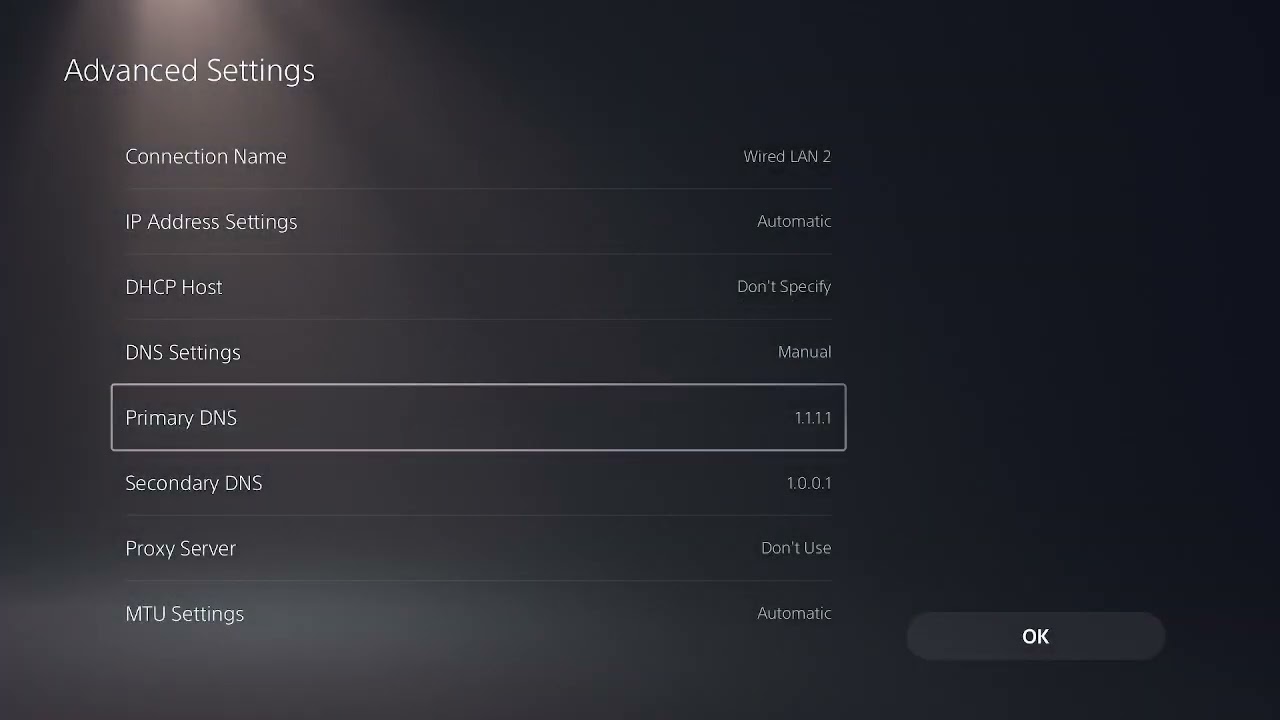
- Optionally test DNS
1.1.1.1and1.0.0.1in Advanced Settings. Return DNS to Automatic if there is no measurable improvement.
Fix low FPS or stutter
- Install the latest REDSEC and PS5 system updates.
- Restart the PS5 rather than resuming a long suspended session.
- Make sure the console has open ventilation and is not hot or clogged with dust.
- In PS5 Settings > Screen and Video, confirm the output matches the TV. Test with 120 Hz Output set to Automatic only if the display supports it.
- Temporarily disable VRR to test for a display handshake problem, then restore it if it was not the cause.
- Keep free internal storage available and move the game back to supported internal storage if an external setup is involved.
Why these steps work
EA identifies server status, router restarts, wired connections, VPN/firewall settings, and NAT as the main connection checks. Ethernet and a fixed Wi-Fi band reduce radio variability. Low frame rate is a rendering or system-performance problem, so network DNS cannot solve it; updates, thermal conditions, and display settings are the relevant checks.
Warnings
- Do not put the PS5 in a router DMZ as a first-line fix.
- Do not disable the router firewall permanently.
- Do not expect DNS to reduce every form of lag or increase FPS.
FAQ
Which Wi-Fi band should I use?
Try 5 GHz near the router and 2.4 GHz when walls or distance make 5 GHz unstable. Compare matches, not just the speed-test number.
Does REDSEC require internet?
Yes. EA says REDSEC requires an EA Account and a persistent internet connection.
Why does the game feel bad only at busy times?
That pattern can point to server load or home-network congestion. Compare EA status and test when other household traffic is quiet.