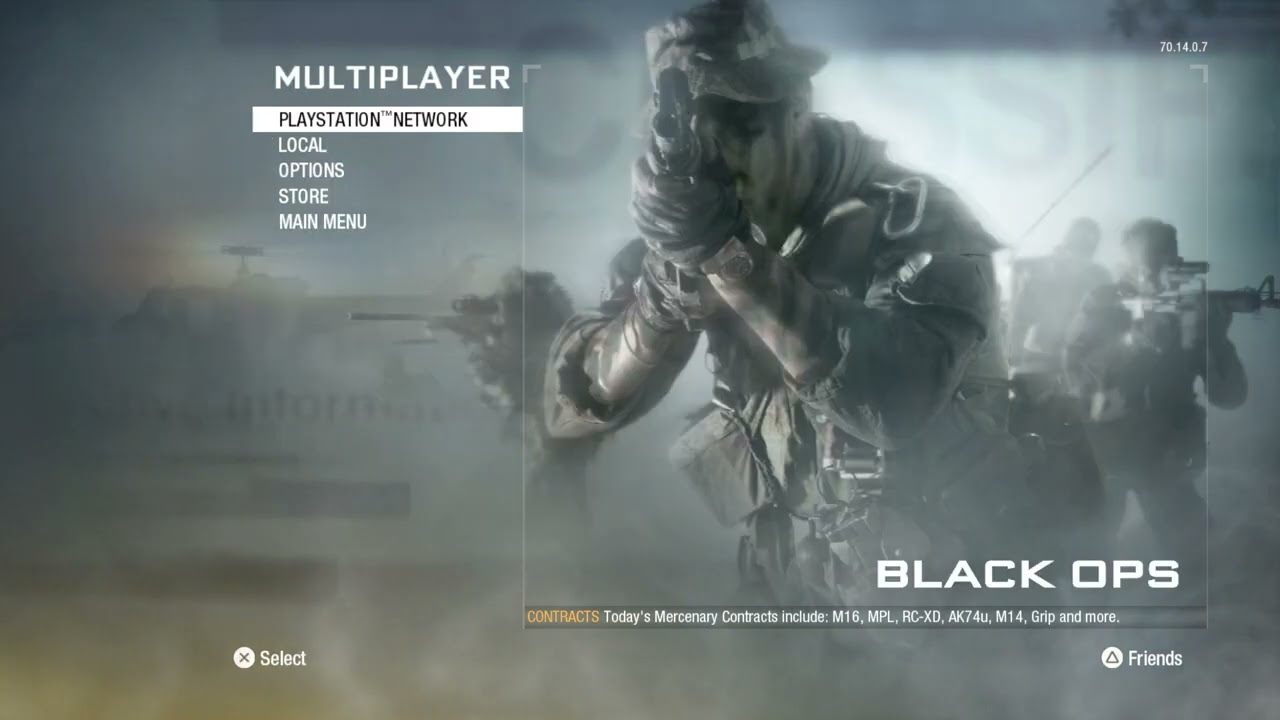
Quick answer: If Black Ops 1 says you cannot join a friend’s session on PS5, have both players set the party or lobby privacy to Open and return matchmaking search preferences to Default. Confirm neither account has blocked the other, restart the game on both consoles, and let the other player host. If the multiplayer invite still fails, the video demonstrates joining through a Zombies lobby first as a workaround.
This is a legacy multiplayer title, so a failed invite can involve lobby settings, account permissions, NAT behavior, service availability, or the current game session. The steps below begin with the reversible fixes shown in Moe Gaming’s video and then cover the safest current PlayStation checks.
Before troubleshooting the lobby
- Confirm both players are signed in to PlayStation Network and have any subscription required for online multiplayer.
- Check PlayStation Network status and verify the game’s online functions are available.
- Update the PS5 system software and install every available game update.
- Make sure both players are launching the same game edition and compatible version.
- Close the game completely on both consoles rather than resuming an old suspended session.
How to fix Black Ops 1 unable to join a friend on PS5
1. Set both lobbies to Open
- Open the Black Ops 1 multiplayer lobby.
- Open the party, lobby, or player-management panel.
- Find Party Privacy and set it to Open.
- Ask your friend to make the same change on their console.
- Send a fresh invite rather than reusing an invitation created before the setting changed.
A friends-only or invite-only setting can sometimes persist from a previous session. Setting both sides to Open removes that local lobby restriction while you test. You can restore a more restrictive setting afterward.
2. Return Search Preferences to Default
Open the matchmaking or lobby search preferences and select Default on both consoles. A narrow preference can make two players appear incompatible even when both can play separately. Recreate the party after applying the change.
3. Verify the friendship and block lists
- Open the PS5 Game Base and confirm the other account is still listed as a friend.
- Check the blocked-users list on both accounts.
- If either account appears blocked, unblock it and restart the game.
- Ask the non-hosting player to join from the current Game Base invitation.
Do not share account passwords or remove unrelated privacy protections. This check is only meant to confirm that the two intended accounts can communicate and invite one another.
4. Switch the host
Disband the current lobby and let the other player create a new one. A host switch is a quick way to test whether one console’s session or home-network NAT behavior is preventing the join. If one person can host consistently and the other cannot, focus further network troubleshooting on the unsuccessful host.
5. Try the Zombies-lobby workaround
The source video shows a practical legacy-title workaround:
- Both players leave the current multiplayer party.
- One player opens Zombies and creates an open lobby.
- The friend joins that Zombies session.
- Once both players are together, return to the main menu and create a multiplayer lobby again.
This is a community workaround demonstrated in the video, not a guaranteed PlayStation repair. It is useful because it forces the game to create a fresh shared session through a different mode.
6. Restart the network path
- Close the game on both PS5 consoles.
- Restart both consoles.
- Power-cycle each router: unplug power, wait about 30 seconds, reconnect it, and wait until internet service returns.
- Use Ethernet for the test when possible.
- Run the PS5 internet-connection test and note the NAT result.
If both players can join other games but not one another, incompatible or restrictive NAT behavior may be involved. Do not disable the router firewall or expose the console to the internet. Use the router manufacturer’s supported UPnP or console-gaming guidance, or ask the internet provider for help if the network is behind carrier-grade NAT.
Why the friend-session error happens
The message does not identify one root cause. An invite can fail because the lobby is not open, the party was created with stale settings, the accounts cannot communicate, the game versions differ, a service is unavailable, or the two network paths cannot establish a peer session. That is why changing the privacy and search settings, recreating the lobby, and switching host are more useful first tests than random DNS or port changes.
If only Black Ops 1 is affected
- Check whether each player can enter a public match separately.
- Try again at a different time in case a legacy matchmaking service is degraded.
- Remove and reinstall only after confirming the account, service, and network checks.
- Record the exact mode and error wording if you need to contact PlayStation Support.
- For the similar sequel issue, see our Black Ops 2 unable-to-join guide.
Optional multiplayer accessories
As an Amazon Associate I earn from qualifying purchases.
- Cable Matters Cat 6 Ethernet cable — useful for removing Wi-Fi instability during the test.
- PS5/PC-compatible gaming headset — useful for coordinating invitations and host changes.
- DualSense wireless controller — an optional spare, not a friend-session repair.
Watch the original walkthrough
Frequently asked questions
Why can I join public matches but not my friend?
Public matchmaking and direct friend sessions can use different lobby and network paths. Check party privacy, block lists, game versions, host choice, and NAT behavior.
Should both players set Party Privacy to Open?
Yes, during troubleshooting. That removes an invite restriction from either side. Once the connection works, you can return to a preferred privacy setting.
Will changing DNS fix friend-session errors?
It is not a primary fix. DNS helps locate services; it does not override lobby privacy or guarantee that two NAT connections can form a peer session.