Quick answer: To reduce Black Ops 2 lag on PS5, first stop downloads and test a wired connection. If you use Wi-Fi, manually test the 5 GHz band when the console is close to the router or 2.4 GHz when it is farther away. Reconnect, restart the PS5 and router, and only then try a manual DNS such as Cloudflare’s 1.1.1.1 and 1.0.0.1. DNS can improve name lookups, but it does not directly reduce in-match ping.
This guide is based on the settings demonstrated in Moe Gaming’s video, then checked against current PlayStation, Activision, and Cloudflare documentation. Work through the steps in order so you can tell which change actually helps.
Before changing PS5 network settings
- Check whether PlayStation Network or the game’s online service is having an outage.
- Pause game downloads, cloud backups, streaming, and large uploads on the PS5 and other devices.
- Run Settings > Network > Connection Status > Test Internet Connection and note the result.
- Restart the router and PS5 once. Wait for the router to reconnect fully before starting the game.
- If possible, compare one match over Ethernet. That test quickly separates Wi-Fi interference from a server-side issue.
How to fix Black Ops 2 lag on PS5
1. Use Ethernet when possible
Connect the PS5 directly to the router with an Ethernet cable, then open Settings > Network > Settings > Set Up Internet Connection and select the wired connection. Ethernet does not make the game servers faster, but it removes most local Wi-Fi interference and packet loss.
If the game runs smoothly over Ethernet but lags over Wi-Fi, focus on signal strength, router placement, congestion, and the frequency-band test below.
2. Manually test the Wi-Fi frequency band
- Open Settings > Network > Settings > Set Up Internet Connection.
- Highlight the Wi-Fi network you use and press the controller’s Options button.
- Open Wi-Fi Frequency Bands.
- Try 5 GHz if the PS5 is close to the router with few walls between them.
- Try 2.4 GHz if the console is farther away or the 5 GHz signal is weak.
- Reconnect and test a full match before deciding which band performs better.
Automatic band selection is convenient and may work perfectly. The point of choosing a band manually is to test whether the console has been switching between bands or using a poor signal. Five GHz is usually faster at short range; 2.4 GHz usually reaches farther but is more crowded.
3. Try Cloudflare DNS as an optional test
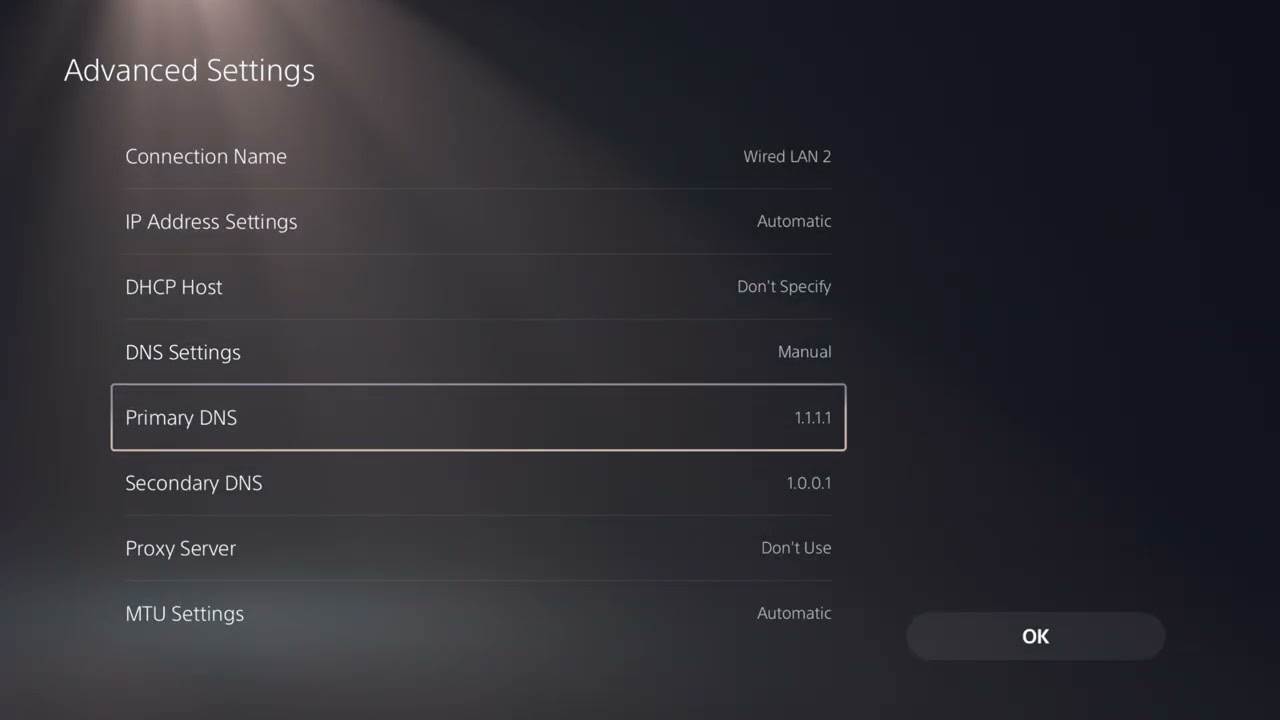
- Return to Set Up Internet Connection, highlight the active network, press Options, and choose Advanced Settings.
- Set DNS Settings to Manual.
- Enter 1.1.1.1 for Primary DNS.
- Enter 1.0.0.1 for Secondary DNS.
- Leave MTU and proxy settings unchanged unless your network administrator gave you different values.
- Save, reconnect, and restart the PS5.
Those are Cloudflare’s documented IPv4 resolver addresses. DNS helps the console locate services, but once a multiplayer match is connected, latency is driven mainly by route quality, distance, congestion, packet loss, and the game servers. If the change does not help, switch DNS back to Automatic.
4. Reduce congestion and improve signal quality
- Move the PS5 or router into the open and away from thick walls, metal cabinets, cordless-phone bases, and microwaves.
- Pause 4K streaming, cloud syncing, and large downloads during your test.
- Do not use a VPN for the test; it can add another network route and more latency.
- If your router has gaming or device-priority controls, prioritize the PS5 temporarily and compare results.
- Avoid changing MTU or opening ports at random. Incorrect values can create a new connection problem.
Why these fixes can work
Lag is often a symptom of unstable delivery rather than low headline download speed. A Wi-Fi connection can be fast in a speed test while still losing or delaying small packets during a match. Ethernet removes the radio link. Choosing the better Wi-Fi band can reduce interference or weak-signal retransmissions. Stopping other traffic reduces local congestion.
A DNS change has a narrower role: it changes the resolver used to find service addresses. It can help if the ISP’s DNS is slow or unreliable, but it is not a guaranteed ping fix. That is why it belongs after the more meaningful connection tests.
If Black Ops 2 still lags
- Test another online game. If every game lags, troubleshoot the home network or contact the internet provider.
- Test Black Ops 2 at another time. A problem that appears only during peak periods can indicate network or server congestion.
- Confirm the game and PS5 system software are updated.
- Follow Activision’s Black Ops 2 connection guidance and compare the console’s NAT result.
- If the issue is actually an inability to join one friend rather than general lag, use our Black Ops 2 friend-session troubleshooting guide.
Optional gaming accessories
As an Amazon Associate I earn from qualifying purchases.
- Cable Matters Cat 6 Ethernet cable — the only item here that can directly remove Wi-Fi from the connection path.
- PS5/PC-compatible gaming headset — useful for team chat; it does not fix network lag.
- DualSense wireless controller — an optional spare controller, not a latency fix.
Watch the original walkthrough
Frequently asked questions
Should I use 2.4 GHz or 5 GHz for PS5?
Use 5 GHz at shorter range when the signal is strong. Try 2.4 GHz when the console is farther away or several walls separate it from the router. Test both in an actual match rather than assuming one is always better.
Will 1.1.1.1 lower my Black Ops 2 ping?
Not necessarily. It changes DNS resolution, not the physical route used by most game traffic after connection. Keep it only if testing shows a measurable improvement or more reliable sign-in.
Why does Black Ops 2 lag while other games work?
The specific game session, player host, server route, region, or current population can differ. Check service status and test at another time before changing advanced router settings.