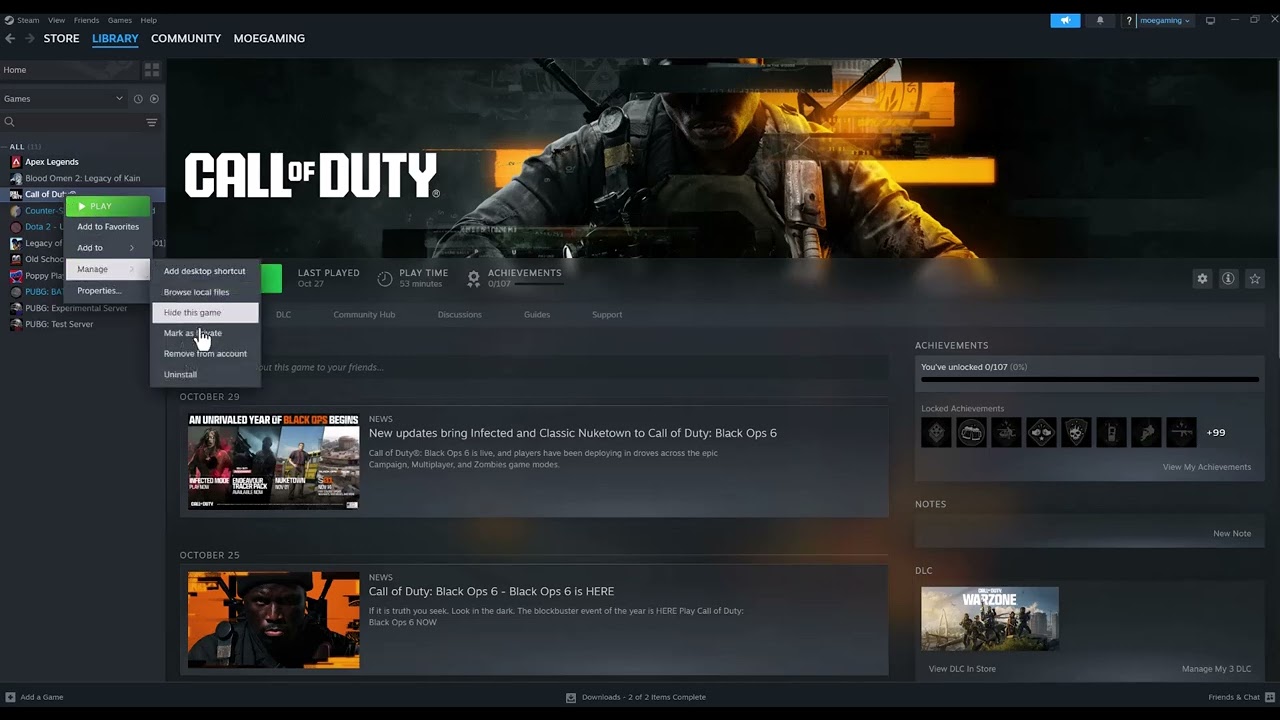
Quick answer: Fully exit Call of Duty and Steam, confirm that no Steam download is paused, reopen Steam, and verify the Call of Duty game files. Remove custom launch options, update Windows and the supported graphics driver, then retest. Do not force DirectX 11: Black Ops 6’s supported PC path is DirectX 12.
Before you start
- Check Activision’s online-service status and Steam connectivity.
- Allow enough free storage for the update and temporary unpacking files.
- Save any screenshots of the exact update message.
- Back up custom configuration files before resetting them.
Fix the Update Required loop
- Exit everything. Close Call of Duty, quit Steam from its menu, and confirm that no Call of Duty or Steam process remains in Task Manager.
- Restart the PC. This releases files that may still be locked by the game or updater.
- Finish Steam downloads. Open Steam’s Downloads page, resume Call of Duty, and wait until patching and verification are complete.
- Verify the game files. Right-click Call of Duty > Properties > Installed Files > Verify integrity of game files. Let Steam reacquire anything missing.
- Remove launch options. In Properties > General, clear custom commands for one test. In particular, do not add
-d3d11or another unsupported renderer override. - Update Windows and the GPU driver. Activision recommends a current supported Windows build and compatible NVIDIA, AMD, or Intel driver. Restart afterward.
- Clear Steam’s download cache if the loop remains. Go to Steam > Settings > Downloads > Clear Download Cache. You will need to sign in to Steam again.
- Reinstall only as a last resort. If the loop survives a clean verification and cache reset, uninstall Call of Duty, restart, and reinstall to a library with enough space.
Why this works
An update loop usually means the launcher and the installed files disagree about the current build. Completing pending downloads and verifying files lets Steam reconcile that state. Clearing the download cache removes stuck update metadata. Removing old launch commands prevents an unsupported configuration from being applied at startup.
Suggestions from the video that are not recommended
The source video also suggests forcing DirectX 11 and permanently running the game as administrator. Those are not the default supported repair paths. Activision’s current PC guidance focuses on supported Windows and drivers, Steam file verification, and closing interfering applications. Leave compatibility and administrator boxes unchecked unless official support gives a specific reason.
Alternatives
- Temporarily close overclocking, monitoring, and overlay tools before launching.
- Confirm the antivirus has not quarantined a Call of Duty file; use a narrow game-folder exception only if the security product blocked a verified file.
- Move the Steam library through Steam’s storage settings if the current drive is full or failing.
Warnings and reversibility
Clearing the Steam download cache signs you out but does not uninstall games. File verification can restore modified files. Reinstallation is bandwidth-intensive, so reserve it for last. If you removed legitimate launch options, restore them one at a time only after the game updates normally.
Frequently asked questions
Should I change DNS?
A DNS change may help a name-resolution problem, but it is not the first fix for local update metadata. Check service status, downloads, files, and cache first.
Will Verify integrity delete progress?
Online Call of Duty progression is account-based. Verification checks installation files, but you should still back up any local custom configuration you care about.
Why does the update return after verification?
Steam may still be finishing a download, the download cache may be stuck, or an unsupported launch option or background tool may be interfering.