Quick answer: Confirm the PC and graphics card support Counter-Strike 2, install the current stable GPU driver, and restart Windows. Then test the source video’s reversible Steam launch option -vulkan. If CS2 still fails, remove the option and verify the game files. A very old or unsupported GPU cannot be fixed with a launch flag.
Before you start
- Write down the complete message, including
CRenderDeviceMgrDx11::CreateDevice()and any “requires DX11” text. - Identify the GPU in Task Manager > Performance > GPU.
- Download drivers only from NVIDIA, AMD, Intel or the computer manufacturer.
- Do not download replacement DLL files or DirectX installers from third-party sites.
Fix the CRenderDeviceMgrDx11::CreateDevice error
- Restart Windows. A full restart clears a graphics-driver session that may have failed during an update or crash.
- Check Windows and hardware support. Compare the PC with the current Counter-Strike 2 requirements on Steam. Run
dxdiagfrom Windows Search and review the Display tab for the GPU, driver and supported feature levels. - Update the graphics driver. Install the current stable package for the exact GPU, then restart. On a laptop, also check the system manufacturer’s driver page if the vendor package is rejected.
- Force the high-performance GPU. On a dual-GPU laptop, open Windows Settings > System > Display > Graphics, add or select CS2 and choose the high-performance GPU.
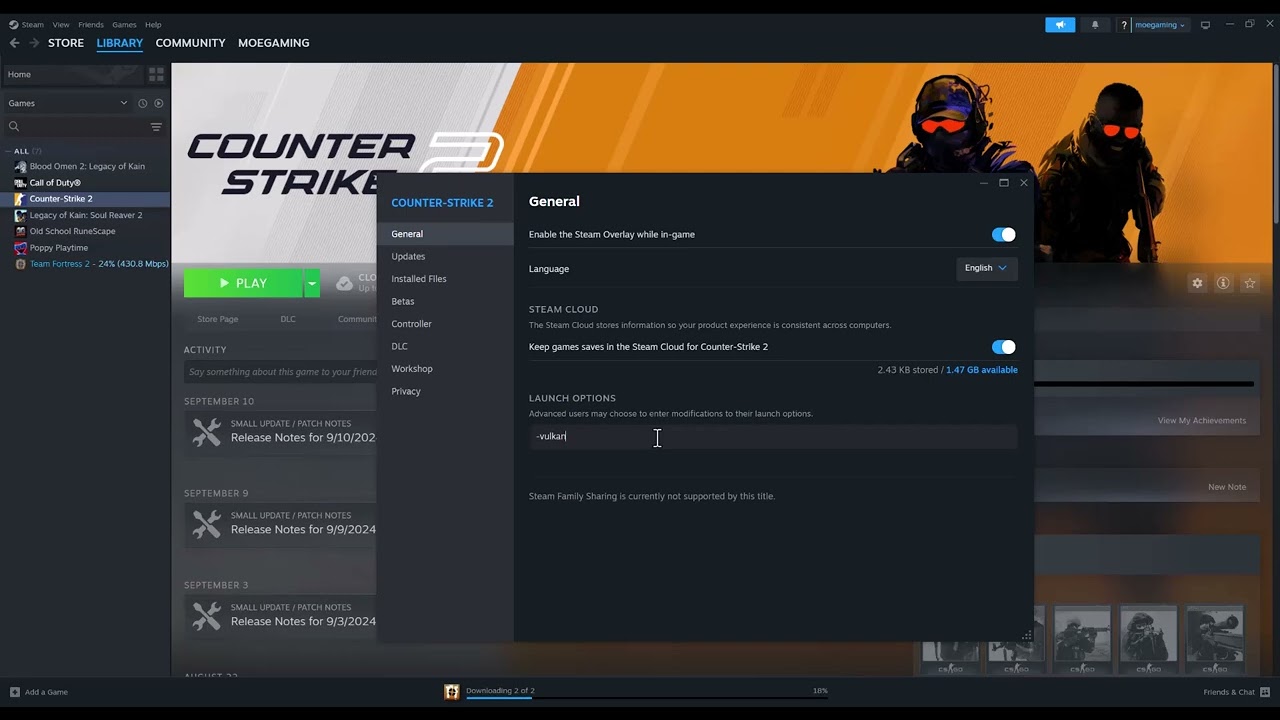
- Test Vulkan. In Steam Library, right-click Counter-Strike 2, open Properties > General and enter
-vulkanin Launch Options. Start the game once. This bypasses the DirectX 11 renderer and is the primary workaround demonstrated in the source video. - Undo the launch option if it does not help. Return to the same field and delete
-vulkan. An unsupported or unstable Vulkan path can cause different launch or performance problems. - Verify game files. Open Steam Properties > Installed Files > Verify integrity of game files. Let Steam replace damaged or missing files, then restart Steam.
- Remove conflicting launch options. Delete old renderer, resolution or compatibility flags and test with a clean Launch Options field.
Why this works
The error occurs while CS2 is trying to create a graphics device through DirectX 11. A current driver and correct GPU selection address the normal DirectX path. The -vulkan option asks the Source 2 engine to use Vulkan instead, which can avoid a broken DirectX initialization. File verification replaces damaged game components.
If the error continues
- Install all supported Windows updates and restart.
- Disable overlays and GPU-tuning tools for one test, then re-enable them individually.
- Return GPU and CPU overclocks or undervolts to stock settings.
- Test another game that requires a modern graphics API. Similar failures can indicate a driver or hardware problem.
- If
dxdiagdoes not show the required feature level, use supported hardware rather than unofficial DLL wrappers.
Warnings
-vulkan is an unofficial troubleshooting workaround for this specific error, not a guaranteed performance upgrade. It is reversible. Do not edit the registry blindly, disable security software permanently or copy DLL files from download sites.
FAQ
Should I leave -vulkan enabled?
Only if CS2 starts and remains stable. Remove it if performance worsens, the game crashes or the original error remains.
Can I install DirectX 11 on any graphics card?
No. Windows components cannot add hardware feature support that the GPU lacks.
Will verifying files remove my inventory?
No. Steam inventory items are account-based. Verification checks local game files; custom local files may be replaced.
Official references
- Steam: Counter-Strike 2 requirements
- Valve Developer Community: Vulkan
- Microsoft: Update drivers in Windows
Source video
As an Amazon Associate I earn from qualifying purchases.