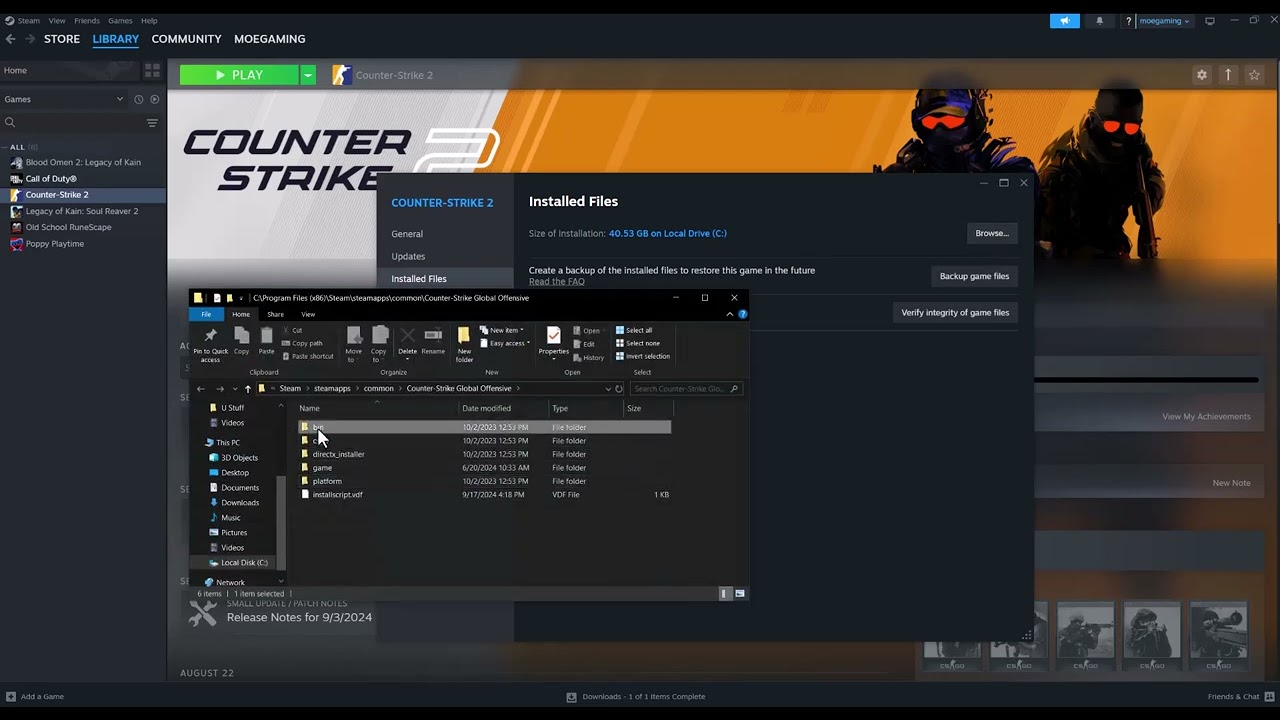
Quick answer: When Counter-Strike 2 reports that a file has no valid signature, verify the installation in Steam before changing Windows compatibility or administrator settings. Verification replaces damaged or modified files and is the safest fix for this symptom.
Before you start
- Close Counter-Strike 2 completely.
- Let Steam finish any pending game or client update.
- Remove custom DLLs or launch scripts you knowingly added, but do not delete Windows system files.
- Keep your Steam login available in case the client asks you to sign in again.
Fix the CS2 invalid signature error
- Restart Steam and the PC. Exit Steam from its menu, restart Windows, open Steam, and try CS2 once. This clears a stuck update or locked file.
- Verify the installed files. In Steam, open Library, right-click Counter-Strike 2, choose Properties > Installed Files, then select Verify integrity of game files. Wait until it finishes. Steam may reacquire one or more files.
- Remove custom launch options temporarily. In CS2 Properties, open General and copy any launch options to a note. Clear the field, then test the game. Restore only options you still need, one at a time.
- Check security-software history. Open Windows Security > Virus & threat protection > Protection history. If a legitimate CS2 or Steam file was quarantined, restore it only after confirming that its path is inside the official Steam installation, then verify the game again. Never download a replacement DLL from a random website.
- Reset compatibility changes. Browse to the CS2 executable, open Properties > Compatibility, and clear forced compatibility mode or permanent Run this program as administrator unless Valve specifically instructed you to use it. Mixed privilege levels can stop Steam from handing the game off correctly.
Why this works
Steam compares the local installation with the signed files on its content servers. A failed update, antivirus quarantine, or modified file can make the local copy fail a signature check. Verification restores the expected build without touching your Steam account.
If the error remains
- Install pending Windows updates and restart.
- Opt out of a Steam or CS2 beta branch if you joined one unintentionally.
- Temporarily disable third-party overlays, injectors, reshade tools, or monitoring utilities, then test again.
- Reinstall CS2 only after file verification and launch-option checks fail.
Warning: The source video also demonstrates compatibility and administrator settings. Viewer results were mixed, so those settings are not the first recommendation here. Do not weaken antivirus protection or download unsigned DLL files to bypass a signature error.
Frequently asked questions
Will verification delete my CS2 inventory?
No. Inventory is tied to your Steam account. Verification checks local installation files.
Why does Steam say files will be reacquired?
That normally means Steam found a local file that differed from the expected copy. Let the download finish before launching.
Should I always run CS2 as administrator?
No. Use normal privileges by default. Permanent elevation can create launcher handoff and security problems.
Official references
- Steam Support: Verify integrity of game files
- Steam Support: Games do not run after Preparing to Launch
Source video
As an Amazon Associate I earn from qualifying purchases.