Quick answer: Dev Error 0x10295CAB usually appears when Call of Duty cannot load an installed game component correctly. On PS5, close the game, install every available update, repair the affected Black Ops 7 or Warzone content through Manage Files, then restore the game license. Reinstall only the affected pack before reinstalling the entire game.
Before you start
- Make sure the PS5 is online and signed in to the account that owns the game.
- Leave enough free storage for the affected pack to download again.
- Do not delete saved data. The repair below targets installed game content, not campaign or multiplayer progress.
- Check the Call of Duty Online Services page. If Activision reports an outage, wait for service to recover before changing the installation.
How to fix Dev Error 0x10295CAB
1. Fully close Call of Duty and restart the PS5
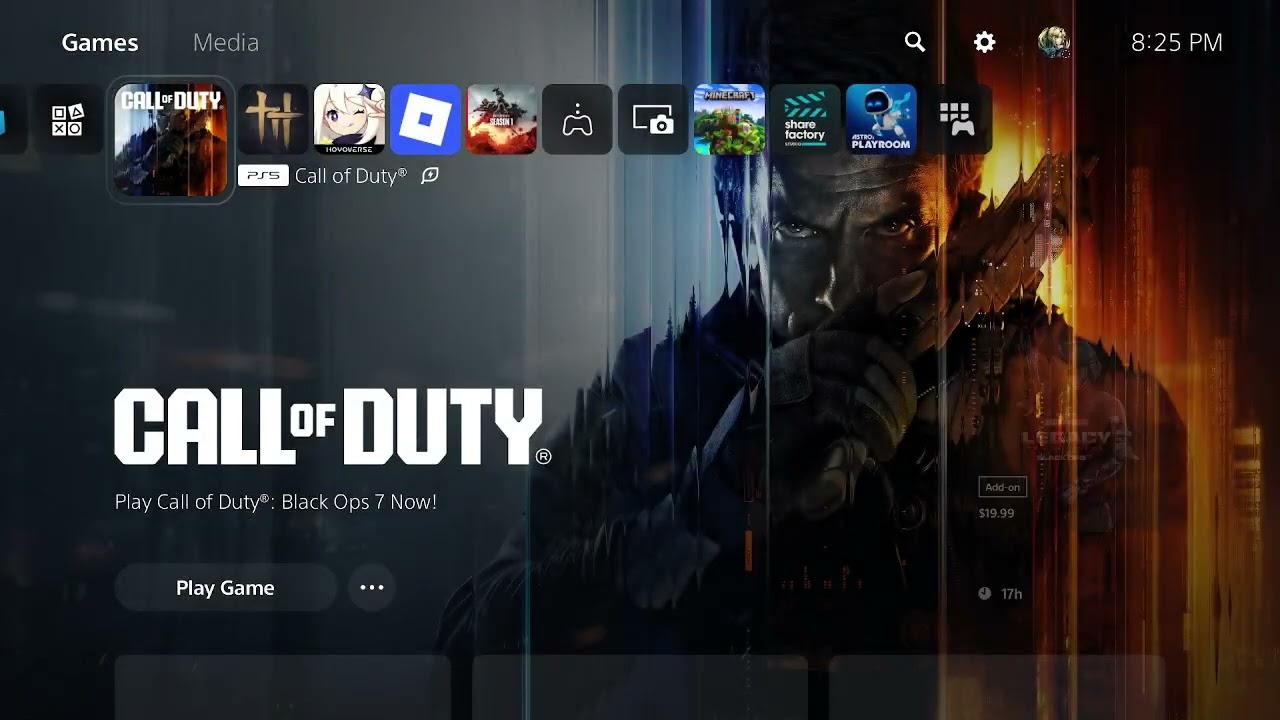
- Highlight Call of Duty on the PS5 home screen.
- Press the Options button and choose Close Game.
- Restart the console from the Power menu instead of entering Rest Mode.
- Launch the game once and check whether the error returns.
This clears a temporary game process before you alter any installed files. It is worth doing first because an interrupted update can leave the current session pointing at an older content version.
2. Check for a game and system update
- Highlight Call of Duty, press Options, and select Check for Update.
- Open Settings > System > System Software > System Software Update and Settings.
- Install any available PS5 system update, then restart.
Activision recommends keeping PlayStation system software current when troubleshooting Call of Duty crashes and loading failures.
3. Repair the affected content in Call of Duty
- Launch Call of Duty and open the main menu.
- Select Manage Files, then open Manage Files again.
- Choose the Black Ops 7 or Warzone tile associated with the error.
- Uninstall only the affected multiplayer, Warzone, campaign, or shared-content pack.
- Return to the same screen and install that pack again.
- Wait until the download and installation are completely finished before launching the mode.
Activision’s current Call of Duty content-management guide confirms that individual game components can be installed or removed from Manage Files. Repairing the smaller component is faster and less disruptive than deleting the entire game.
4. Check PS5 game content if the in-game menu will not open
- Close the game.
- Highlight Call of Duty on the home screen and press Options.
- Select Manage Game Content.
- Confirm that the required Black Ops 7 or Warzone items are installed.
- If one item appears damaged or incomplete, remove that item and download it again.
The exact pack names can change after a seasonal update. Match the pack to the mode that triggers the error rather than deleting unrelated language or campaign content.
5. Restore the game license
- Open Settings > Users and Accounts > Other > Restore Licenses.
- Select the Call of Duty license, or use the available restore option.
- Restart the PS5 and test the affected mode.
According to PlayStation Support, restoring a license does not affect saved data. It refreshes the console’s authorization for the game and add-ons.
6. Reinstall the full game only as a last resort
If the same error survives a clean pack download, license restoration, and restart, delete Call of Duty and reinstall it from the account’s Game Library. Use Install Options to select the content you actually play. Activision’s Black Ops 7 installation guide documents this PS5 flow.
Why this fix works
Call of Duty separates its launcher, shared assets, and individual game modes into multiple components. After a large update, one component can be missing, incomplete, or out of sync with the launcher. Reinstalling the affected pack replaces that component, while restoring licenses repairs the PS5 entitlement check. Those two actions address different failure points without touching saved progress.
If the error still appears
- Check that the download is installed, not merely queued.
- Temporarily pause other downloads and restart the router.
- Confirm that the correct PlayStation account owns or can access the game.
- Check Activision’s Black Ops 7 known-issues page for a newly acknowledged 0x error.
- Use PS5 Safe Mode’s Clear Cache and Rebuild Database only after the simpler steps. Do not choose Reset PS5.
Frequently asked questions
Will restoring licenses delete my progress?
No. PlayStation states that license restoration does not affect your data.
Do I need to reinstall both Black Ops 7 and Warzone?
No. Start with the pack for the mode that produces the error. Reinstall the whole Call of Duty installation only if a targeted repair fails.
Why did the error start after an update?
A download may have stopped early, or the launcher and a game component may be on different versions. Finishing updates and reinstalling the affected pack corrects that mismatch.
Watch the original walkthrough
Official references
- Activision: Managing Content in Call of Duty Games
- Activision: Black Ops 7 Installation
- PlayStation: Restore Licenses on PS5
- Activision: Black Ops 7 Known Issues
As an Amazon Associate I earn from qualifying purchases.