Quick answer: Fortnite matchmaking error #3 can occur when servers are under maintenance, the connection is unstable, or available Battle Buses are full. Check Epic status, wait a few minutes, restart Fortnite, and keep Matchmaking Region on Auto. If one region appears stuck, test a nearby region once and return to Auto afterward.
Before you start
- Access to the Fortnite Settings menu.
- A stable connection and permission to restart the router if needed.
- Your normal region and the displayed latency for nearby alternatives.
- Patience for a server-capacity problem; local settings cannot open a full match server.
How to fix Fortnite matchmaking error #3
- Check Epic Games status. Look for Fortnite matchmaking, login, or game-services incidents. If maintenance is active, wait rather than reinstalling the game.
- Retry after a short pause. Epic describes error #3 as potentially occurring when Battle Buses are full. Return to the lobby, wait several minutes, and queue again.
- Restart Fortnite. Close the game completely and reopen it. On a console, also restart the system rather than resuming a suspended session.
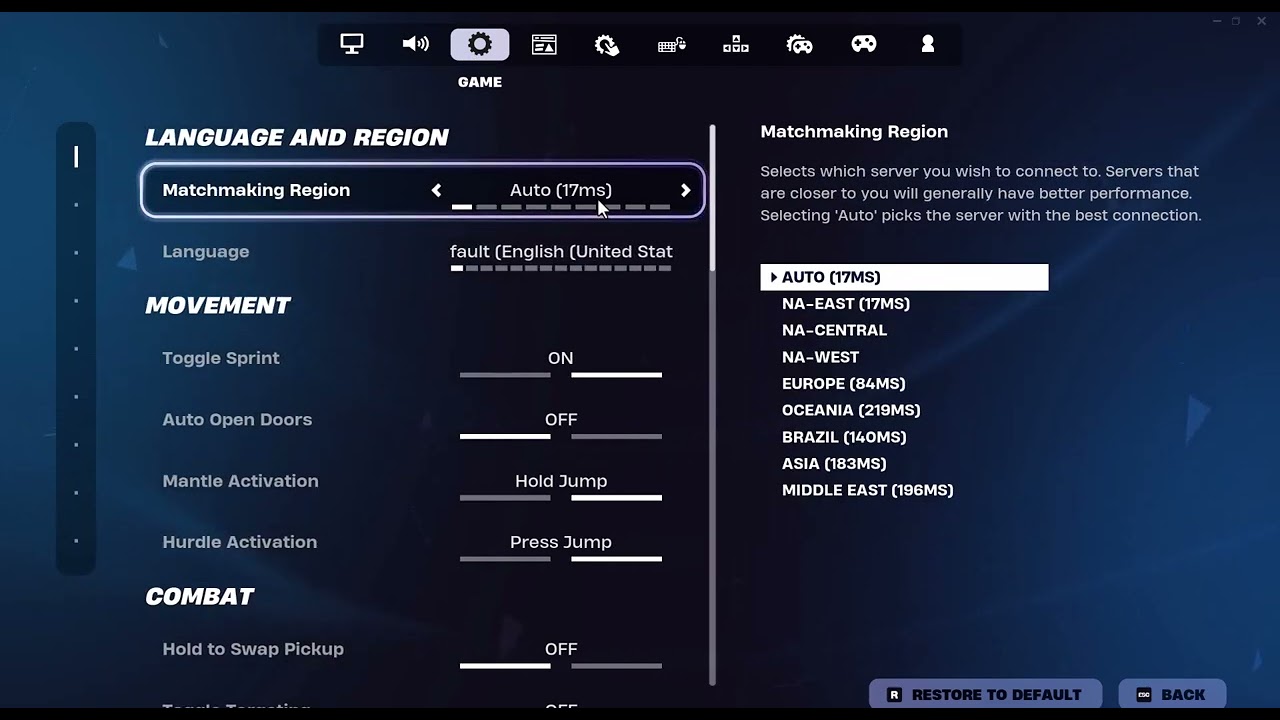
- Keep Matchmaking Region on Auto first. Open the menu, choose Settings, select the Game tab, find Matchmaking Region, select Auto, apply the change, and retry.
- Test one nearby region if Auto is stuck. Choose the nearest alternative with a reasonable latency, apply it, and queue once. This is an unofficial, temporary workaround demonstrated by the video, not a guaranteed fix.
- Restore Auto if the alternate is worse. High ping can create delay and packet loss. Return Matchmaking Region to Auto after the comparison.
- Restart the network if other online services also fail. Unplug the modem and router for five minutes, reconnect them, and test again. Use Ethernet for a clean comparison where possible.
Why these steps work
Status and capacity checks address the most likely service-side explanations before you touch local settings. Restarting clears a stale lobby session. Region selection can route the next queue to a different nearby matchmaking pool, but the tradeoff is higher latency. Auto remains Epic’s recommended setting because it selects the region with the best ping.
Other safe options
- Leave the party and test a solo queue; if solo works, rebuild the party.
- Confirm every party member has the current Fortnite update.
- Disable a VPN or proxy for the test.
- If only one playlist fails, try a different official mode and return later.
Warnings and how to undo changes
Do not repeatedly jump to a distant region merely to avoid a full queue; worse latency can make the match unplayable. Do not delete the game or change router security for a short-lived capacity error. To undo the workaround, set Matchmaking Region back to Auto and select Apply.
Source video
The manual region change is video-derived and may help only when a particular matchmaking pool is congested. Epic’s current guidance is to use Auto for the best ping and to wait through service or capacity issues.
Frequently asked questions
What does Fortnite matchmaking error #3 mean?
Epic’s current support page says it can be caused by server maintenance, a network problem, or all available Battle Buses being full.
Which region should I choose?
Use Auto first. For a brief comparison, pick the nearest alternative with the lowest displayed latency, then return to Auto if it does not help.
Does reinstalling Fortnite fix error #3?
Usually not when the cause is maintenance or full matchmaking capacity. Check status, wait, restart, and test the connection before considering a reinstall.
Official references
Checked October 1, 2026.
- Epic Games Public Status
- Epic Games: Fortnite matchmaking errors #1, #2, and #3
- Epic Games: Change matchmaking region
As an Amazon Associate I earn from qualifying purchases.