Quick answer: Restart Epic Games Launcher, verify Hell Let Loose files, install pending Windows and graphics-driver updates, and remove old launch options. If the game still hangs, testing -dx11 is an unofficial, reversible workaround from the source video. Do not leave compatibility mode or permanent administrator access enabled as a blanket fix.
Before you start
- Close Hell Let Loose and Epic Games Launcher.
- Restart Windows and pause other large downloads.
- Allow time for file verification; it can redownload damaged files.
Fix the loading or Press Any Button hang
- Restart the launcher. Exit Epic Games Launcher from the system tray, reopen it, and check that Hell Let Loose has no pending update.
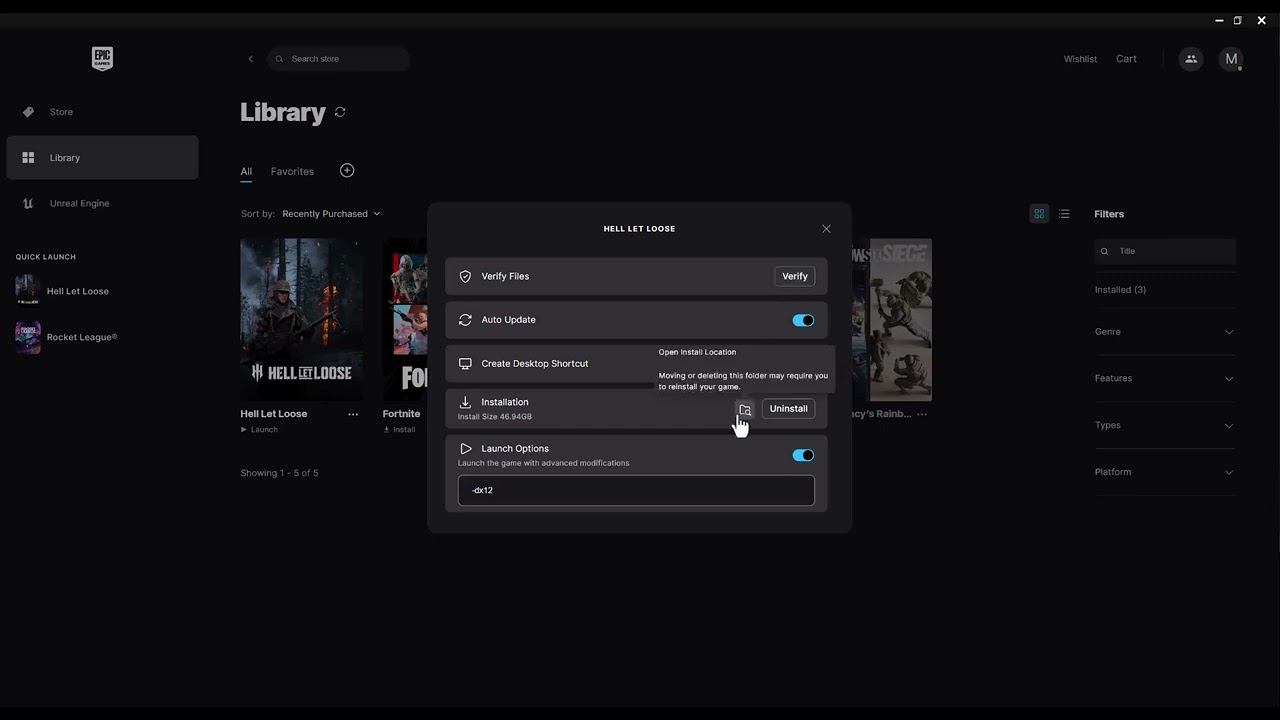
- Verify the game. In Epic Library, select the three dots beside Hell Let Loose, choose Manage, then Verify. Wait for validation to finish.
- Remove stale launch options. In the same Manage panel, clear any launch argument you previously added, then test once with the default renderer.
- Update the PC. Install current Windows updates and the supported driver from NVIDIA, AMD, or Intel for your graphics hardware. Restart afterward.
- Optional unofficial DirectX test. If the default still hangs, enable launch options and enter
-dx11. Test the game once. If performance worsens or nothing changes, remove the argument to return to default behavior. - Escalate with logs. If verification and the reversible renderer test fail, contact Team17 support with the exact point where loading stops and your Epic account platform.
Why this works
Epic verification compares installed files with the current game build and repairs missing or altered data without affecting saved data. The DirectX argument changes the rendering path; that can bypass a driver-specific startup problem, but it is not a universal fix and can reduce performance or features.
Alternatives
- Disable overlays temporarily for one test, then re-enable them.
- Try a clean graphics-driver installation only if the vendor installer offers it.
- Reinstall Hell Let Loose after verification fails repeatedly.
Warnings and limitations
The source video also suggests compatibility mode and permanent administrator mode. Those settings are intentionally excluded because they broaden privileges and can create new launcher or anti-cheat problems. Do not download third-party DLLs or turn off anti-cheat. To undo the DirectX workaround, delete -dx11 from launch options.
FAQ
Does Verify delete my progress?
Epic says verification checks and repairs installed files without affecting saved data.
Should I try -dx12 instead?
Use the default renderer first. Only test a launch argument when you can remove it immediately if it makes no difference.
What if the game reaches the menu but cannot join servers?
That is a different network or server problem. Check service status and use Team17 connection guidance.
Official references
Source video
As an Amazon Associate I earn from qualifying purchases.