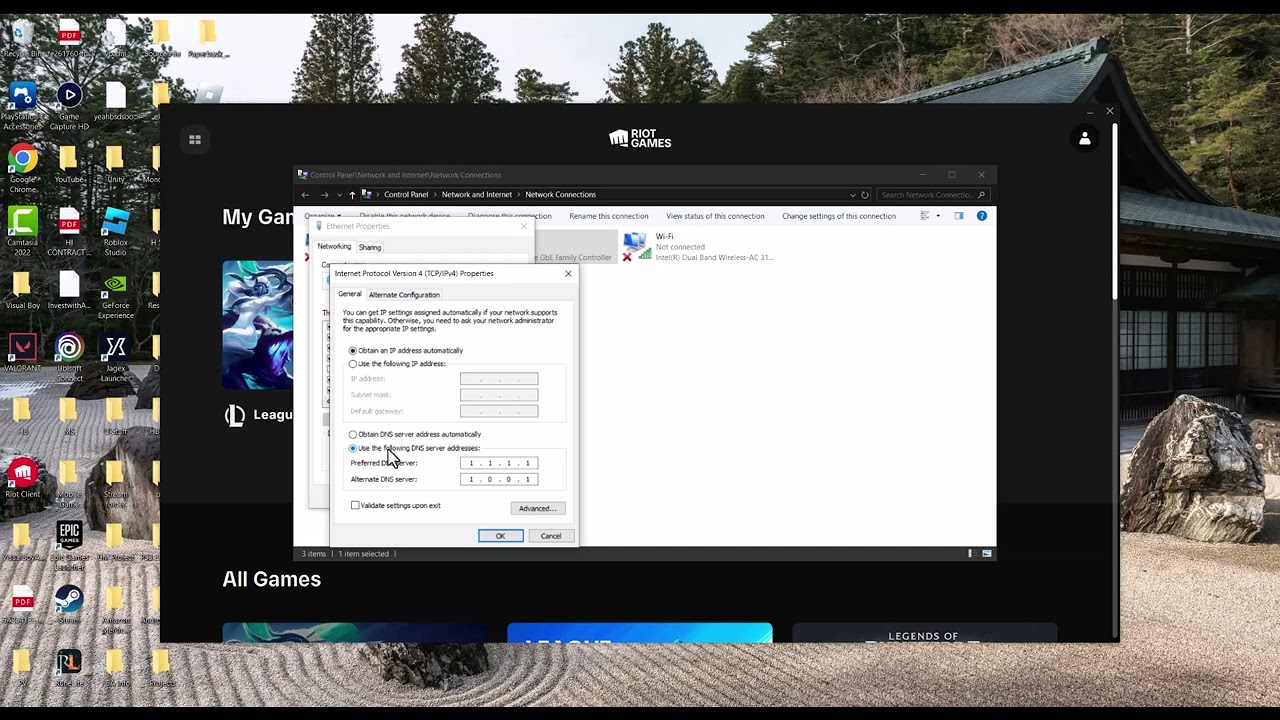
Quick answer: Check Riot’s regional service status, stop active downloads and streams, disconnect any VPN or proxy, and test one match over Ethernet. If ping is still high, use Riot’s connection log tools to determine whether the route, ISP, or local network is responsible.
Source note: The source video had no usable transcript after the required retries. Its visible title, description, and chapter cues were used only to identify the problem; the repair steps below were checked against current first-party support on September 29, 2026.
Before you start
- Note your normal ping and the region/account shard you use.
- Test in a practice game where leaving will not affect teammates.
- Remember that high ping is network latency; low frame rate is a separate graphics-performance problem.
Fix League of Legends high ping
- Check Riot’s status first. Select your region on Riot’s service-status page. If there is an incident, wait for the service to recover instead of changing the PC.
- Stop background traffic. Pause Steam or console downloads, cloud backups, torrents, high-resolution streams, and large uploads on every device sharing the connection.
- Turn off VPN or proxy routing. Riot advises against normal play through a VPN or proxy because the extra route can create latency and instability.
- Test a wired connection. Connect the PC directly to the router with Ethernet for one match. If the spikes disappear, Wi-Fi interference or signal quality is the likely cause.
- Restart the network path. Close the Riot Client, shut down the PC, power off the modem/router for about 30 seconds, restore the network, then start the PC.
- Run Riot’s repair/log tools. Use the Riot Repair Tool or Connection Log Reader. League stores match and network logs under
C:\Riot Games\League of Legends\Logs\GameLogs. - Escalate with evidence. If only League is affected, submit the relevant NetLog and match time to Riot Support. If every service is slow, contact the ISP with the same timestamps.
Why this works
Ping measures the round trip between your PC and Riot’s server. Riot identifies three broad sources: the game service, the ISP route, or the player’s equipment/software. The sequence above separates those causes before you make deeper changes.
Alternatives
- On Wi-Fi, move closer to the router or use the less congested band supported by both devices.
- Compare Riot’s Lag Report for your region and ISP when it is available.
- Update the network adapter driver from the PC or adapter manufacturer if the connection is unstable outside League too.
Warnings
Do not factory-reset the router, open a DMZ, forward random ports, or permanently disable the firewall as a first step. Those changes increase risk and rarely fix a Riot-side or ISP routing problem. If a support technician asks for a temporary firewall test, restore protection immediately afterward.
FAQ
Is high ping the same as packet loss?
No. Ping is delay; packet loss is missing data. Both can feel like lag, but Riot’s NetLogs help distinguish them.
Will a faster internet plan always lower ping?
No. Capacity helps when the connection is saturated, but distance and routing can still dominate latency.
Why does Ethernet help?
It removes radio interference and weak-signal changes from the test, giving you a stable baseline.
Official references
Source video
As an Amazon Associate I earn from qualifying purchases.