Quick answer: VAN 128 means Riot Vanguard could not complete a startup or system-trust check. Restart once, restore Windows security to a normal state, install Windows updates, and make sure the vgc service is available. If the error remains, remove and reinstall Vanguard using Riot’s supported process.
Before you start
- Confirm the message says VAN 128, not VAL 128 or another VAN restriction.
- Install pending League of Legends and Riot Client updates.
- Save work because several steps require a restart.
- Do not download Vanguard files or registry fixes from unofficial sites.
Fix VAN 128 in Riot’s recommended order
- Restart Windows and the Riot Client. A stopped Vanguard service can recover after a normal restart.
- Restore normal Windows security settings. If you used debloat, debugging, or security-hardening scripts, undo unsupported changes using Riot’s linked security guide.
- Disable debug memory dumps if Riot directs you to. Press Windows, run
sysdm.cpl, open Advanced > Startup and Recovery > Settings, set Write debugging information to (None), confirm, and restart. - Update Windows. Install every available security and system update, then restart.
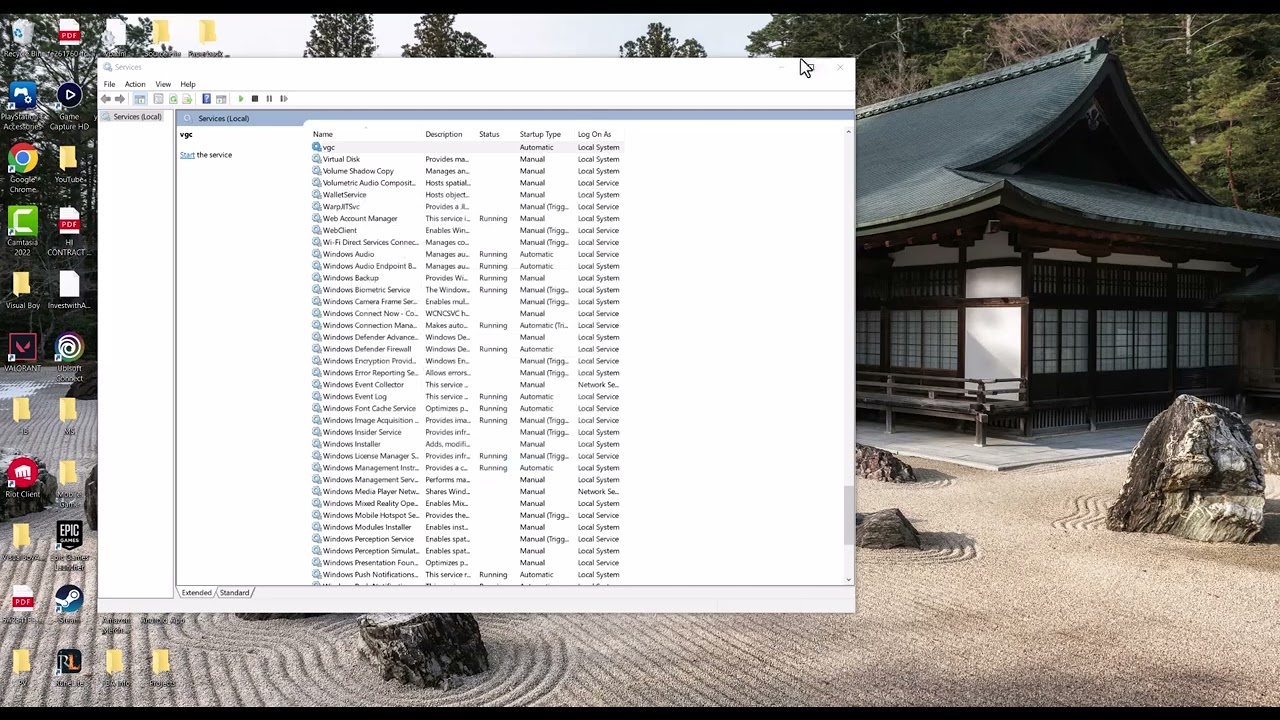
- Check the Vanguard service. Press Windows + R, enter
services.msc, open vgc, set Startup type to Automatic if you are not using Vanguard Pre-Check, start the service, and apply the change. - Reinstall Vanguard. Use Windows Installed apps to uninstall Riot Vanguard, restart, then launch League of Legends so the Riot Client can install a fresh copy. Restart again when prompted.
- Use a clean boot for conflicts. If Vanguard works in a clean boot, re-enable non-Microsoft services gradually to find the conflict.
- Reinstall League only last. If Riot’s earlier steps fail, reinstall the game and submit logs to Player Support if VAN 128 returns.
Why this works
Riot says VAN 128 usually appears when Vanguard cannot complete startup or system-trust checks. Windows security, debugging configuration, the vgc service, and Vanguard’s installation are therefore more relevant than generic DNS changes. The source video includes service and network-reset steps; this guide prioritizes Riot’s current error-specific sequence.
About network commands
Flushing DNS and resetting Winsock can help ordinary connection problems, but Riot’s current VAN 128 article treats the code primarily as a Vanguard trust-check failure. If other apps also have network trouble, Microsoft’s supported commands include netsh winsock reset and ipconfig /flushdns, followed by a restart. Do not use them as a substitute for the Vanguard repair steps.
Warnings and reversibility
Do not disable Secure Boot, TPM, antivirus, or Windows security features to make Vanguard launch. Do not change BIOS settings unless Riot’s exact error-specific guidance and the PC manufacturer both require it. To undo the debug setting, return to Startup and Recovery and choose the previous dump type. If a clean boot identifies no conflict, restore normal startup.
Frequently asked questions
Is VAN 128 the same as VAL 128?
No. Riot maintains separate guidance for VAN Vanguard errors and VALORANT client codes. Match the prefix exactly.
Should vgc always be Automatic?
Riot says Automatic is needed when Vanguard is not using its newer Pre-Check on-demand option. Follow the current Riot article for your configuration.
Will reinstalling Vanguard remove League data?
It removes the anti-cheat component, not your Riot account or online progression. Restart when Riot asks so the driver can be installed correctly.