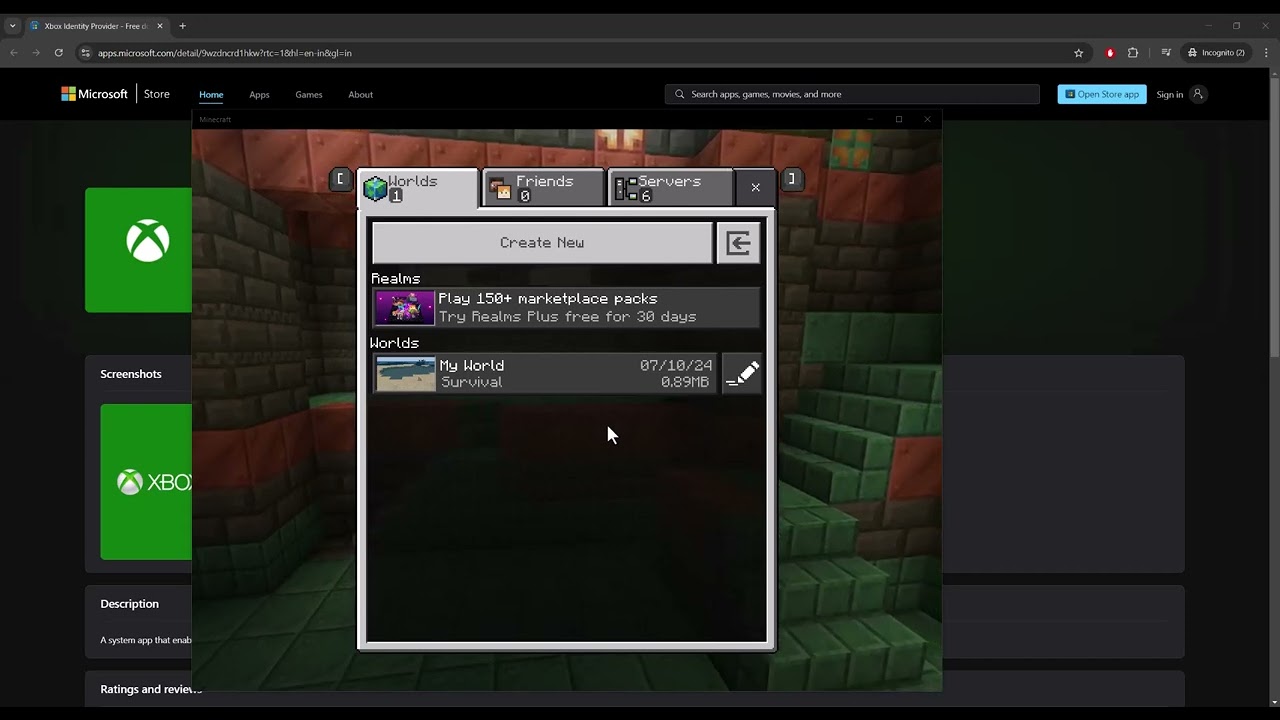
Quick answer: Minecraft for Windows Error Code BAT is usually a Microsoft-account sign-in or required-service problem. Sign out of Minecraft Launcher, the Xbox app, and Microsoft Store, restart Windows, then sign all three back in with the same account and update Gaming Services.
Before you start
- Confirm which Microsoft account owns Minecraft or Game Pass.
- Back up local Bedrock worlds before resetting or reinstalling any app.
- Install pending Windows updates and restart once.
How to fix Minecraft Error Code BAT
- Check service status. Review Xbox status. If account or multiplayer services are degraded, wait rather than changing the PC.
- Sign out everywhere. Sign out of Minecraft Launcher, the Xbox app, and Microsoft Store. Close all three apps.
- Restart Windows. Use Start > Power > Restart, not Shut down, so account and Gaming Services processes reload.
- Sign into Microsoft Store first. Use the Microsoft account that owns Minecraft. Then sign into the Xbox app and finally Minecraft Launcher with that same account.
- Update the required apps. Open Microsoft Store > Library > Get updates. Install updates for Minecraft Launcher, Xbox, Gaming Services, and Xbox Identity Provider if listed.
- Repair the apps. Open Settings > Apps > Installed apps. For Minecraft Launcher, Xbox, and Gaming Services, choose Advanced options > Repair. Test before using Reset.
- Use the Gaming Services Repair Tool. In the Xbox app, open your profile, choose Support, then run the Gaming Services Repair Tool if it is offered. Restart when finished.
- Reset or reinstall only as a last step. Back up worlds, then reset the Launcher or reinstall it from Microsoft Store or Minecraft’s official download page.
Why these steps work
The Windows edition depends on a chain of Microsoft identity components: Store licensing, Xbox sign-in, Gaming Services, and the Minecraft Launcher. BAT can appear when those components hold different accounts or stale tokens. Signing in in order and repairing the services rebuilds that chain without deleting worlds.
Alternatives
- Confirm the PC date, time, and time zone are automatic.
- Run the Windows Store Apps troubleshooter if Microsoft Store itself will not sign in.
- Try the official Minecraft Launcher from Minecraft.net if the Store package is damaged.
Warnings
Do not run unofficial registry cleaners, scripts, or PowerShell commands from random videos. Resetting Minecraft for Windows can remove local data, so back up worlds first. Use the same Microsoft account throughout; switching accounts can make the license appear missing.
Frequently asked questions
Does BAT mean my world is corrupted?
No. It is a sign-in or component error, not a world-file diagnosis.
Should I reset Gaming Services immediately?
Start with Repair. Reset or reinstall only if repair and account resynchronization fail.
Will reinstalling Minecraft delete worlds?
It can affect locally stored worlds. Export or copy them before any reset or reinstall.
Official references
- Minecraft error-code troubleshooting
- Xbox Gaming Services Repair Tool
- Microsoft: repair apps in Windows
Source video
Transcript note: YouTube captions were unavailable after repeated checks. The guide uses current Minecraft, Xbox, and Microsoft repair guidance.
As an Amazon Associate I earn from qualifying purchases.