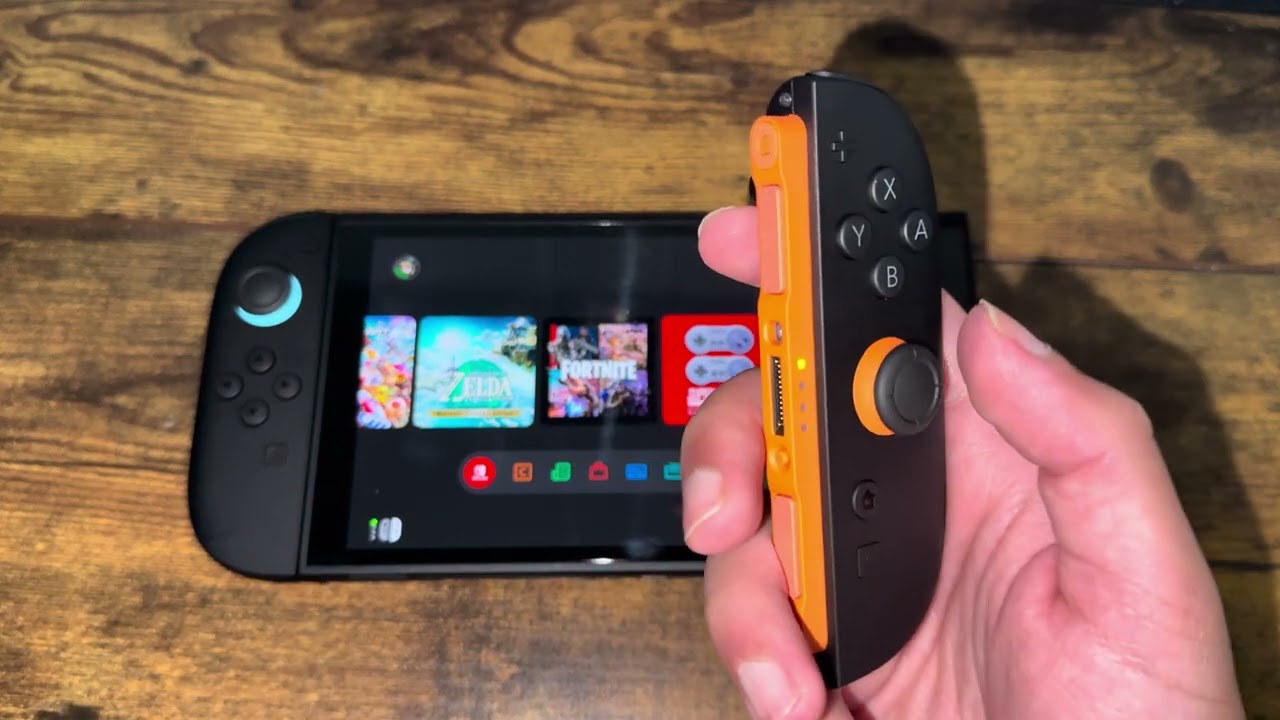
Quick answer: Update the Nintendo Switch 2 and Joy-Con 2 firmware, confirm the controls are not remapped, then run System Settings > Controllers & Accessories > Calibrate Control Sticks. If the input still moves by itself, clean only the exterior with the controller powered off and arrange Nintendo service. Do not drip alcohol or cleaner beneath the stick.
Before you start
- Remove straps, grips or accessories that could press a stick.
- Detach the affected Joy-Con 2 and check for obvious damage.
- Test more than one game so an in-game dead-zone setting is not mistaken for hardware drift.
How to troubleshoot Joy-Con 2 drift
- Install the latest system update. From HOME, open System Settings > System > System Update. Keep the console connected to power if the battery is low.
- Update the controller firmware. In System Settings, open Controllers & Accessories and select the controller-update option. Keep the affected Joy-Con 2 connected until the process finishes.
- Check button mapping. A wrench icon can indicate custom mapping. Restore the standard configuration before judging the stick response.
- Calibrate the affected stick. Go to Controllers & Accessories > Calibrate Control Sticks. Tilt the affected stick fully in one direction for a few seconds and follow the on-screen test and calibration prompts.
- Sleep and wake the console. Nintendo notes that a completed calibration may not appear immediately. Put the console into sleep mode, wake it, and repeat the test.
- Clean the exterior safely. Power off the console. Use a clean, dry microfiber cloth around the stick cap and housing. If the surface is sticky, follow Nintendo’s current cleaning guidance. Never pour or spray liquid onto the controller or under the stick skirt.
- Test and request service. Test in the calibration screen and in a second game. If the cursor still moves at neutral, the controller may require repair or replacement.
About the video’s physical workaround
The source video suggests pressing the stick and rotating it clockwise and counter-clockwise, then gently repeating while the cap is lifted. Some viewers report temporary improvement, but this is not Nintendo’s documented repair. If you try the reversible portion, keep the controller off, use normal playing pressure, stop if the cap catches, and do not pull, pry or apply liquid. Undoing it simply means releasing the stick and returning to normal use; it does not correct a worn sensor.
Why calibration can help
Calibration teaches the system the stick’s center and full range. Firmware updates can correct controller behavior, while standard mapping rules out a software interpretation problem. Persistent movement after those checks more strongly suggests contamination, damage or wear that needs service.
Warnings
- Do not open a new controller unless you accept warranty and damage risks.
- Do not use canned air at close range, flood the stick with isopropyl alcohol, or force the cap upward.
- Do not keep recalibrating a physically damaged stick; contact Nintendo Support.
Frequently asked questions
Does calibration erase games or saves?
No. It changes controller calibration, not game data.
Should I use an alcohol pad?
The video suggests one, but liquid near an opening can enter the controller. This guide recommends dry exterior cleaning and Nintendo’s current cleaning instructions.
What if only one game drifts?
Reset that game’s controller and dead-zone settings first, then compare with the system calibration screen.
Official references
- Nintendo: Calibrate controllers on Switch 2
- Nintendo: Update controller firmware on Switch 2
- Nintendo Switch 2 controller support
Source video
The source shows exterior cleaning and gentle stick rotation. Those steps are treated here as unofficial and secondary to Nintendo’s firmware, mapping, calibration and repair process.
As an Amazon Associate I earn from qualifying purchases.