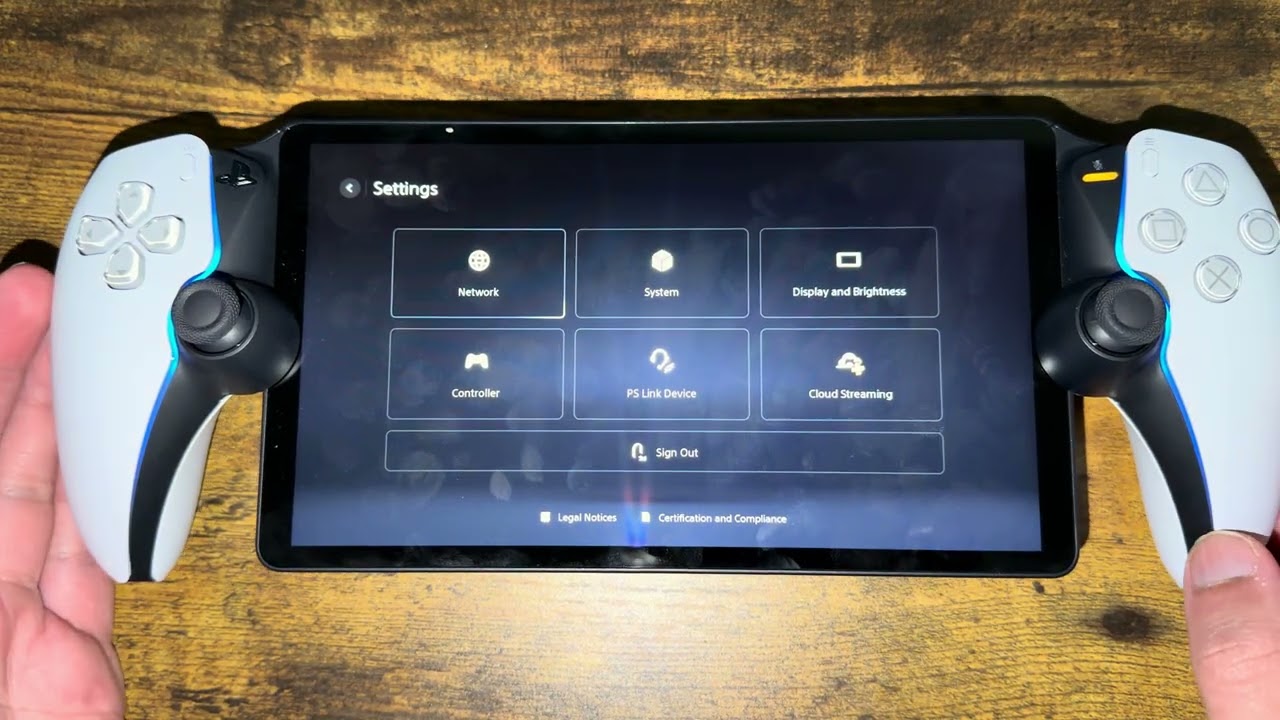
If your PlayStation Portal will not find, wake, or connect to your PS5, the fastest reliable fix is to verify Remote Play on the console, confirm both devices use the same PlayStation account, update and restart both devices, and rebuild the Portal’s Wi-Fi connection. Sign out and back in only after those checks.
Quick answer
- Check PlayStation Network status.
- On PS5, open Settings > System > Remote Play and enable Remote Play.
- In Settings > System > Power Saving > Features Available in Rest Mode, enable Stay Connected to the Internet and Enable Turning On PS5 from Network.
- Confirm the PS5 and Portal are signed in to the same PlayStation account.
- Update and restart the PS5 and Portal, then reconnect the Portal to Wi-Fi.
Before you start
- Make sure the PS5 can reach the internet and is not fully powered off if you expect the Portal to wake it remotely.
- Test the Portal near the PS5 and router before trying it from another location.
- Pause large downloads or streams while troubleshooting.
- Have your PlayStation sign-in details available in case you need to refresh the account session.
How to fix PlayStation Portal not connecting to PS5
1. Check PlayStation Network and your home internet
If PlayStation Network or your internet connection is down, changing Portal settings will not help. Check the official status page, then confirm another device can browse the web on the same network. If the outage is on Sony’s side, wait for service to recover.
2. Enable Remote Play on the correct PS5 account
On your PS5, go to Settings > System > Remote Play and turn on Enable Remote Play. Confirm that the user listed for Remote Play is the same account signed in on the Portal. A Portal cannot find a console through an old or different account session.
3. Allow the PS5 to wake from Rest Mode
Go to Settings > System > Power Saving > Features Available in Rest Mode. Turn on Stay Connected to the Internet and Enable Turning On PS5 from Network. These options are required when the console is resting and the Portal needs to wake it.
4. Update both devices
Update the PS5 system software. On the Portal, swipe left from the upper-right corner, then open Settings > System > System Software > Update System Software. A version mismatch or a stale Remote Play component can prevent pairing.
5. Restart the PS5, Portal, and router
Restart both PlayStation devices normally. If the connection is still stuck, power off the router for about 30 seconds, turn it back on, and wait until internet service is fully restored before retrying.
6. Reconnect the Portal to Wi-Fi
On the Portal, open the Quick Menu and go to Settings > Network > Set Up Internet Connection. Select the network again and enter the password if prompted. You can briefly turn Airplane Mode on and off to reset the wireless radio before reconnecting.
A phone hotspot is useful as a diagnostic test. If Portal connects through the hotspot but not your normal Wi-Fi, the issue is likely the home router, ISP, or wireless environment—not the Portal account.
7. Improve the Remote Play connection
- Connect the PS5 to the router with Ethernet when possible.
- Move the Portal closer to the router and remove obstacles between them.
- Pause game downloads, cloud backups, and 4K streaming during the test.
- Test at home near the PS5 before attempting a connection from outside the home.
8. Refresh the PlayStation account session
If the network is healthy but the Portal still cannot find the PS5, sign out of the Portal and sign back in with the same account used on the console. This refreshes the Remote Play authorization. Do not create a new account as a workaround.
9. Reset the Portal only as a last resort
Sony’s final device-level option is a Portal reset. This signs you out and erases the Portal’s settings, so record anything important first. Use it only after the supported network and account checks above fail.
Why these fixes work
Portal streams a live session from the PS5; it does not run the game locally. The connection therefore depends on four separate pieces: a valid PlayStation account session, Remote Play permissions, a reachable PS5, and stable networks at both ends. The steps above isolate those pieces in order instead of resetting everything at once.
What if Portal works at home but not away?
First verify it connects while close to the console. Then leave the PS5 in Rest Mode with its network wake options enabled. If it only fails away from home, test a different outside network. Hotel, workplace, school, carrier, or public Wi-Fi may restrict the traffic Remote Play needs. A home-router NAT or ISP issue can also affect remote connections.
Helpful hardware
As an Amazon Associate I earn from qualifying purchases.
- PlayStation Portal Remote Player — the official Remote Play handheld discussed in this guide.
- Cable Matters Cat 6 Ethernet cable — useful for wiring the PS5 to the router, as Sony recommends for a more stable Remote Play connection.
Frequently asked questions
Does the PS5 need to be on?
It can be on or in Rest Mode. A fully powered-off PS5 cannot be awakened by Portal. The Rest Mode internet and network-wake options must be enabled.
Do Portal and PS5 need to use the same Wi-Fi?
No. Remote Play can work from another network, but first confirm the setup works locally. Both networks must be stable enough for game streaming.
Why does Portal say it cannot find my PS5?
Common causes are Remote Play being disabled, different PlayStation accounts, the PS5 being fully off, stale sign-in authorization, a service outage, or a network that blocks or disrupts Remote Play.
Will resetting Portal delete games or PS5 saves?
No PS5 games or save data are stored on Portal. A reset erases the Portal’s own settings and signs it out, so it still should be a last resort.