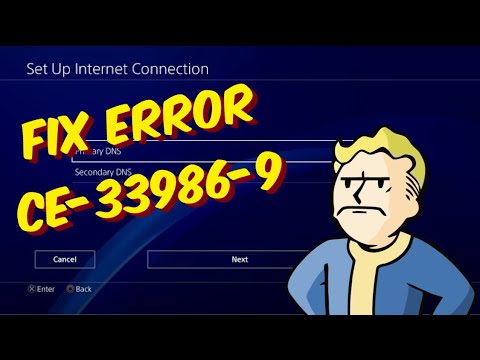
Quick answer: PS4 error CE-33986-9 means the Internet connection test failed. Check PSN status, restart the PS4 and router, and run Settings > Network > Test Internet Connection. Use Ethernet if possible. If ordinary setup still fails, you can test a reputable public DNS resolver, but return it to Automatic if it makes no difference.
Before you start
- Check whether phones or computers can use the same network.
- Save the Wi-Fi password and any custom network values before changing them.
- Do not press the router’s recessed Reset button; that can erase its configuration.
- A DNS change cannot repair an outage or a weak Wi-Fi signal.
Fix CE-33986-9 on PS4
- Check PSN status. If PlayStation reports an incident, wait for recovery instead of changing the console or router.
- Run the official connection test. Open Settings > Network > Test Internet Connection. Note whether the failure occurs at IP Address, Internet Connection or PlayStation Network Sign-In.
- Restart the console. Turn the PS4 off completely, wait until its light goes dark and start it again.
- Power-cycle the router. Unplug the modem/router for about 60 seconds, reconnect it and wait for normal Internet status before testing the PS4.
- Try Ethernet. Connect the console directly to the router, then choose Settings > Network > Set Up Internet Connection > Use a LAN Cable > Easy. A successful wired test points to Wi-Fi range, interference or saved settings.
- Recreate the Wi-Fi connection. Choose Use Wi-Fi > Easy and select the correct network. Re-enter the password carefully and leave IP Address and MTU on Automatic, DHCP Host Name on Do Not Specify and Proxy Server on Do Not Use.
- Optional: test manual DNS. The source video demonstrates Custom setup with automatic IP, no DHCP host name, manual DNS and no proxy. Use one complete pair: Cloudflare 1.1.1.1 and 1.0.0.1, or Google 8.8.8.8 and 8.8.4.4. Test again, and restore DNS to Automatic if the result does not improve.
- Update network firmware. Install the latest PS4 system software and follow the router manufacturer’s instructions for any firmware update.
Why these steps work
The connection test checks whether the PS4 can obtain a local address, reach the Internet and sign in to PSN. Restarting refreshes sessions and address leases. Ethernet bypasses radio interference. A manual DNS resolver changes only how service names are looked up, so it is a secondary, reversible test rather than a guaranteed fix.
Alternatives
- Move the console or router to reduce walls and interference.
- Pause large downloads and streams temporarily.
- Try a different router port and Ethernet cable.
- Test a mobile hotspot briefly to separate a console problem from the home network; monitor data usage.
- Contact the ISP if multiple devices fail to obtain an Internet connection.
Warnings
Do not enter a manual IP address copied from another device, open ports at random or disable Wi-Fi security. Keep the previous DNS setting so the change can be undone. Public DNS does not make the connection private and does not bypass a PSN restriction.
FAQ
Which DNS is better?
Neither pair is guaranteed to help. Test one complete pair and keep it only if the connection test becomes reliable.
Why does Internet Connection succeed but PSN Sign-In fail?
The home Internet path may work while PlayStation services are unavailable or the account needs attention. Check PSN status and account notifications.
Will resetting the router fix it?
A normal power cycle may help. A factory reset is unnecessary for this code unless the router owner intentionally wants to rebuild its configuration.
Official references
Source video
As an Amazon Associate I earn from qualifying purchases.