Quick answer: PlayStation says CE-100006-7 means the PS5 cannot recognize the external storage drive. Update system software, reconnect the USB cable, remove any USB hub, and connect the drive directly. Format it only if it is new or you accept erasing its contents.
Source note: The source video had no usable transcript after the required retries. Its visible title, description, and chapter cues were used only to identify the problem; the repair steps below were checked against current first-party support on September 29, 2026.
Before you start
- Do not disconnect the drive while its activity light is flashing.
- If the drive contains irreplaceable files, stop before formatting and back it up on a compatible computer.
- Close running games before reconnecting storage.
Fix PS5 error CE-100006-7
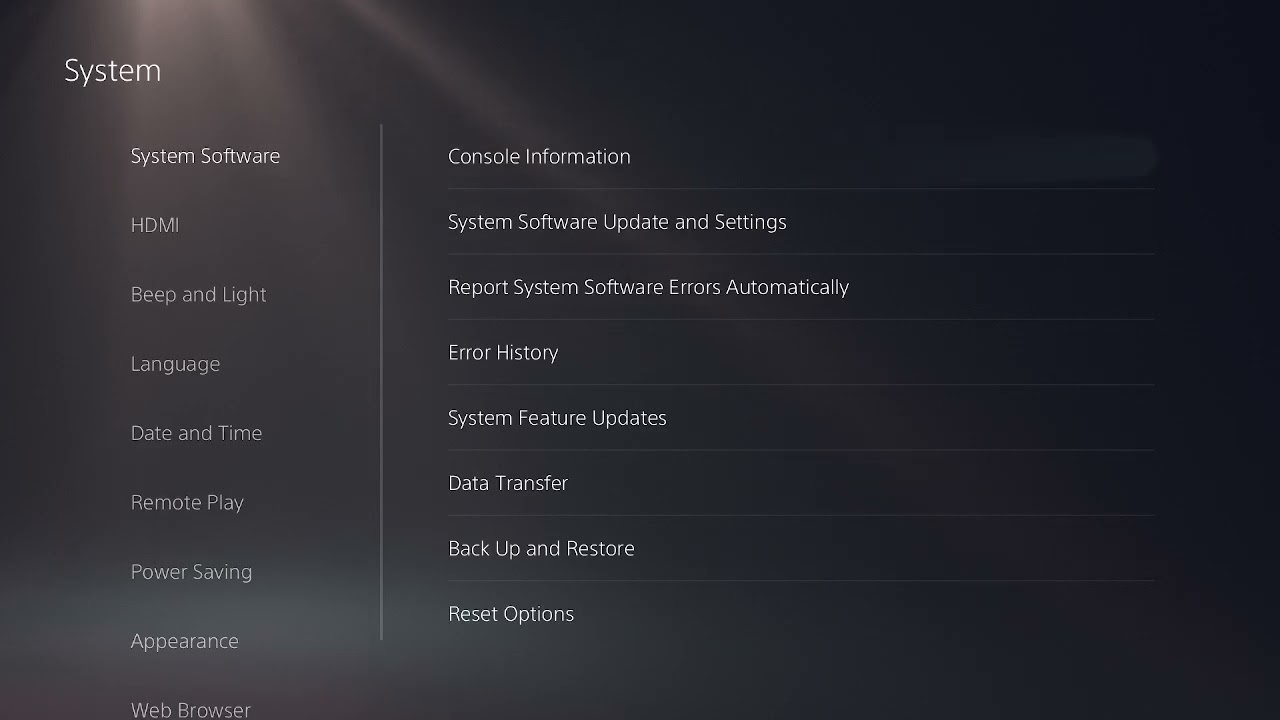
- Update PS5 system software. Open Settings > System > System Software > System Software Update and Settings and install the latest version.
- Shut down safely. Turn the PS5 fully off; do not use Rest Mode for this reconnection test.
- Reconnect the cable. Unplug and firmly reconnect the USB cable at both the drive and console ends.
- Remove the hub. If the drive is connected through a USB hub, adapter chain, or extension, connect it directly to a supported PS5 USB port.
- Try a compatible cable or port. Use the cable supplied with the drive when possible. Avoid the front USB Type-A port for USB extended storage if it does not meet the required SuperSpeed connection.
- Format only when appropriate. For a new drive, go to Settings > Storage > USB Extended Storage and choose the format option. Formatting deletes everything on the drive.
- Transfer content individually. If a bulk move fails, PlayStation recommends trying one game or item at a time.
- Test another drive. If the PS5 recognizes another supported drive, the original drive or cable may be failing.
Why this works
The code is specifically a recognition failure. Updating the console addresses compatibility fixes; a direct cable removes hubs and adapters from the path; formatting creates the PS5 extended-storage layout; and a second drive separates a console-port problem from a storage-device problem.
Alternatives
- Connect the drive to a computer only to check whether the hardware is detected; do not initialize or format it there if you need PS5 data.
- Use internal M.2 SSD storage for compatible PS5 games if external USB storage is unreliable.
- Contact PlayStation Repairs if multiple known-good drives and cables fail on supported ports.
Warnings
Formatting is destructive. It erases the external drive and is not an undoable “repair” for existing data. PS5 games can be stored on USB extended storage but must be copied back to compatible console storage to play; PS4 games can run from supported USB extended storage.
FAQ
Will reconnecting the drive erase it?
No, not if the PS5 was fully shut down and you only reconnect the cable. Formatting is the step that erases data.
Can I use a USB hub?
PlayStation’s error guidance says to remove the hub and connect storage directly.
What if the drive worked yesterday?
Reseat the cable, update the PS5, and test another compatible cable or drive. Sudden failures can be connection or hardware related.
Official references
Source video
As an Amazon Associate I earn from qualifying purchases.