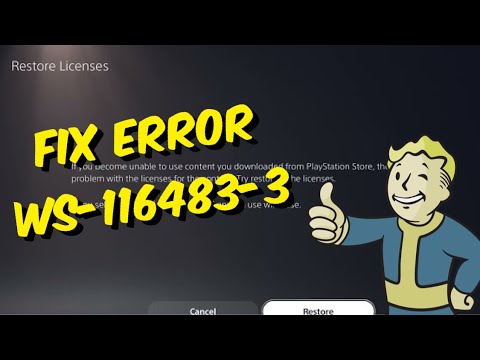
Quick answer: When WS-116483-3 blocks DLC or an add-on on PS5, first check PSN status and confirm that the add-on belongs to the same account and game region. Then manage the game content, restore licenses, restart, and only then clear the system cache if necessary.
PlayStation’s current public error directory does not provide a dedicated WS-116483-3 page. The source video’s license and cache steps are safe and reversible, so they are presented here as an unofficial workaround that may not fix every server or region mismatch.
Prerequisites
- Use the account that purchased or redeemed the add-on.
- Keep the game installed and updated.
- Confirm adequate free console storage before redownloading content.
How to fix WS-116483-3
- Check PlayStation Network status. Wait if PlayStation Store, Gaming and Social, or Account Management is degraded.
- Confirm ownership and region. Open PlayStation Store on the purchasing account and find the add-on. It should show Download or Purchased—not a price. Disc games and DLC must be from compatible regions.
- Manage game content. Highlight the game on the home screen, press Options, choose Manage Game Content, and install any add-on marked Not Installed.
- Restore licenses. Go to Settings > Users and Accounts > Other > Restore Licenses > Restore.
- Restart and retry. Fully restart the PS5, open the game tile, and retry the add-on once.
- Clear cache only if the entitlement is correct. Turn off the PS5. Hold the power button until the second beep, connect the controller by USB, choose Clear Cache and Rebuild Database, then Clear System Software Cache.
- Rebuild the database if the content still is not indexed. Return to Safe Mode and choose Rebuild Database. This can take time but does not intentionally erase games or saves.
Why the fix works
Add-on downloads depend on four separate pieces: Store entitlement, game-region compatibility, available storage, and the local content index. Restore Licenses refreshes ownership; Manage Game Content exposes missing packages; cache/database maintenance refreshes local records.
Warnings and alternatives
- Do not select Reset PS5 or Reinstall System Software in Safe Mode. Those options erase data and are not part of this guide.
- Do not buy the add-on again if transaction history already shows ownership.
- If the game is shared from another account, temporarily sign in with the owner and confirm Console Sharing and Offline Play is configured as intended.
- To undo console sharing, return to Settings > Users and Accounts > Other > Console Sharing and Offline Play.
Frequently asked questions
Will Restore Licenses remove my DLC?
No. It asks PlayStation to resynchronize content ownership for the signed-in account.
Can DLC from another region work?
Often not. The add-on must match the game’s region and edition. Contact the publisher before purchasing a second copy.
When should I contact support?
If the Store shows Purchased, the regions match, and the add-on still cannot be installed, contact PlayStation Support with the transaction ID and publisher support with the game edition.
Official references
- Restore licenses on PlayStation consoles
- PS5 Safe Mode options
- Troubleshoot downloaded PlayStation games
Source video
As an Amazon Associate I earn from qualifying purchases.