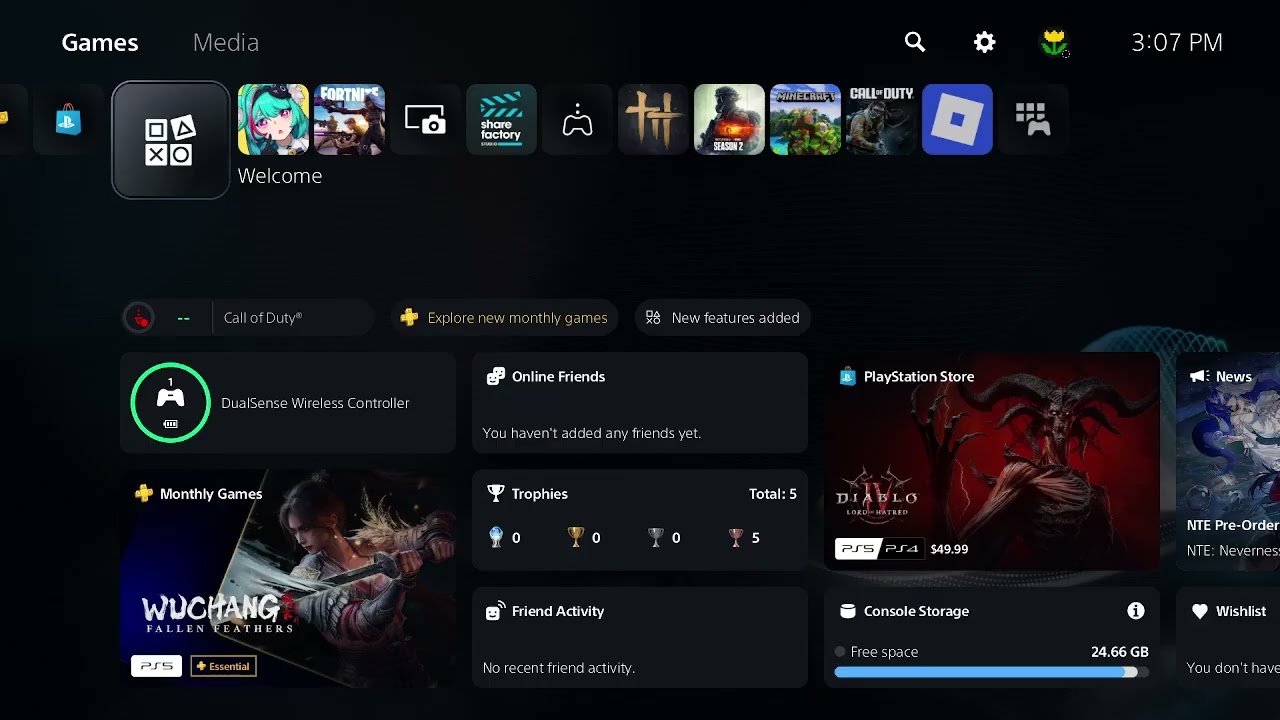
Quick answer: If the PS5 says “A software error occurred the last time this PS5 was used,” install the latest system update, shut the console down fully, disconnect power briefly, and restart. If the message returns, use Safe Mode to repair console storage, clear the system-software cache, and rebuild the database before considering any reset.
The source transcript did not finish loading after all required retries, and the visible player was blocked by an advertisement. The safe sequence below is therefore based on current PlayStation recovery documentation, not assumed video steps.
Before you troubleshoot
- Sync important saves to PlayStation Plus cloud storage or back up supported data.
- Disconnect nonessential USB storage and accessories for the first test.
- Note whether the message follows Rest Mode, a game crash, a power loss, or every startup.
Fix “A software error occurred the last time”
- Update system software. Go to Settings > System > System Software > System Software Update and Settings > Update System Software.
- Update the affected game. Highlight it, press Options, and select Check for Update. If the message follows only one title, test another title before changing console-wide settings.
- Perform a full power cycle. Turn the PS5 off, wait for the light to stop flashing, unplug power for about 20 minutes, reconnect it, and start normally.
- Remove external variables. Leave external USB storage, capture devices, and nonessential accessories disconnected and test again.
- Enter Safe Mode. Turn off the console, hold the power button, and release it after the second beep. Connect the DualSense controller with a USB cable.
- Run Repair Console Storage. PlayStation says this option does not erase data and is appropriate for startup or storage problems.
- Clear the system-software cache. In Safe Mode, choose Clear Cache and Rebuild Database > Clear System Software Cache.
- Rebuild the database. Return to the same menu and choose Rebuild Database if the error continues. This scans storage and recreates the content database.
- Restore default settings only if needed. This resets settings without deleting games, apps, captures, or saved data, but you will need to configure preferences again.
Why these steps can work
The message is a symptom of the previous session ending unexpectedly. Updating removes known firmware defects; a full shutdown clears a stuck power or Rest Mode state; Repair Console Storage, cache clearing, and database rebuilding address non-user-data storage structures.
When to stop troubleshooting
- If the console loses power, overheats, clicks, or repeatedly crashes across several games, stop repeated restarts and arrange PlayStation hardware support.
- If only one game triggers the message, reinstall that game before resetting the console.
- If the error began after a power outage, consider the power source and avoid unstable extension cords.
Warnings
Safe Mode options Reset PS5 and Reset PS5 (Reinstall System Software) erase user data. They are not part of the initial fix. Do not download system software from third-party sites; PlayStation explicitly requires the official file.
FAQ
Does Rebuild Database delete games or saves?
It scans the drive and rebuilds the content database. It is not the same as Reset PS5, but keeping a current backup is still sensible.
Why does the message appear after Rest Mode?
The previous suspended session may not have resumed or shut down cleanly. Test a full shutdown instead of Rest Mode and install current system updates.
Should I reinstall system software?
Only after backing up and exhausting the non-destructive options, ideally under PlayStation Support guidance. Reinstallation erases the console.