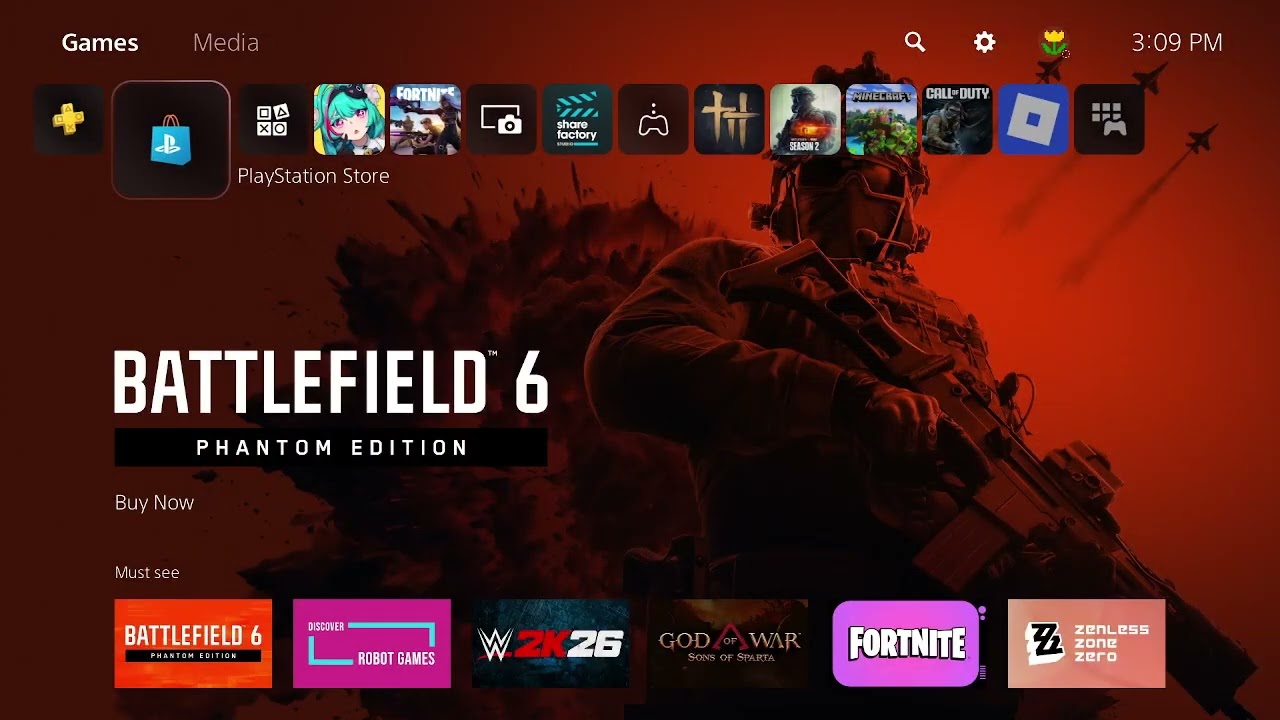
Quick answer: If PlayStation Store shows an Unidentified Error during a PS5 purchase, check PlayStation status before retrying. Then confirm the payment name, address, card details and country match the PlayStation account region. If payment information was changed repeatedly, stop trying for 24 hours—PlayStation says another attempt during that period can restart the security block. An accepted alternative payment method or PlayStation Store Wallet Top-Up code can complete the purchase without reusing the rejected card.
Before you start
- Do not post card numbers, billing addresses or account details in support forums.
- Confirm the item is sold in the same country or region as the account.
- Check whether the bank has enabled online and international digital purchases.
Fix the PS5 Store unidentified purchase error
- Check PlayStation service status. Make sure Account Management and PlayStation Store are operating normally. If either service is degraded, wait until it is green.
- Restart the PS5 and reopen the Store. Close the Store screen, restart the console and begin a fresh purchase attempt. Do not submit repeated rapid attempts.
- Verify the payment details. In Account Management > Payment Management, check the card number, expiration date, security code, name and billing address. Enter details exactly as the bank records them.
- Check region compatibility. PlayStation says a payment card from a different country than the Store region may not link. Use a card or payment method issued for the account’s region.
- Remove unsupported special characters. If the billing name or address uses punctuation the form rejects, PlayStation recommends basic Latin letters and avoiding characters such as asterisks, hyphens, apostrophes or slashes.
- Wait out a security block. If PlayStation reports that payment information was updated too often, wait a full 24 hours. Do not attempt another update during that period because it can start another 24-hour block.
- Try an accepted alternative. Use PayPal where supported or redeem a PlayStation Store Wallet Top-Up code bought for the same account region. Confirm the wallet balance before checking out.
- Contact the bank or PlayStation. Ask the bank whether the transaction was blocked and whether funds are available. If the bank approves it but PS Store still fails, contact PlayStation Support with the time and non-sensitive error details.
Why this works
Checkout depends on PlayStation services, the account region, payment validation and the bank’s authorization. A generic message can appear when any part of that chain rejects the request. Checking each layer in order avoids unnecessary account changes and prevents repeated attempts from extending a security lock.
Alternatives
- Try the PlayStation App or web Store after confirming the same correct account is signed in.
- Use a wallet code that explicitly matches the account country.
- Wait for a Store outage to clear; changing cards will not repair a service incident.
Warnings
Never buy a wallet code for a different region, and never share a voucher code before redeeming it. Do not keep retrying a declined card. Repeated authorizations may create pending holds, and repeated payment-detail updates can extend PlayStation’s 24-hour security block.
FAQ
Why does my wallet balance still fail?
Check that the wallet covers the full price including tax and that the content is available for the account region. Contact PlayStation if a sufficient same-region wallet balance still produces the error.
Will deleting the payment method remove a security block?
No. If PlayStation says the information was updated too often, wait 24 hours without another attempt.
Can I use a gift card from another country?
Usually not. Store wallet codes are region-specific and should match the PlayStation account country.
Official references
- PlayStation Store credit or debit card problems
- PlayStation status
- Redeem a PlayStation Store voucher
Source video
As an Amazon Associate I earn from qualifying purchases.