Quick answer: If Riot Client will not launch, end any stuck Riot processes in Task Manager and restart Windows. Then use Riot’s official Full Repair Tool or the repair option in the client, install Windows updates, and reinstall the affected Riot game only if repair cannot restore the files.
Before you start
- Save open work before restarting Windows.
- Make sure you can sign back in to your Riot account.
- Download repair utilities only from an official Riot support page.
Fix Riot Client not launching
- Close stuck Riot processes. Press Ctrl+Shift+Esc, open Task Manager, and end Riot Client or RiotClientServices processes that remain after the window is closed. Do not end unrelated Windows services.
- Restart the PC. Choose Restart, not Shut down, so Windows closes the current session and reloads services.
- Launch Riot Client normally. Use the Start menu entry instead of an old desktop shortcut. If this works, remove and recreate the broken shortcut.
- Run Riot’s Full Repair Tool. Riot says its automatic repair can replace missing or corrupted files for games launched through Riot Client. Follow the current instructions on Riot Support.
- Install Windows updates. Open Settings > Windows Update, install pending quality and driver updates, restart, and test again.
- Check security software history. Look for a Riot file that your antivirus actually quarantined. Restore it only if the publisher and path match the official installation, then add no broad exclusions unless Riot Support recommends them.
- Reinstall as a last step. Uninstall the affected Riot game and client through Windows Settings, restart, and download a fresh installer from Riot.
Why these steps work
A launcher may appear closed while a hung background process still owns its files. Ending that process and restarting gives the client a clean start. Riot’s repair tool verifies and replaces damaged files without requiring you to hunt through installation folders manually.
What about administrator or compatibility mode?
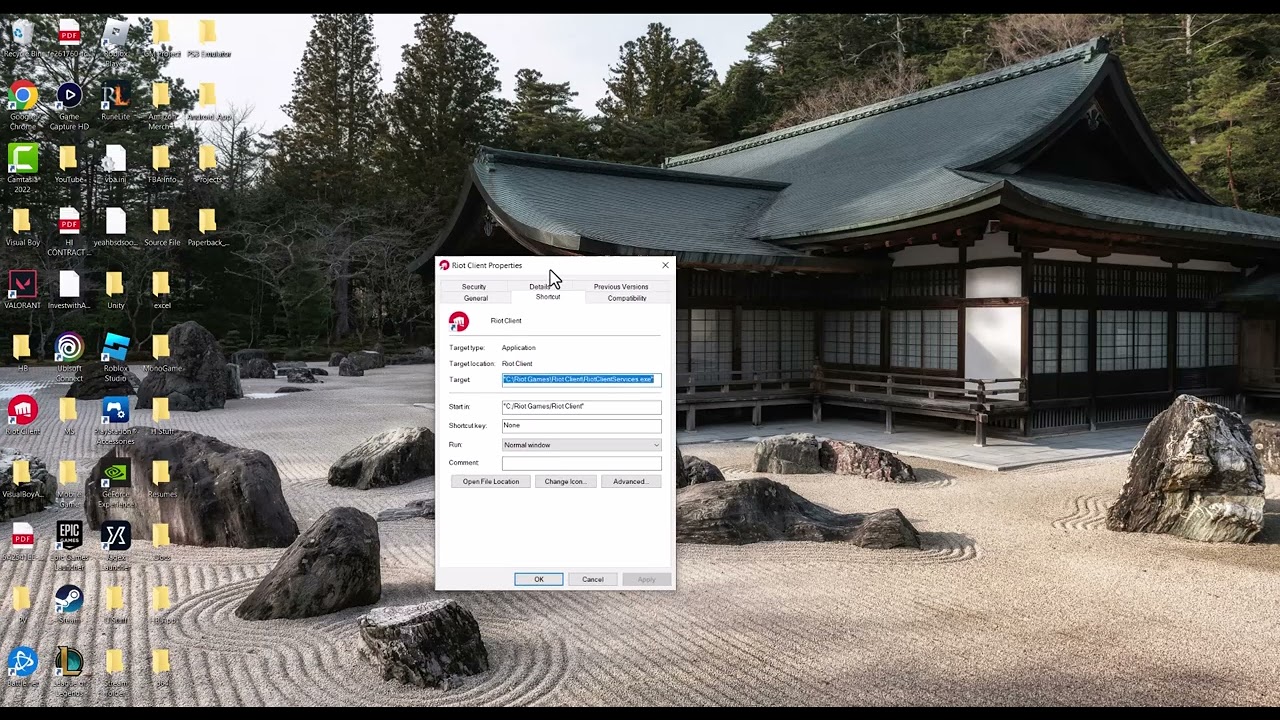
The source video demonstrates running Riot Client as administrator and trying older Windows compatibility modes. Those changes are reversible, but they are not the current first-party repair path. Avoid leaving the client permanently elevated or forcing Windows 7/Vista compatibility; it can create update, security, or anti-cheat conflicts. Undo the change from Properties > Compatibility if you already enabled it.
Warnings
- Do not download a “Riot fix” executable from a video description or file-sharing site.
- Do not delete Riot or Vanguard folders manually unless the official uninstall instructions for your game require it.
- Repairing or reinstalling can trigger a large download.
Frequently asked questions
Why does Riot Client show in Task Manager but not open?
The background process may be hung or its window may have failed to initialize. Ending only the Riot processes and restarting is the safest first check.
Should I run Riot Client as administrator?
Not permanently. Use the official repair path first; elevation can complicate updates and anti-cheat behavior.
Where should I get the repair tool?
Use Riot Games Support. Avoid mirrors and bundled utilities.
Official references
- Riot Games Support: Riot Client Full Repair Tool
- Riot Games Support: Riot Repair Tool and logs
- Riot Games Support
Source video
As an Amazon Associate I earn from qualifying purchases.