Quick answer: Rockstar Games error 1002 can appear when the launcher cannot reach the Windows Documents folder it uses for Rockstar Games data. Confirm that Documents opens normally, then repair its Location target. Do not delete OneDrive or your existing documents.
Before you start
- Close GTA V and Rockstar Games Launcher.
- Back up important files in Documents.
- If Documents is protected by OneDrive, wait for sync to finish.
- Note whether the folder is local, under OneDrive, or on a disconnected drive.
Fix Rockstar error 1002
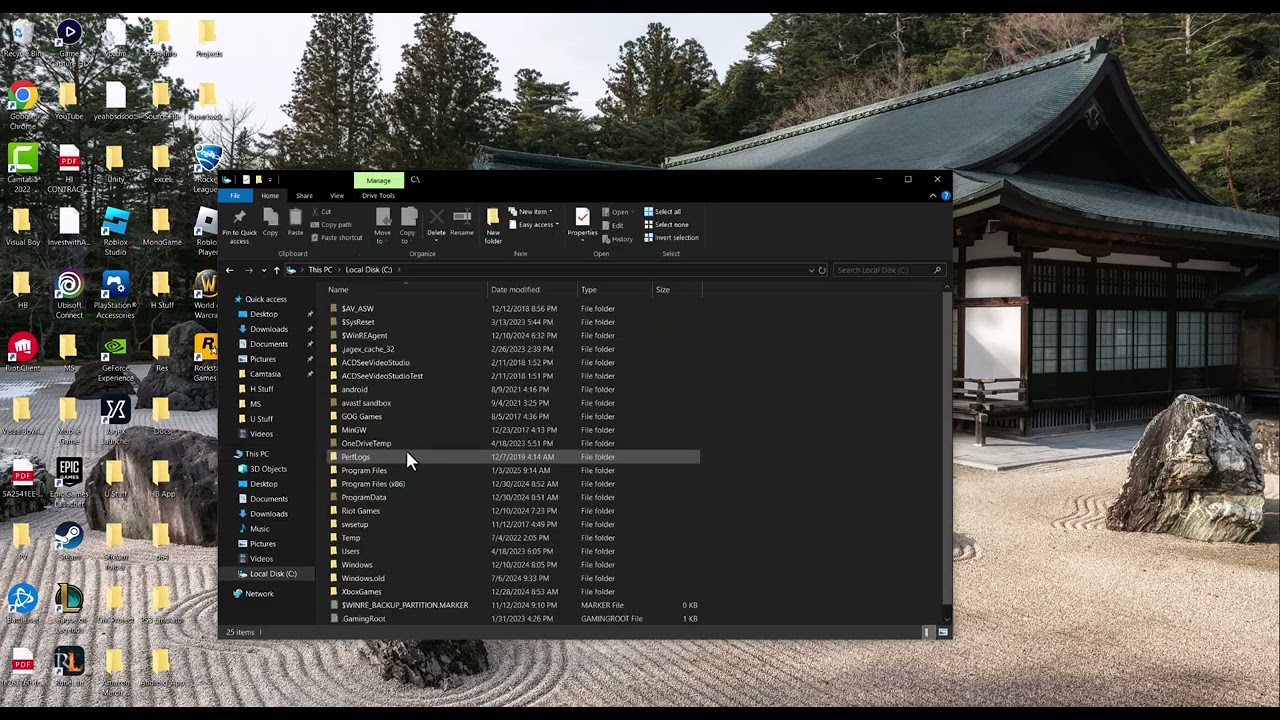
- Test the Documents shortcut. Open File Explorer > This PC > Documents. If it opens normally, do not move it yet; update the launcher and verify GTA V first.
- Check the current target. Right-click Documents, select Properties, then open Location. The target must point to a folder that exists and is writable for your Windows account.
- Reconnect the intended location. If the target is on OneDrive or another drive you still use, sign in or reconnect that drive rather than redirecting the folder elsewhere.
- Restore a local Documents target when the old path is invalid. Create
C:\Users\YourName\Documentsif it is missing. In the Location tab, use Restore Default or enter that local path, choose Apply, and allow Windows to move files only after confirming the destination. - Confirm Rockstar can write its folder. Open the repaired Documents folder and check that Windows can create a temporary text file. Delete the test file afterward.
- Restart and verify. Restart Windows, open Rockstar Games Launcher, install updates, verify GTA V, and launch again.
Why this works
Rockstar software stores settings and other user data below the Windows Documents known folder. If its registered path points to an unavailable OneDrive location, old disk, or deleted folder, the launcher can fail before the game starts. Repairing the Windows target restores access without inventing a separate Rockstar folder.
OneDrive and redirected-folder alternatives
- If you want OneDrive protection, reconnect OneDrive and keep Documents in the backed-up location.
- If your organization redirects known folders, ask the administrator before changing the Location field.
- If Windows refuses the move, sign out of OneDrive only after files are fully synchronized and backed up, then use Microsoft’s OneDrive folder-backup controls.
Warning: Do not delete OneDrive to fix this error, and do not discard the old Documents folder. The video demonstrates changing the location, but the safe method is to preserve or move your files deliberately and keep one valid Documents target.
Frequently asked questions
Will changing Documents remove my GTA V saves?
It can strand files at the old path if you move carelessly. Back up first and let Windows move the folder contents when prompted.
What if Documents already opens?
Leave its location alone. Update Rockstar Games Launcher and verify GTA V before making folder changes.
Can I keep Documents in OneDrive?
Yes. The important part is that the registered path exists, is signed in, and is writable when Rockstar starts.
Official references
Source video
As an Amazon Associate I earn from qualifying purchases.