Quick answer: Restart the PC, verify THE FINALS in Steam, update Windows and hardware drivers, and close non-essential overlays or background tools. Embark also recommends checking Easy Anti-Cheat and reinstalling only after the safer steps fail.
Before you start
- Record any error code and when the crash occurs.
- Confirm the PC meets the current system requirements.
- Return overclocks or undervolts to tested defaults during diagnosis.
Fix THE FINALS crashes
- Restart Windows: This clears a stuck game, Steam, or anti-cheat process.
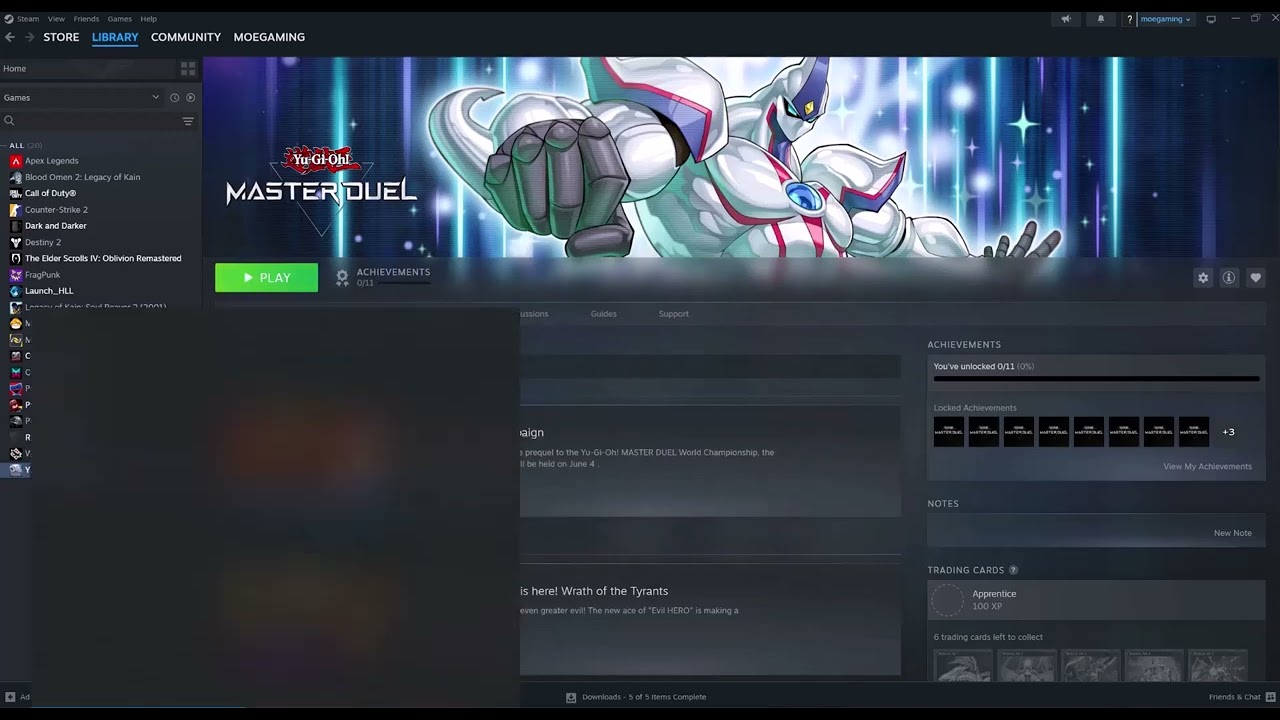
- Verify files: In Steam, right-click THE FINALS, open Properties > Installed Files, and choose Verify integrity of game files.
- Install updates: Update THE FINALS, Windows, and the GPU driver from NVIDIA, AMD, or Intel. Restart after installation.
- Close non-essential software: Exit overlays, recording tools, hardware monitoring, RGB utilities, VPNs, and other injectors for one test.
- Check EAC: If the message names Easy Anti-Cheat or a system-integrity code, follow Embark’s code-specific guidance and repair the protected installation; do not bypass EAC.
- Run a clean boot: Hide Microsoft services before disabling non-Microsoft services, restart, and test. Re-enable items in groups to find the conflict.
- Reinstall last: If every earlier step fails, uninstall THE FINALS, remove only the leftover Embark game folder documented by support, restart, and reinstall through Steam.
Why this works
Verification replaces damaged files. Current drivers and Windows components address graphics-runtime faults. A clean boot isolates software that hooks the game or anti-cheat, while reinstalling provides a clean copy only when repair is insufficient.
Alternatives
- Run the game as administrator for one test, then turn the setting off if it makes no difference.
- If the crash follows a patch, check Embark support and wait for a confirmed server-side fix.
- Open an Embark ticket with the exact code, Windows version, and recent driver changes.
Warnings and reversal
Do not disable Microsoft services in a clean boot and do not run cheat, injection, or bypass tools. Re-enable disabled startup items after testing. Do not delete folders for other Embark games during reinstall.
FAQ
Will Steam verification remove settings?
No. It checks installed game files; personal settings are stored separately.
Should I disable antivirus?
No. Use a narrow, verified exception only if security history shows a legitimate game or EAC file was blocked.
What if I get a TFAV code?
Use Embark’s System Integrity Violation article because the code groups have specific meanings and rules.
Official references
- Embark: Troubleshooting game crashes
- Embark: Launch and loading issues
- Embark: System integrity violations
Source video
The video demonstrates Steam file verification. The article adds Embark’s current driver, Windows, background-process, and EAC guidance and keeps reinstalling as a last resort.
As an Amazon Associate I earn from qualifying purchases.