Quick answer: To fix Ubisoft Connect error Dolphin-028 on Windows, first check Ubisoft service status and restart Ubisoft Connect, the PC, and router. If the connection works elsewhere but Ubisoft Connect still fails, open Command Prompt as administrator and run ipconfig /release, ipconfig /renew, and ipconfig /flushdns in that order. Use Windows Network reset only as a final step because it removes and reinstalls network adapters and can remove VPN networking components.
The Moe Gaming video demonstrates the Windows command and Network reset paths. This article places the disruptive reset last, adds Microsoft’s full safety context, and checks the error against Ubisoft’s current connectivity guidance.
Before you reset anything
- Check whether normal websites and another launcher can connect.
- Write down the exact message and code Dolphin-028.
- Close any game launched through Ubisoft Connect.
- Save VPN settings or custom network configuration before using Network reset.
How to fix Ubisoft Connect Dolphin-028
1. Check Ubisoft service status
Open Ubisoft Help for the affected game and look for maintenance or outage notices. Ubisoft’s connectivity guide recommends ruling out an ongoing service incident first. If the service is down, wait for recovery; local Windows changes will not bring Ubisoft servers back online.
2. Fully restart Ubisoft Connect and Windows
- Close the game and Ubisoft Connect.
- Check the notification area and quit Ubisoft Connect if it is still running in the background.
- Restart Windows.
- Open Ubisoft Connect normally and sign in again.
This clears a stale launcher session without changing the network configuration.
3. Power-cycle the router and remove temporary interference
- Turn off the router and unplug it for about one minute.
- Reconnect it and wait until the connection is fully restored.
- Pause large downloads and cloud backups.
- Temporarily disconnect a VPN or manual proxy for the test.
- Use Ethernet if the PC can be connected directly to the router.
Ubisoft recommends a router power cycle and checking software that can interfere with connectivity. Re-enable any intentional VPN or proxy after testing.
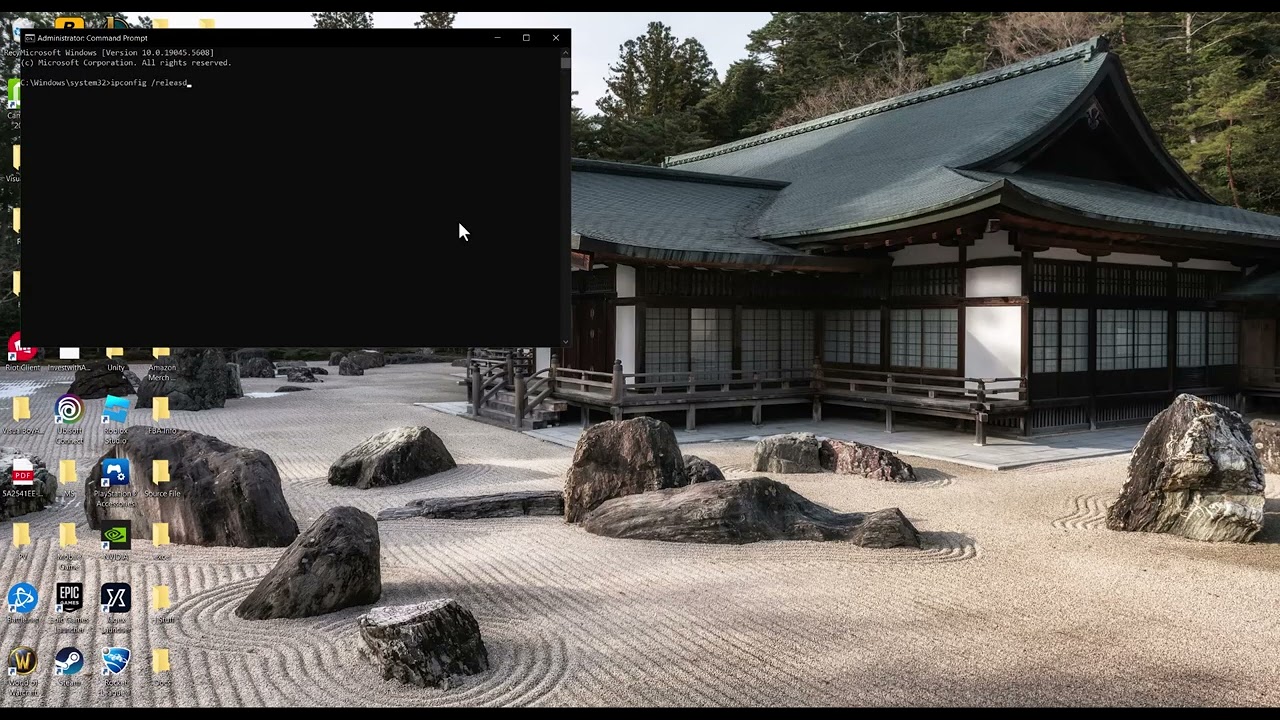
4. Release and renew the Windows IP address
- Select Start and type Command Prompt.
- Choose Run as administrator and approve the Windows prompt.
- Enter
ipconfig /releaseand press Enter. - Wait for the command to finish. The PC will temporarily lose its network address.
- Enter
ipconfig /renewand press Enter. - Enter
ipconfig /flushdnsand press Enter. - Restart Windows and test Ubisoft Connect.
Microsoft documents this sequence for Windows connection problems. Release and renew requests a fresh DHCP address, while flushdns clears cached name-resolution entries. If /renew reports that media is disconnected, reconnect the active Wi-Fi or Ethernet adapter and retry once.
5. Reset Winsock and TCP/IP if the basic renewal fails
Microsoft’s current network-troubleshooting sequence also includes the following administrator commands before a full Network reset:
- Run
netsh winsock reset. - Run
netsh int ip reset. - Restart Windows.
These commands reset Windows networking components used by applications. Do not run unrelated command lists from unverified websites.
6. Use Windows Network reset only as the last local step
- Open Settings > Network & internet > Advanced network settings.
- Select Network reset.
- Read the warning, then select Reset now.
- Allow Windows to restart, reconnect to the network, and test Ubisoft Connect.
Network reset removes installed network adapters and reinstalls them after restart. Microsoft warns that you may need to reinstall VPN client software or other virtual networking components afterward. The source video’s viewers reported that both the command sequence and this second method helped different systems, but neither is universal.
Why these fixes can work
Dolphin-028 can appear when Ubisoft Connect cannot establish the expected online session. A router restart clears temporary network state. IP renewal requests a fresh local address, DNS flushing removes stale resolver entries, and Winsock/TCP-IP resets rebuild Windows networking components. Network reset is more disruptive and therefore belongs at the end.
If Dolphin-028 still appears
- Update Ubisoft Connect from Ubisoft’s official installer.
- Confirm Windows date, time, and time zone are correct.
- Allow Ubisoft Connect and the affected game through the active firewall instead of disabling the firewall.
- Test a different trusted network briefly. If that works, contact the router manufacturer or internet provider.
- Contact Ubisoft Support with the code, affected game, launcher version, Windows version, connection type, and steps already completed.
Warnings and common mistakes
- Network reset can remove VPN adapters and custom networking software.
ipconfig /releaseintentionally disconnects the adapter until a renewal succeeds.- Do not permanently disable antivirus or Windows Firewall.
- Do not edit the registry or download a “Dolphin-028 repair tool.”
- Do not assume the error proves the game installation is damaged; test the connection and launcher first.
Optional network accessory
As an Amazon Associate I earn from qualifying purchases.
- Cable Matters Cat 6 Ethernet cable — useful for comparing a direct wired connection with unstable Wi-Fi.
Watch the original Moe Gaming walkthrough
Frequently asked questions
What does ipconfig /release do?
It gives up the adapter’s current DHCP address. The connection remains unavailable until ipconfig /renew obtains another address.
Will Network reset delete personal files?
It is designed to reset network adapters and settings, not personal documents. It can remove VPN or virtual-adapter configuration, so record those settings first.
Should I change DNS for Dolphin-028?
Only as a controlled fallback when DNS resolution appears unreliable. Start with Ubisoft status, a restart, and Microsoft’s supported network steps.
Why does Ubisoft Connect fail while websites work?
The launcher may have a stale session, blocked firewall rule, VPN/proxy conflict, or a route specific to Ubisoft services. A normal website test does not rule out those narrower causes.